Put the Lua chat widget on any page with one script tag and talk to your production agent from the browser
After this quickstart, end users on your site open a chat button and talk to your agent in production. You need an agent that is live in production (see Release an agent) and its agent ID, the agentId in lua.skill.yaml (see Project structure). The widget is a hosted script; there is no npm package to install.
1
Dashboard: allow your domain
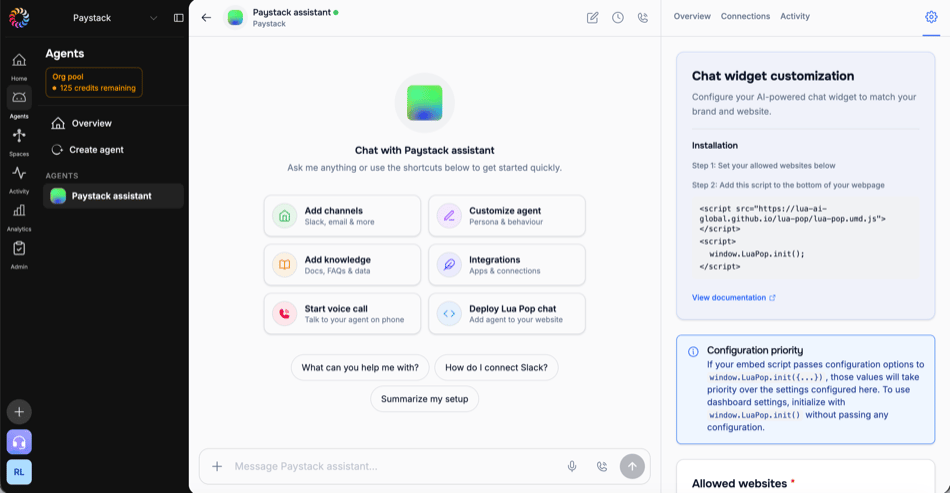
In the admin dashboard, open the agent, select the Settings gear at the right end of its tab bar, then Chat widget. Under Allowed websites, add each domain that loads the widget, for example www.example.com, then save with Create channel (Update configuration when the channel exists).The widget looks up admin dashboard settings by the hostname it loads on. A domain that isn’t listed gets none, and development hosts (localhost, 127.0.0.1, private IP addresses, and hosts ending in .local, .localhost, .test, .example, or .invalid) never do. Inline options work everywhere, including localhost, so this step only matters when the admin dashboard should control appearance: on a listed domain, window.LuaPop.init() with no arguments uses the admin dashboard settings alone, and anything you pass inline overrides them.
The Chat widget page: allowed websites, the install snippet, and the appearance settings
2
Code: add the script
Paste both tags before the closing </body> tag, with your agent ID.
Pass environment: "production" whenever you pass any option. The widget infers it only when admin dashboard settings are found for the domain; otherwise its built-in fallback points at an internal platform where your agent does not exist.
3
Browser: send a message
Load the page. A Chat with us button appears in the bottom-right corner; click it and send a message. The reply streams in from the production agent, with the same persona and skills that answer on every other channel, and the conversation resumes on the next visit from the same browser. The widget has no sandbox mode: to try unreleased code, use lua chat (see Test an agent before you release).
In the browser console, window.LuaPop.config.agentId prints your agent ID and window.LuaPop.config.environment prints production. If the button is missing, see Troubleshoot the widget.
Every option, its default, and what init() returns.
Style the widget
Theme, colors, button, and CSS inside the shadow root.
Track widget events
Forward opens and messages to your analytics.
Frameworks
Mount the widget once from a React, Vue, Angular, or Svelte component.
Troubleshooting
A missing button, a chat that won’t open, stale conversations, styling, and voice.
Channels
How the widget relates to WhatsApp, email, and the rest.
Was this page helpful?
{"docsConfig":{"theme":"mint","$schema":"https://mintlify.com/docs.json","name":"Lua CLI","colors":{"primary":"#ff173a","light":"#fe1052","dark":"#fe1052"},"logo":{"light":"https://mintcdn.com/luaglobal/UOJyCcnsFnLhTG7C/logo/light.png?fit=max\u0026auto=format\u0026n=UOJyCcnsFnLhTG7C\u0026q=85\u0026s=69c56f899e0ed6e1baf7e8af2844aeda","dark":"https://mintcdn.com/luaglobal/UOJyCcnsFnLhTG7C/logo/dark.png?fit=max\u0026auto=format\u0026n=UOJyCcnsFnLhTG7C\u0026q=85\u0026s=cd36baf234c6b37e1fe2a2018ba0a46c"},"favicon":"https://mintcdn.com/luaglobal/UOJyCcnsFnLhTG7C/favicon.png?fit=max\u0026auto=format\u0026n=UOJyCcnsFnLhTG7C\u0026q=85\u0026s=8e869fe65763f56356c86d09dcaaf9a6","navbar":{"links":[{"href":"mailto:[email protected]","label":"Support"}],"primary":{"type":"button","label":"Platform","href":"https://heylua.ai"}},"footer":{"socials":{"discord":"https://discord.gg/SRPEuwCzaD"}},"integrations":{"gtm":{"tagId":"GTM-P43XVQLH"}},"contextual":{"options":["copy","view","chatgpt","claude","cursor"],"display":"header"},"styling":{"latex":true},"navigation":{"pages":[]}},"deployment":{"deploymentMetadataValue":{"subdomain":"luaglobal","hasAudioNarration":false,"actualSubdomain":"luaglobal","customDomains":["docs.heylua.ai"],"gitSource":{"type":"github","owner":"lua-ai-global","repo":"lua-dev-docs","deployBranch":"main","contentDirectory":"","isPrivate":true,"mountPath":"","label":""},"chroma":{"liveDeploymentHistoryId":"6adf0f41ad3ed130d8d6e1f3","collectionId":"15becd0f-b9f5-4be0-8acb-907eaee5666a","schemaVersion":"v3","latestBuiltDeploymentHistoryId":"6adf0f41ad3ed130d8d6e1f3"},"feedback":{"thumbs":true},"entitlements":{},"buildId":"6ae107acab7f7e6e9a9f5d15","clientVersion":"0.0.3990","searchFilterCounts":[{"language":"default","tag":"Docs","count":178},{"language":"default","tag":"Reference","count":104},{"language":"default","tag":"CLI","count":42},{"language":"default","tag":"Channels","count":38},{"language":"default","tag":"SDK","count":38},{"language":"default","tag":"Build","count":30},{"language":"default","tag":"Concepts","count":26},{"language":"default","tag":"Primitives","count":25},{"language":"default","tag":"Ship logs to your stack","count":24},{"language":"default","tag":"REST API","count":24}]},"assistantConfig":{},"basePath":"","hasChatPermissions":false,"hasWebMcpPermissions":false,"toggles":[{"name":"kill-isr","enabled":true,"variant":{"name":"disabled","enabled":false,"feature_enabled":true},"impressionData":false},{"name":"agent-mintlify-slack","enabled":true,"variant":{"name":"disabled","enabled":false,"feature_enabled":true},"impressionData":false},{"name":"editor-v7-file-tree","enabled":true,"variant":{"name":"disabled","enabled":false,"feature_enabled":true},"impressionData":false},{"name":"agent-integrations-settings","enabled":true,"variant":{"name":"disabled","enabled":false,"feature_enabled":true},"impressionData":false},{"name":"automations-pr-grouping","enabled":true,"variant":{"name":"disabled","enabled":false,"feature_enabled":true},"impressionData":false},{"name":"custom-prefix","enabled":true,"variant":{"name":"disabled","enabled":false,"feature_enabled":true},"impressionData":false},{"name":"analytics-v7","enabled":true,"variant":{"name":"disabled","enabled":false,"feature_enabled":true},"impressionData":false},{"name":"user-flows-analytics","enabled":true,"variant":{"name":"disabled","enabled":false,"feature_enabled":true},"impressionData":false},{"name":"no-publish-flow","enabled":true,"variant":{"name":"disabled","enabled":false,"feature_enabled":true},"impressionData":false},{"name":"workos-onboarding","enabled":true,"variant":{"name":"disabled","enabled":false,"feature_enabled":true},"impressionData":false},{"name":"llms-txt-v2","enabled":true,"variant":{"name":"disabled","enabled":false,"feature_enabled":true},"impressionData":false},{"name":"pause-universal-search-reconcile","enabled":true,"variant":{"name":"disabled","enabled":false,"feature_enabled":true},"impressionData":false},{"name":"snapshot-serving-live","enabled":true,"variant":{"name":"disabled","enabled":false,"feature_enabled":true},"impressionData":false},{"name":"stripTemperatureMiddleware","enabled":true,"variant":{"name":"disabled","enabled":false,"feature_enabled":true},"impressionData":false},{"name":"per-site-search-delta","enabled":true,"variant":{"name":"disabled","enabled":false,"feature_enabled":true},"impressionData":false},{"name":"support-platform-pylon-zendesk","enabled":true,"variant":{"name":"disabled","enabled":false,"feature_enabled":true},"impressionData":false},{"name":"snapshot-serving","enabled":true,"variant":{"name":"disabled","enabled":false,"feature_enabled":true},"impressionData":false},{"name":"instant-rollback","enabled":true,"variant":{"name":"disabled","enabled":false,"feature_enabled":true},"impressionData":false},{"name":"granular-notifications-server","enabled":true,"variant":{"name":"disabled","enabled":false,"feature_enabled":true},"impressionData":false},{"name":"granular-notifications","enabled":true,"variant":{"name":"disabled","enabled":false,"feature_enabled":true},"impressionData":false},{"name":"editor-private-page-search","enabled":true,"variant":{"name":"disabled","enabled":false,"feature_enabled":true},"impressionData":false},{"name":"automations-fable","enabled":true,"variant":{"name":"disabled","enabled":false,"feature_enabled":true},"impressionData":false},{"name":"fixed-ai-action-pricing","enabled":true,"variant":{"name":"disabled","enabled":false,"feature_enabled":true},"impressionData":false},{"name":"automation-resolve-merge-conflict","enabled":true,"variant":{"name":"disabled","enabled":false,"feature_enabled":true},"impressionData":false},{"name":"scoped-publishing","enabled":true,"variant":{"name":"disabled","enabled":false,"feature_enabled":true},"impressionData":false},{"name":"mintql","enabled":true,"variant":{"name":"disabled","enabled":false,"feature_enabled":true},"impressionData":false},{"name":"page-level-analytics","enabled":true,"variant":{"name":"disabled","enabled":false,"feature_enabled":true},"impressionData":false},{"name":"editor-version-history-v2","enabled":true,"variant":{"name":"disabled","enabled":false,"feature_enabled":true},"impressionData":false},{"name":"editor-nav-generations","enabled":true,"variant":{"name":"disabled","enabled":false,"feature_enabled":true},"impressionData":false},{"name":"billing-page-v2","enabled":true,"variant":{"name":"disabled","enabled":false,"feature_enabled":true},"impressionData":false},{"name":"workspace-projects","enabled":true,"variant":{"name":"disabled","enabled":false,"feature_enabled":true},"impressionData":false},{"name":"assistant-v5","enabled":true,"variant":{"name":"disabled","enabled":false,"feature_enabled":true},"impressionData":false},{"name":"byok-sep-25","enabled":true,"variant":{"name":"disabled","enabled":false,"feature_enabled":true},"impressionData":false},{"name":"fork-pr-previews","enabled":true,"variant":{"name":"disabled","enabled":false,"feature_enabled":true},"impressionData":false},{"name":"revalidation-jwt","enabled":true,"variant":{"name":"disabled","enabled":false,"feature_enabled":true},"impressionData":false},{"name":"vite-origin","enabled":true,"variant":{"name":"disabled","enabled":false,"feature_enabled":true},"impressionData":false},{"name":"editor-agent-model-picker","enabled":true,"variant":{"name":"disabled","enabled":false,"feature_enabled":true},"impressionData":false},{"name":"billing-updated-9-15","enabled":true,"variant":{"name":"disabled","enabled":false,"feature_enabled":true},"impressionData":false},{"name":"workos-sso-scim","enabled":true,"variant":{"name":"disabled","enabled":false,"feature_enabled":true},"impressionData":false},{"name":"hobby-abuse-scan","enabled":true,"variant":{"name":"disabled","enabled":false,"feature_enabled":true},"impressionData":false},{"name":"dashboard-inbox","enabled":true,"variant":{"name":"disabled","enabled":false,"feature_enabled":true},"impressionData":false},{"name":"workos-signup","enabled":true,"variant":{"name":"disabled","enabled":false,"feature_enabled":true},"impressionData":false},{"name":"workos-enabled","enabled":true,"variant":{"name":"disabled","enabled":false,"feature_enabled":true},"impressionData":false}],"isAtlas":false,"googleFontsInlined":false},"customCss":[],"page":{"pagePath":"channels/web-widget/quickstart","slug":"/channels/web-widget/quickstart","pageMetadata":{"title":"Add the chat widget to your website","description":"Put the Lua chat widget on any page with one script tag and talk to your production agent from the browser","type":"quickstart","href":"/channels/web-widget/quickstart"},"description":{"compiledSource":"\"use strict\";\nconst {jsx: _jsx} = arguments[0];\nconst {useMDXComponents: _provideComponents} = arguments[0];\nfunction _createMdxContent(props) {\n const _components = {\n p: \"p\",\n ..._provideComponents(),\n ...props.components\n };\n return _jsx(_components.p, {\n children: \"Put the Lua chat widget on any page with one script tag and talk to your production agent from the browser\"\n });\n}\nfunction MDXContent(props = {}) {\n const {wrapper: MDXLayout} = {\n ..._provideComponents(),\n ...props.components\n };\n return MDXLayout ? _jsx(MDXLayout, {\n ...props,\n children: _jsx(_createMdxContent, {\n ...props\n })\n }) : _createMdxContent(props);\n}\nreturn {\n default: MDXContent\n};\n","frontmatter":{},"scope":{}},"pageType":"default","mdx":{"mdxSource":{"compiledSource":"\"use strict\";const{Fragment:_Fragment,jsx:_jsx,jsxs:_jsxs}=arguments[0];const{useMDXComponents:_provideComponents}=arguments[0];function _createMdxContent(props){const _components={a:`a`,code:`code`,p:`p`,pre:`pre`,span:`span`,strong:`strong`,..._provideComponents(),...props.components},{Card,Check,CodeBlock,Columns,Frame,Heading,OptimizedImage,Step,Steps}=_components;if(!Card)_missingMdxReference(`Card`,true);if(!Check)_missingMdxReference(`Check`,true);if(!CodeBlock)_missingMdxReference(`CodeBlock`,true);if(!Columns)_missingMdxReference(`Columns`,true);if(!Frame)_missingMdxReference(`Frame`,true);if(!Heading)_missingMdxReference(`Heading`,true);if(!OptimizedImage)_missingMdxReference(`OptimizedImage`,true);if(!Step)_missingMdxReference(`Step`,true);if(!Steps)_missingMdxReference(`Steps`,true);return _jsxs(_Fragment,{children:[_jsxs(_components.p,{children:[`After this quickstart, end users on your site open a chat button and talk to your `,_jsx(_components.a,{href:`/concepts/agents`,children:`agent`}),` in production. You need an agent that is live in production (see `,_jsx(_components.a,{href:`/ship/releasing`,children:`Release an agent`}),`) and its agent ID, the `,_jsx(_components.code,{children:`agentId`}),` in `,_jsx(_components.code,{children:`lua.skill.yaml`}),` (see `,_jsx(_components.a,{href:`/get-started/project-structure`,children:`Project structure`}),`). The widget is a hosted script; there is no npm package to install.`]}),`\n`,_jsxs(Steps,{children:[_jsxs(Step,{title:`Dashboard: allow your domain`,children:[_jsxs(_components.p,{children:[`In the `,_jsx(_components.a,{href:`https://admin.heylua.ai`,children:`admin dashboard`}),`, open the agent, select the `,_jsx(_components.strong,{children:`Settings`}),` gear at the right end of its tab bar, then `,_jsx(_components.strong,{children:`Chat widget`}),`. Under `,_jsx(_components.strong,{children:`Allowed websites`}),`, add each domain that loads the widget, for example `,_jsx(_components.code,{children:`www.example.com`}),`, then save with `,_jsx(_components.strong,{children:`Create channel`}),` (`,_jsx(_components.strong,{children:`Update configuration`}),` when the channel exists).`]}),_jsxs(_components.p,{children:[`The widget looks up admin dashboard settings by the hostname it loads on. A domain that isn’t listed gets none, and development hosts (`,_jsx(_components.code,{children:`localhost`}),`, `,_jsx(_components.code,{children:`127.0.0.1`}),`, private IP addresses, and hosts ending in `,_jsx(_components.code,{children:`.local`}),`, `,_jsx(_components.code,{children:`.localhost`}),`, `,_jsx(_components.code,{children:`.test`}),`, `,_jsx(_components.code,{children:`.example`}),`, or `,_jsx(_components.code,{children:`.invalid`}),`) never do. Inline options work everywhere, including `,_jsx(_components.code,{children:`localhost`}),`, so this step only matters when the admin dashboard should control appearance: on a listed domain, `,_jsx(_components.code,{children:`window.LuaPop.init()`}),` with no arguments uses the admin dashboard settings alone, and anything you pass inline overrides them.`]}),_jsx(Frame,{caption:`The Chat widget page: allowed websites, the install snippet, and the appearance settings`,children:_jsx(OptimizedImage,{src:`https://mintcdn.com/luaglobal/5airD3u2P6mv3Ovl/images/channels/admin-widget-customization.png?fit=max\u0026auto=format\u0026n=5airD3u2P6mv3Ovl\u0026q=85\u0026s=0946122dad269fc855e4256a9619a839`,alt:`Chat widget customization panel in the admin dashboard`,\"data-og-width\":`950`,width:`950`,\"data-og-height\":`493`,height:`493`,\"data-path\":`images/channels/admin-widget-customization.png`,\"data-optimize\":`true`,\"data-opv\":`3`,srcset:`https://mintcdn.com/luaglobal/5airD3u2P6mv3Ovl/images/channels/admin-widget-customization.png?w=280\u0026fit=max\u0026auto=format\u0026n=5airD3u2P6mv3Ovl\u0026q=85\u0026s=3de4e7679bdaa8a9ee3f6eaafb5aacd2 280w, https://mintcdn.com/luaglobal/5airD3u2P6mv3Ovl/images/channels/admin-widget-customization.png?w=560\u0026fit=max\u0026auto=format\u0026n=5airD3u2P6mv3Ovl\u0026q=85\u0026s=4bf78574979d06d9695215d9bec02673 560w, https://mintcdn.com/luaglobal/5airD3u2P6mv3Ovl/images/channels/admin-widget-customization.png?w=840\u0026fit=max\u0026auto=format\u0026n=5airD3u2P6mv3Ovl\u0026q=85\u0026s=03b16e4b08adb63786fad1b6d7f9a7bb 840w, https://mintcdn.com/luaglobal/5airD3u2P6mv3Ovl/images/channels/admin-widget-customization.png?w=1100\u0026fit=max\u0026auto=format\u0026n=5airD3u2P6mv3Ovl\u0026q=85\u0026s=987294f7ea234cc23dfc7c9055d6bc74 1100w, https://mintcdn.com/luaglobal/5airD3u2P6mv3Ovl/images/channels/admin-widget-customization.png?w=1650\u0026fit=max\u0026auto=format\u0026n=5airD3u2P6mv3Ovl\u0026q=85\u0026s=1bb11722810c17ba15726a860aaab6cf 1650w, https://mintcdn.com/luaglobal/5airD3u2P6mv3Ovl/images/channels/admin-widget-customization.png?w=2500\u0026fit=max\u0026auto=format\u0026n=5airD3u2P6mv3Ovl\u0026q=85\u0026s=cae70fcaabda46c7a61eaf4944f77778 2500w`})})]}),_jsxs(Step,{title:`Code: add the script`,children:[_jsxs(_components.p,{children:[`Paste both tags before the closing `,_jsx(_components.code,{children:`\u003c/body>`}),` tag, with your agent ID.`]}),_jsx(CodeBlock,{filename:``,numberOfLines:`7`,language:`html`,children:_jsx(_components.pre,{className:`shiki shiki-themes github-light-default dark-plus`,style:{backgroundColor:`#ffffff`,\"--shiki-dark-bg\":`#0B0C0E`,color:`#1f2328`,\"--shiki-dark\":`#D4D4D4`},language:`html`,children:_jsxs(_components.code,{language:`html`,numberOfLines:`7`,children:[_jsxs(_components.span,{className:`line`,children:[_jsx(_components.span,{style:{color:`#1F2328`,\"--shiki-dark\":`#808080`},children:`\u003c`}),_jsx(_components.span,{style:{color:`#116329`,\"--shiki-dark\":`#569CD6`},children:`script`}),_jsx(_components.span,{style:{color:`#0550AE`,\"--shiki-dark\":`#9CDCFE`},children:` src`}),_jsx(_components.span,{style:{color:`#1F2328`,\"--shiki-dark\":`#D4D4D4`},children:`=`}),_jsx(_components.span,{style:{color:`#0A3069`,\"--shiki-dark\":`#CE9178`},children:`\"https://lua-ai-global.github.io/lua-pop/lua-pop.umd.js\"`}),_jsx(_components.span,{style:{color:`#1F2328`,\"--shiki-dark\":`#808080`},children:`>\u003c/`}),_jsx(_components.span,{style:{color:`#116329`,\"--shiki-dark\":`#569CD6`},children:`script`}),_jsx(_components.span,{style:{color:`#1F2328`,\"--shiki-dark\":`#808080`},children:`>`})]}),`\n`,_jsxs(_components.span,{className:`line`,children:[_jsx(_components.span,{style:{color:`#1F2328`,\"--shiki-dark\":`#808080`},children:`\u003c`}),_jsx(_components.span,{style:{color:`#116329`,\"--shiki-dark\":`#569CD6`},children:`script`}),_jsx(_components.span,{style:{color:`#1F2328`,\"--shiki-dark\":`#808080`},children:`>`})]}),`\n`,_jsxs(_components.span,{className:`line`,children:[_jsx(_components.span,{style:{color:`#1F2328`,\"--shiki-dark\":`#9CDCFE`},children:` window`}),_jsx(_components.span,{style:{color:`#1F2328`,\"--shiki-dark\":`#D4D4D4`},children:`.`}),_jsx(_components.span,{style:{color:`#1F2328`,\"--shiki-dark\":`#9CDCFE`},children:`LuaPop`}),_jsx(_components.span,{style:{color:`#1F2328`,\"--shiki-dark\":`#D4D4D4`},children:`.`}),_jsx(_components.span,{style:{color:`#8250DF`,\"--shiki-dark\":`#DCDCAA`},children:`init`}),_jsx(_components.span,{style:{color:`#1F2328`,\"--shiki-dark\":`#D4D4D4`},children:`({`})]}),`\n`,_jsxs(_components.span,{className:`line`,children:[_jsx(_components.span,{style:{color:`#1F2328`,\"--shiki-dark\":`#9CDCFE`},children:` agentId:`}),_jsx(_components.span,{style:{color:`#0A3069`,\"--shiki-dark\":`#CE9178`},children:` \"agent_abc123\"`}),_jsx(_components.span,{style:{color:`#1F2328`,\"--shiki-dark\":`#D4D4D4`},children:`,`})]}),`\n`,_jsxs(_components.span,{className:`line`,children:[_jsx(_components.span,{style:{color:`#1F2328`,\"--shiki-dark\":`#9CDCFE`},children:` environment:`}),_jsx(_components.span,{style:{color:`#0A3069`,\"--shiki-dark\":`#CE9178`},children:` \"production\"`})]}),`\n`,_jsx(_components.span,{className:`line`,children:_jsx(_components.span,{style:{color:`#1F2328`,\"--shiki-dark\":`#D4D4D4`},children:` });`})}),`\n`,_jsxs(_components.span,{className:`line`,children:[_jsx(_components.span,{style:{color:`#1F2328`,\"--shiki-dark\":`#808080`},children:`\u003c/`}),_jsx(_components.span,{style:{color:`#116329`,\"--shiki-dark\":`#569CD6`},children:`script`}),_jsx(_components.span,{style:{color:`#1F2328`,\"--shiki-dark\":`#808080`},children:`>`})]}),`\n`]})})}),_jsxs(_components.p,{children:[`Pass `,_jsx(_components.code,{children:`environment: \"production\"`}),` whenever you pass any option. The widget infers it only when admin dashboard settings are found for the domain; otherwise its built-in fallback points at an internal platform where your agent does not exist.`]})]}),_jsx(Step,{title:`Browser: send a message`,children:_jsxs(_components.p,{children:[`Load the page. A `,_jsx(_components.strong,{children:`Chat with us`}),` button appears in the bottom-right corner; click it and send a message. The reply streams in from the production agent, with the same persona and skills that answer on every other `,_jsx(_components.a,{href:`/concepts/channels`,children:`channel`}),`, and the conversation resumes on the next visit from the same browser. The widget has no sandbox mode: to try unreleased code, use `,_jsx(_components.code,{children:`lua chat`}),` (see `,_jsx(_components.a,{href:`/ship/testing`,children:`Test an agent before you release`}),`).`]})})]}),`\n`,_jsx(Check,{children:_jsxs(_components.p,{children:[`In the browser console, `,_jsx(_components.code,{children:`window.LuaPop.config.agentId`}),` prints your agent ID and `,_jsx(_components.code,{children:`window.LuaPop.config.environment`}),` prints `,_jsx(_components.code,{children:`production`}),`. If the button is missing, see `,_jsx(_components.a,{href:`/channels/web-widget/troubleshooting`,children:`Troubleshoot the widget`}),`.`]})}),`\n`,_jsx(Heading,{level:`2`,id:`next-steps`,children:`Next steps`}),`\n`,_jsxs(Columns,{cols:2,children:[_jsxs(Card,{title:`Widget configuration`,href:`/channels/web-widget/configuration`,children:[`Every option, its default, and what `,_jsx(_components.code,{children:`init()`}),` returns.`]}),_jsx(Card,{title:`Style the widget`,href:`/channels/web-widget/styling`,children:`Theme, colors, button, and CSS inside the shadow root.`}),_jsx(Card,{title:`Track widget events`,href:`/channels/web-widget/events-and-analytics`,children:`Forward opens and messages to your analytics.`}),_jsx(Card,{title:`Frameworks`,href:`/channels/web-widget/frameworks`,children:`Mount the widget once from a React, Vue, Angular, or Svelte component.`})]}),`\n`,_jsxs(Columns,{cols:2,children:[_jsx(Card,{title:`Troubleshooting`,href:`/channels/web-widget/troubleshooting`,children:`A missing button, a chat that won’t open, stale conversations, styling, and voice.`}),_jsx(Card,{title:`Channels`,href:`/concepts/channels`,children:`How the widget relates to WhatsApp, email, and the rest.`})]})]})}function MDXContent(props={}){const{wrapper:MDXLayout}={..._provideComponents(),...props.components};return MDXLayout?_jsx(MDXLayout,{...props,children:_jsx(_createMdxContent,{...props})}):_createMdxContent(props)}return{default:MDXContent};function _missingMdxReference(id,component){throw new Error(`Expected `+(component?`component`:`object`)+\" `\"+id+\"` to be defined: you likely forgot to import, pass, or provide it.\")}","frontmatter":{},"scope":{"config":{},"pageMetadata":{"title":"Add the chat widget to your website","description":"Put the Lua chat widget on any page with one script tag and talk to your production agent from the browser","type":"quickstart","href":"/channels/web-widget/quickstart"}}},"mdxSourceWithNoJs":null},"mdxExtracts":{"tableOfContents":[{"title":"Next steps","slug":"next-steps","depth":2,"children":[]}],"codeExamples":{}},"jsLinks":[],"subdomain":"luaglobal","siteName":"Lua CLI","title":"Add the chat widget to your website - Lua CLI","navMaps":{"firstHrefInVersion":{},"firstHrefInLanguage":{}},"lastModified":"2026-09-13T08:09:47.429Z","originalFileLocation":"channels/web-widget/quickstart.mdx"},"headHtml":"\u003cscript data-mint-head>(function(){var d=document.documentElement,p=null;if(!p){try{p=localStorage.getItem(\"isDarkMode\")}catch(e){}if(p==='true')p='dark';else if(p==='false')p='light';if(p!=='light'\u0026\u0026p!=='dark'\u0026\u0026p!=='system')p=\"system\"}var r=p==='system'?(matchMedia(\"(prefers-color-scheme: dark)\").matches?'dark':'light'):p;d.classList.remove(r==='dark'?'light':'dark');d.classList.add(r);d.setAttribute(\"data-theme-preference\",p)})();\u003c/script>\u003cmeta data-mint-head name=\"description\" content=\"Put the Lua chat widget on any page with one script tag and talk to your production agent from the browser\">\u003cmeta data-mint-head name=\"application-name\" content=\"Lua CLI\">\u003cmeta data-mint-head name=\"generator\" content=\"Mintlify\">\u003clink data-mint-head rel=\"icon\" type=\"image/png\" sizes=\"192x192\" href=\"/mintlify-assets/_mintlify/favicons/luaglobal/J64lPDADMxYATwfp/_generated/favicon/android-chrome-192x192.png\" media=\"(prefers-color-scheme: light)\">\u003clink data-mint-head rel=\"apple-touch-icon\" type=\"image/png\" sizes=\"180x180\" href=\"/mintlify-assets/_mintlify/favicons/luaglobal/J64lPDADMxYATwfp/_generated/favicon/apple-touch-icon.png\">\u003clink data-mint-head rel=\"icon\" type=\"image/png\" sizes=\"16x16\" href=\"/mintlify-assets/_mintlify/favicons/luaglobal/J64lPDADMxYATwfp/_generated/favicon/favicon-16x16.png\" media=\"(prefers-color-scheme: light)\">\u003clink data-mint-head rel=\"icon\" type=\"image/png\" sizes=\"32x32\" href=\"/mintlify-assets/_mintlify/favicons/luaglobal/J64lPDADMxYATwfp/_generated/favicon/favicon-32x32.png\" media=\"(prefers-color-scheme: light)\">\u003clink data-mint-head rel=\"shortcut icon\" type=\"image/x-icon\" href=\"/mintlify-assets/_mintlify/favicons/luaglobal/J64lPDADMxYATwfp/_generated/favicon/favicon.ico\" media=\"(prefers-color-scheme: light)\">\u003clink data-mint-head rel=\"icon\" type=\"image/png\" sizes=\"192x192\" href=\"/mintlify-assets/_mintlify/favicons/luaglobal/J64lPDADMxYATwfp/_generated/favicon-dark/android-chrome-192x192.png\" media=\"(prefers-color-scheme: dark)\">\u003clink data-mint-head rel=\"icon\" type=\"image/png\" sizes=\"16x16\" href=\"/mintlify-assets/_mintlify/favicons/luaglobal/J64lPDADMxYATwfp/_generated/favicon-dark/favicon-16x16.png\" media=\"(prefers-color-scheme: dark)\">\u003clink data-mint-head rel=\"icon\" type=\"image/png\" sizes=\"32x32\" href=\"/mintlify-assets/_mintlify/favicons/luaglobal/J64lPDADMxYATwfp/_generated/favicon-dark/favicon-32x32.png\" media=\"(prefers-color-scheme: dark)\">\u003clink data-mint-head rel=\"shortcut icon\" type=\"image/x-icon\" href=\"/mintlify-assets/_mintlify/favicons/luaglobal/J64lPDADMxYATwfp/_generated/favicon-dark/favicon.ico\" media=\"(prefers-color-scheme: dark)\">\u003cmeta data-mint-head property=\"og:title\" content=\"Add the chat widget to your website - Lua CLI\">\u003cmeta data-mint-head property=\"og:description\" content=\"Put the Lua chat widget on any page with one script tag and talk to your production agent from the browser\">\u003cmeta data-mint-head property=\"og:site_name\" content=\"Lua CLI\">\u003cmeta data-mint-head property=\"og:url\" content=\"https://docs.heylua.ai/channels/web-widget/quickstart\">\u003cmeta data-mint-head property=\"og:type\" content=\"website\">\u003cmeta data-mint-head property=\"og:image\" content=\"https://luaglobal.mintlify.app/_mintlify/api/og/v2?division=Web+widget\u0026amp;title=Add+the+chat+widget+to+your+website\u0026amp;description=Put+the+Lua+chat+widget+on+any+page+with+one+script+tag+and+talk+to+your+production+agent+from+the+browser\u0026amp;theme=a3f5381ffcff7cb3f7370a15\u0026amp;signature=a8e88bd3d02c540a364058ad829ca24c375b7afde58af210d9baddc21c0cab1b\">\u003cmeta data-mint-head property=\"og:image:width\" content=\"1200\">\u003cmeta data-mint-head property=\"og:image:height\" content=\"630\">\u003cmeta data-mint-head name=\"twitter:card\" content=\"summary_large_image\">\u003cmeta data-mint-head name=\"twitter:title\" content=\"Add the chat widget to your website - Lua CLI\">\u003cmeta data-mint-head name=\"twitter:description\" content=\"Put the Lua chat widget on any page with one script tag and talk to your production agent from the browser\">\u003cmeta data-mint-head name=\"twitter:image\" content=\"https://luaglobal.mintlify.app/_mintlify/api/og/v2?division=Web+widget\u0026amp;title=Add+the+chat+widget+to+your+website\u0026amp;description=Put+the+Lua+chat+widget+on+any+page+with+one+script+tag+and+talk+to+your+production+agent+from+the+browser\u0026amp;theme=a3f5381ffcff7cb3f7370a15\u0026amp;signature=a8e88bd3d02c540a364058ad829ca24c375b7afde58af210d9baddc21c0cab1b\">\u003cmeta data-mint-head name=\"twitter:image:width\" content=\"1200\">\u003cmeta data-mint-head name=\"twitter:image:height\" content=\"630\">\u003cmeta data-mint-head name=\"msapplication-config\" content=\"/mintlify-assets/_mintlify/favicons/luaglobal/J64lPDADMxYATwfp/_generated/favicon/browserconfig.xml\">\u003cmeta data-mint-head name=\"apple-mobile-web-app-title\" content=\"Lua CLI\">\u003cmeta data-mint-head name=\"msapplication-TileColor\" content=\"#ff173a\">\u003clink data-mint-head rel=\"canonical\" href=\"https://docs.heylua.ai/channels/web-widget/quickstart\">\u003clink data-mint-head rel=\"alternate\" type=\"application/xml\" href=\"/sitemap.xml\">\u003clink data-mint-head rel=\"alternate\" type=\"text/markdown\" href=\"/channels/web-widget/quickstart.md\">\u003cscript data-mint-head type=\"application/ld+json\">{\"@context\":\"https://schema.org\",\"@graph\":[{\"@type\":\"Organization\",\"@id\":\"https://docs.heylua.ai/#organization\",\"name\":\"Lua CLI\",\"url\":\"https://docs.heylua.ai\",\"logo\":{\"@type\":\"ImageObject\",\"url\":\"https://mintcdn.com/luaglobal/UOJyCcnsFnLhTG7C/logo/light.png?fit=max\u0026auto=format\u0026n=UOJyCcnsFnLhTG7C\u0026q=85\u0026s=69c56f899e0ed6e1baf7e8af2844aeda\"}},{\"@type\":\"WebSite\",\"@id\":\"https://docs.heylua.ai#website\",\"name\":\"Lua CLI\",\"url\":\"https://docs.heylua.ai\",\"publisher\":{\"@id\":\"https://docs.heylua.ai/#organization\"}},{\"@type\":\"WebPage\",\"@id\":\"https://docs.heylua.ai/channels/web-widget/quickstart#webpage\",\"url\":\"https://docs.heylua.ai/channels/web-widget/quickstart\",\"name\":\"Add the chat widget to your website\",\"description\":\"Put the Lua chat widget on any page with one script tag and talk to your production agent from the browser\",\"dateModified\":\"2026-09-13T08:09:47.429Z\",\"isPartOf\":{\"@id\":\"https://docs.heylua.ai#website\"},\"breadcrumb\":{\"@id\":\"https://docs.heylua.ai/channels/web-widget/quickstart#breadcrumb\"}},{\"@type\":\"BreadcrumbList\",\"@id\":\"https://docs.heylua.ai/channels/web-widget/quickstart#breadcrumb\",\"itemListElement\":[{\"@type\":\"ListItem\",\"position\":1,\"name\":\"Channels\",\"item\":\"https://docs.heylua.ai/channels/overview\"},{\"@type\":\"ListItem\",\"position\":2,\"name\":\"Add the chat widget to your website\",\"item\":\"https://docs.heylua.ai/channels/web-widget/quickstart\"}]},{\"@type\":[\"Article\",\"TechArticle\"],\"@id\":\"https://docs.heylua.ai/channels/web-widget/quickstart#article\",\"headline\":\"Add the chat widget to your website\",\"name\":\"Add the chat widget to your website\",\"description\":\"Put the Lua chat widget on any page with one script tag and talk to your production agent from the browser\",\"url\":\"https://docs.heylua.ai/channels/web-widget/quickstart\",\"mainEntityOfPage\":{\"@id\":\"https://docs.heylua.ai/channels/web-widget/quickstart#webpage\"},\"dateModified\":\"2026-09-13T08:09:47.429Z\",\"publisher\":{\"@id\":\"https://docs.heylua.ai/#organization\"},\"isPartOf\":{\"@id\":\"https://docs.heylua.ai#website\"}}]}\u003c/script>\u003cscript data-mint-head type=\"application/ld+json\">{\"@context\":\"https://schema.org\",\"@type\":\"WebSite\",\"name\":\"Lua CLI\",\"creator\":{\"@type\":\"Organization\",\"name\":\"Mintlify\",\"url\":\"https://mintlify.com\"}}\u003c/script>","siteName":"Lua CLI","nav":{"global":null,"tabs":[{"tab":"Docs","groups":[{"group":"Get started","pages":[{"title":"Lua documentation","href":""},{"title":"Install the CLI and sign in","href":"/get-started/install"},{"title":"Build and release your first agent","sidebarTitle":"Quickstart","href":"/get-started/quickstart"},{"title":"Build a support agent","href":"/get-started/build-an-agent"},{"title":"Project structure","href":"/get-started/project-structure"},{"title":"Choose a primitive","href":"/get-started/choose-a-primitive"},{"title":"For operators","href":"/get-started/for-operators"},{"title":"Glossary","href":"/get-started/glossary"}]},{"group":"Concepts","pages":[{"title":"Agents","href":"/concepts/agents"},{"title":"Skills and tools","href":"/concepts/skills-and-tools"},{"title":"Persona","href":"/concepts/persona"},{"title":"Models","href":"/concepts/models"},{"title":"Environments","href":"/concepts/environments"},{"title":"Releases and versions","href":"/concepts/releases-and-versions"},{"title":"Execution contexts","href":"/concepts/execution-contexts"},{"title":"Credentials","href":"/concepts/credentials"},{"title":"Organizations and roles","href":"/concepts/organizations-and-roles"},{"title":"Approvers and notifications for shared agents","href":"/concepts/shared-agent-approvers"},{"title":"Channels","href":"/concepts/channels"},{"title":"Webhooks","href":"/concepts/webhooks"},{"title":"Triggers","href":"/concepts/triggers"},{"title":"Jobs","href":"/concepts/jobs"},{"title":"Workflows","href":"/concepts/workflows"},{"title":"Web apps","href":"/concepts/apps"},{"title":"Processors","href":"/concepts/processors"},{"title":"MCP servers","href":"/concepts/mcp-servers"},{"title":"Knowledge and features","href":"/concepts/knowledge-and-features"},{"title":"Integrations","href":"/concepts/integrations"},{"title":"Devices","href":"/concepts/devices"},{"title":"Voice","href":"/concepts/voice"},{"title":"Spaces","href":"/concepts/spaces"},{"title":"Governance","href":"/concepts/governance"},{"title":"Security and data","href":"/concepts/security-and-data"},{"title":"Agent templates","href":"/concepts/agent-templates"}]},{"group":"Build","pages":[{"title":"Add a tool to a skill","href":"/build/add-a-tool"},{"title":"Write skill context","href":"/build/write-skill-context"},{"title":"Call your API from a tool","href":"/build/call-your-api"},{"title":"Let your agent handle OAuth","href":"/build/handle-oauth"},{"title":"Store and search data","href":"/build/store-and-search-data"},{"title":"Identify users","href":"/build/identify-users"},{"title":"Handle a webhook","href":"/build/handle-a-webhook"},{"title":"Create a trigger","href":"/build/create-a-trigger"},{"title":"Schedule a recurring job","href":"/build/schedule-a-job"},{"title":"Send proactive messages","href":"/build/send-proactive-messages"},{"title":"Add human handoff","href":"/build/add-human-handoff"},{"title":"Add knowledge","href":"/build/add-knowledge"},{"title":"Use an MCP server","href":"/build/use-an-mcp-server"},{"title":"Use the browser","href":"/build/use-the-browser"},{"title":"Add a processor","href":"/build/add-a-processor"},{"title":"Compose agents","href":"/build/compose-agents"},{"title":"Supervise another agent","href":"/build/supervise-agents"},{"group":"Workflows","pages":[{"title":"Build and run your first workflow","href":"/build/workflows/quickstart"},{"title":"Author a workflow","href":"/build/workflows/authoring"},{"title":"Add approvals and signals","href":"/build/workflows/approvals-and-signals"},{"title":"Operate workflow runs","href":"/build/workflows/operate-runs"},{"title":"Use the Job tier","href":"/build/workflows/job-tier"},{"title":"Stage agent changes from a coding step","href":"/build/workflows/stage-agent-changes"},{"title":"Declare connections in a workflow","href":"/build/workflows/connections"},{"title":"Schedule a workflow and set goals","href":"/build/workflows/goals-and-schedules"},{"title":"Watch schedule health","href":"/build/workflows/schedule-health"},{"title":"Test a workflow offline","href":"/build/workflows/test-offline"}]},{"group":"Apps","pages":[{"title":"Build and open your first web app","href":"/build/apps/quickstart"},{"title":"Write routes and pages for a web app","href":"/build/apps/routes-and-pages"},{"title":"Talk to the agent from your app","href":"/build/apps/agent-pane"}]}]},{"group":"Channels","pages":[{"title":"Channels","href":"/channels/overview"},{"title":"Test an agent on Lua's channels","href":"/channels/quick-testing"},{"title":"Connect WhatsApp","href":"/channels/whatsapp"},{"title":"Connect Facebook Messenger","href":"/channels/messenger"},{"title":"Connect Instagram","href":"/channels/instagram"},{"title":"Connect Slack","href":"/channels/slack"},{"title":"Slack permissions","href":"/channels/slack-permissions"},{"title":"Connect Microsoft Teams","href":"/channels/teams"},{"title":"Bring your own Azure Bot to Teams","href":"/channels/teams-byo-azure-bot"},{"title":"Teams permissions","href":"/channels/teams-permissions"},{"title":"Connect email","href":"/channels/email"},{"title":"SMS and phone numbers","href":"/channels/sms-and-phone-numbers"},{"title":"Voice calls","href":"/channels/voice-calls"},{"title":"RCS","href":"/channels/rcs"},{"title":"iMessage","href":"/channels/imessage"},{"title":"Front","href":"/channels/front"},{"title":"MessageBird","href":"/channels/messagebird"},{"title":"Meetings","description":"Send your agent into a Google Meet, Zoom, or Microsoft Teams meeting as a participant that listens, speaks, and summarizes","href":"/channels/meetings"},{"group":"Web widget","pages":[{"title":"Add the chat widget to your website","href":"/channels/web-widget/quickstart"},{"title":"Widget configuration","description":"Every window.LuaPop.init() option with its default, what init() returns, and how admin dashboard settings, inline options, and the stored session ID combine","href":"/channels/web-widget/configuration"},{"title":"Style the widget","href":"/channels/web-widget/styling"},{"title":"Track widget events","href":"/channels/web-widget/events-and-analytics"},{"title":"Add the widget to a React, Vue, Angular, or Svelte app","sidebarTitle":"Frameworks","href":"/channels/web-widget/frameworks"},{"title":"Voice chat in the widget","href":"/channels/web-widget/voice-chat"},{"title":"Troubleshoot the widget","href":"/channels/web-widget/troubleshooting"}]},{"group":"Response formatting","pages":[{"title":"Response formatting","href":"/channels/formatting/overview"},{"title":"Block syntax","href":"/channels/formatting/syntax"},{"title":"list-item","href":"/channels/formatting/list-item"},{"title":"horizontal-list-item","href":"/channels/formatting/horizontal-list-item"},{"title":"actions","href":"/channels/formatting/actions"},{"title":"links","href":"/channels/formatting/links"},{"title":"images","href":"/channels/formatting/images"},{"title":"documents","href":"/channels/formatting/documents"},{"title":"form","href":"/channels/formatting/form"},{"title":"payment","href":"/channels/formatting/payment"},{"title":"flow","href":"/channels/formatting/flow"},{"title":"navigate","href":"/channels/formatting/navigate"},{"title":"reaction","href":"/channels/formatting/reaction"}]}]},{"group":"Integrations","pages":[{"title":"Integrations","href":"/integrations/overview"},{"title":"Connect a Unified.to integration","href":"/integrations/connect"},{"title":"Subscribe to integration events","href":"/integrations/events"},{"title":"Manage integration MCP tools","href":"/integrations/mcp"},{"title":"Add a custom MCP server","href":"/integrations/custom-mcp-servers"},{"title":"Call an integration's API directly","href":"/integrations/passthrough"},{"title":"Shopify","href":"/integrations/shopify"},{"title":"WooCommerce","href":"/integrations/woocommerce"},{"title":"Square","href":"/integrations/square-ecommerce"},{"title":"Square Appointments","href":"/integrations/square-appointments"},{"title":"SimplyBook.me","href":"/integrations/simplybook"}]},{"group":"Devices","pages":[{"title":"Build your first device","sidebarTitle":"Start here","href":"/devices/quickstart"},{"title":"The device connection lifecycle","sidebarTitle":"How devices work","href":"/devices/how-it-works"},{"title":"Create a device credential","href":"/devices/credentials"},{"title":"Node device client","sidebarTitle":"Node client","href":"/devices/node-client"},{"title":"Python device client","sidebarTitle":"Python client","href":"/devices/python-client"},{"title":"MicroPython device client","sidebarTitle":"MicroPython client","href":"/devices/micropython-client"},{"title":"MQTT protocol","href":"/devices/mqtt-protocol"},{"title":"Expose device commands as tools","href":"/devices/commands-and-tools"},{"title":"Handle device triggers","href":"/devices/triggers"},{"title":"Upload files from a device","href":"/devices/cdn-uploads"},{"title":"Device reliability and limits","sidebarTitle":"Reliability and limits","href":"/devices/reliability-and-limits"},{"group":"Device examples","pages":[{"title":"Control a laptop from chat","sidebarTitle":"Laptop controller","href":"/devices/examples/mac-controller"},{"title":"Run a device on a Raspberry Pi Pico W","sidebarTitle":"Raspberry Pi Pico W","href":"/devices/examples/raspberry-pi-pico"},{"title":"Build a warehouse station","sidebarTitle":"Warehouse station","href":"/devices/examples/warehouse-inventory"},{"title":"Run a smart office with device groups","sidebarTitle":"Smart office","href":"/devices/examples/smart-office"},{"title":"Monitor a machine with a Pico W","sidebarTitle":"Factory monitor","href":"/devices/examples/industrial-sensor"}]}]},{"group":"Ship and operate","pages":[{"title":"Test an agent before you release","href":"/ship/testing"},{"title":"Release an agent to production","href":"/ship/releasing"},{"title":"Run the go-live checklist","href":"/ship/go-live-checklist"},{"title":"Automate releases in CI","sidebarTitle":"Automate with --ci","href":"/ship/ci-and-automation"},{"title":"Read logs and debug an agent","href":"/ship/logs-and-debugging"},{"title":"Back up and restore agent source","href":"/ship/backups-and-restore"},{"title":"Platform limits","href":"/ship/limits"},{"title":"Troubleshoot the CLI","href":"/ship/troubleshooting"}]},{"group":"Ship logs to your stack","pages":[{"title":"Ship logs to your stack","href":"/drains/overview"},{"title":"Event schema","href":"/drains/event-schema"},{"title":"Emit your own fields","href":"/drains/emit-your-own-fields"},{"title":"Delivery records","sidebarTitle":"delivery","href":"/drains/sources/delivery"},{"title":"Workflow audit records","sidebarTitle":"workflow-audit","href":"/drains/sources/workflow-audit"},{"title":"Generic HTTPS","href":"/drains/generic-https"},{"title":"OpenTelemetry","href":"/drains/opentelemetry"},{"title":"Datadog","href":"/drains/datadog"},{"title":"Better Stack","href":"/drains/better-stack"},{"title":"Splunk","href":"/drains/splunk"},{"title":"Grafana Loki","href":"/drains/loki"},{"title":"Axiom","href":"/drains/axiom"},{"title":"New Relic","href":"/drains/new-relic"},{"title":"Sumo Logic","href":"/drains/sumo-logic"},{"title":"Object storage","href":"/drains/object-storage"},{"title":"Verify signatures","href":"/drains/verify-signatures"},{"title":"Protecting your destination","href":"/drains/protecting-your-destination"},{"title":"Delivery guarantees","href":"/drains/delivery-guarantees"},{"title":"Drain notices","href":"/drains/notifications"},{"title":"Usage and plan quotas","href":"/drains/usage-and-quotas"},{"title":"Egress addresses and delivery policy","href":"/drains/egress"},{"title":"Datadog monitor pack","href":"/drains/packs/datadog-monitors"},{"title":"Grafana dashboard","href":"/drains/packs/grafana-dashboard"},{"title":"OpenTelemetry Collector config","href":"/drains/packs/otel-collector"}]},{"group":"Marketplace","pages":[{"title":"Marketplace","href":"/marketplace/overview"},{"title":"Publish an agent template","href":"/marketplace/publish-a-template"},{"title":"Template manifest","href":"/marketplace/manifest"},{"title":"Lifecycle hooks","href":"/marketplace/lifecycle-hooks"},{"title":"Lints and consent","href":"/marketplace/lints-and-consent"},{"title":"Install and apply a template","href":"/marketplace/install-and-apply"},{"title":"Check fleet health","href":"/marketplace/fleet-health"},{"title":"Publish and install marketplace skills","href":"/marketplace/skills"}]},{"group":"Build with AI","pages":[{"title":"Build a Lua agent with a coding assistant","sidebarTitle":"Overview","href":"/build-with-ai/overview"},{"title":"Add the docs MCP server to your coding assistant","sidebarTitle":"Docs MCP server","href":"/build-with-ai/docs-mcp"},{"title":"Build with the Claude Code plugin","sidebarTitle":"Claude Code plugin","href":"/build-with-ai/claude-code-plugin"}]},{"group":"Examples","pages":[{"title":"Examples","href":"/examples/overview"},{"title":"Customer support agent","href":"/examples/customer-support"},{"title":"E-commerce shopping agent","href":"/examples/ecommerce-assistant"},{"title":"Healthcare patient portal","href":"/examples/healthcare-portal"},{"title":"Door access over WhatsApp","href":"/examples/iot-door-assistant"},{"title":"Greenhouse relay control","href":"/examples/iot-smart-light"}]}]},{"tab":"Reference","pages":[{"title":"Reference","href":"/reference/sdk/overview"}]},{"tab":"Changelog","pages":[{"title":"Changelog","href":"/changelog"}]}]},"title":"Add the chat widget to your website - Lua CLI","buildId":"dpl_2oYXwqkEXirXBPk8wV1FtM5USFWi","deploymentId":"dpl_2oYXwqkEXirXBPk8wV1FtM5USFWi","dynamics":["07c022d89b","a74be98ba7"],"chunks":["Frame-BbYRHtLl.js","DynamicMarkdown-DN96a4Ur.js","zoom-image-lightbox-D7yRe3On.js","lightbox-handle-r17bVUz3.js"]}