Install the Lua plugin on your WordPress store to give your agent an hourly synced catalog, baskets, checkout links, and a storefront widget
Installing the Lua plugin on a WooCommerce store creates an agent that searches the store’s products, browses its categories, shows product details, builds a basket, and hands the end user a checkout link, on the storefront widget and every other channel. This is the catalog app; the Unified.to woocommerce integration type is a separate connection made with lua integrations connect --auth-method token (the only method lua integrations info woocommerce lists), described under Raw API access.Verified against lua-cli 3.33.0.Before you begin
A WordPress site with WooCommerce where you can install plugins.
A WooCommerce REST API key (WooCommerce › Settings › Advanced › REST API): the plugin registers your store with its consumer key and secret, which Lua validates against the store before creating the agent.
1
WordPress admin: install the plugin
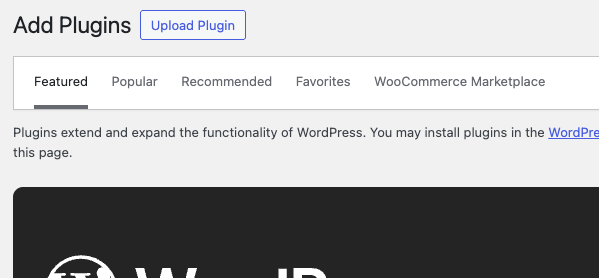
Download the plugin zip, lua-shopping-assistant.zip, or ask Lua support ([email protected]) for it, then in Plugins › Add Plugin select Upload Plugin, choose the file, select Install Now, and then Activate Plugin.
Upload Plugin on the Add Plugin page.
2
WordPress admin: register the store and switch on the widget
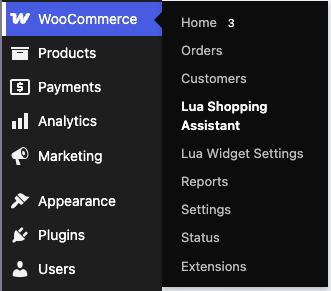
The plugin adds Lua Shopping Assistant and Lua Widget Settings to the WooCommerce menu. Registration sends the store name, URL, and REST API key to Lua, which validates them against your store, creates the agent and its organization, runs the first catalog sync, and turns the widget on (bottom left, titled after the store).
The plugin's entries in the WooCommerce menu.
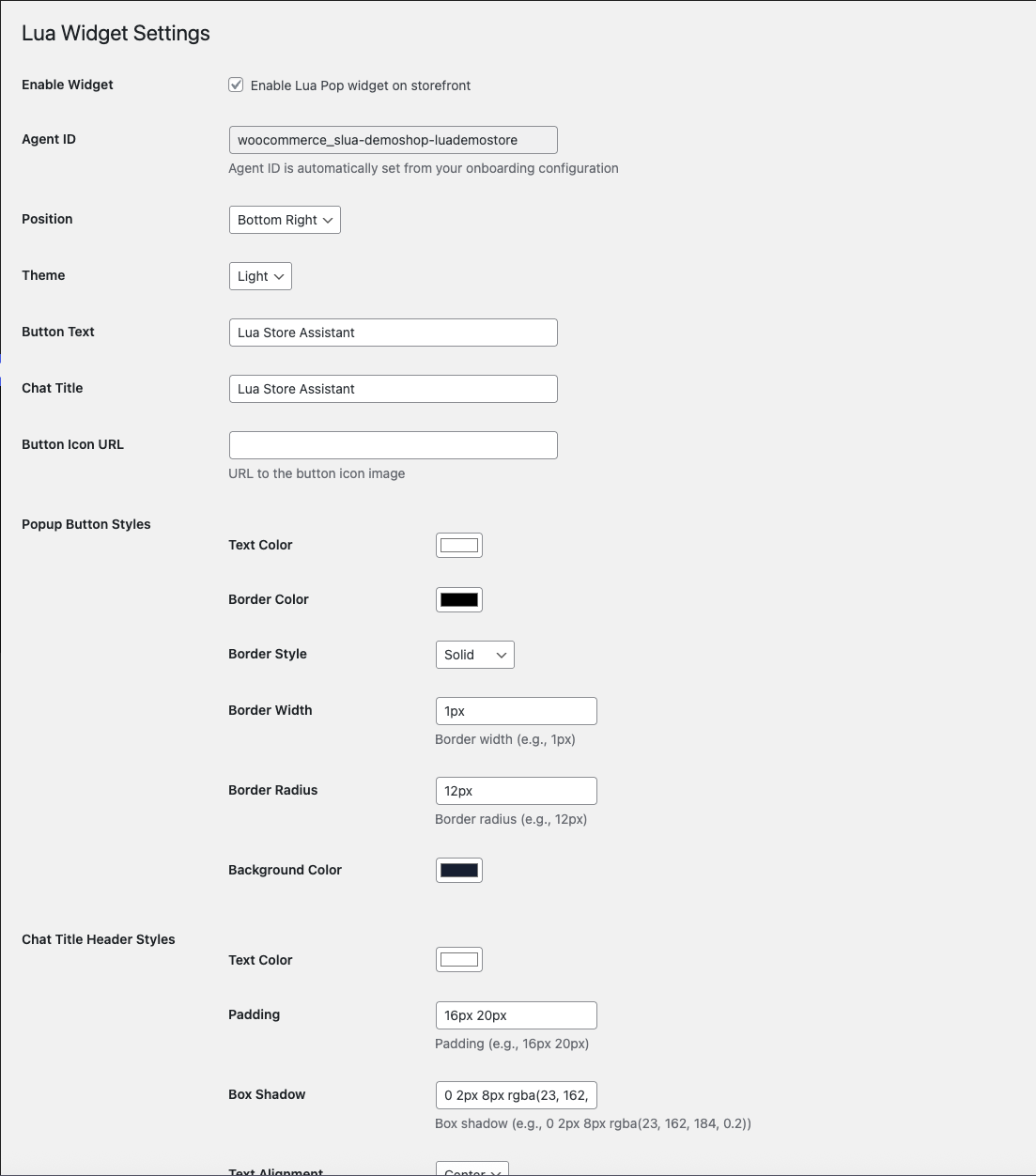
In Lua Widget Settings, tick Enable Lua Pop widget on storefront, set position and offsets, theme, button text, icon, and color, chat title, window size, and voice, and select Save Changes; the full option set is on Style the web widget.
Lua Widget Settings with the enable checkbox and appearance options.
3
Storefront: try it
Open the store, open the widget, and ask for a product or a category, for example “What do you have in the Gifts category?”. The agent lists categories, searches the synced catalog, sends product cards, and can add an item to the basket and return a checkout link.
Search products by description, get one product’s details, list the store’s categories, and send product cards.
Add to, remove from, show, and clear the end user’s basket (asking for the variation when a product has one), and check out: the agent creates the checkout on your store, returns its link for the end user, and records the order as pending.
The plugin doesn’t look up existing orders or shipments; add a tool for that (see Raw API access).
Products are fetched through the plugin’s REST endpoint every hour; without product webhooks, a change appears on the next refresh.
Products in stock are searchable; out-of-stock products are marked inactive.
A store with no conversation for 30 days stops refreshing until the next message arrives; a newly registered store always gets its first sync.
A 401, 402, 403, or 404 from the store pauses the sync for 24 hours; three in a row stop it until support restores it.
Your own tools read the same catalog through Products, and the baskets and checkouts through Baskets and Orders; the Shopify page shows a Products.search tool that works unchanged here. To add your own tools to this agent, run lua init --agent-id <id> in a new folder (find the ID with lua agents --json --ci), then follow Add a tool.
lua integrations connect --integration woocommerce --auth-method token connects a store through Unified.to with the REST API consumer key, consumer secret, and store URL, independently of the plugin: it provisions Unified.to’s commerce tools, four events (commerce_item.created, commerce_item.updated, commerce_itemvariant.created, commerce_itemvariant.updated), and Integrations.passthrough('woocommerce', …) for any WooCommerce REST endpoint. It doesn’t sync the catalog, fill Products or Baskets, or install the widget.
Registration validates the consumer key and secret against the store URL and refuses when the store doesn’t answer. Check the key is active and the URL is the site’s public address, then register again.
Products don't appear in chat
Out-of-stock products are inactive, and the first sync starts at registration and takes a while for a large catalog. Set the product in stock and try an exact product name.
Products stopped updating
The store was idle for 30 days, or it refused the sync (a 401, 402, 403, or 404 pauses it for 24 hours; three in a row stop it). A message to the agent re-arms an idle store; for a stopped sync, write to [email protected].