

Overview
The Flow component sends a WhatsApp Flow as an interactive message with a CTA button. When the user taps the button, a multi-screen form opens inside WhatsApp — they fill it in and submit it, all without leaving the chat. Flows are built in WhatsApp Manager (not in Lua). The agent just needs to know the Flow ID to send it.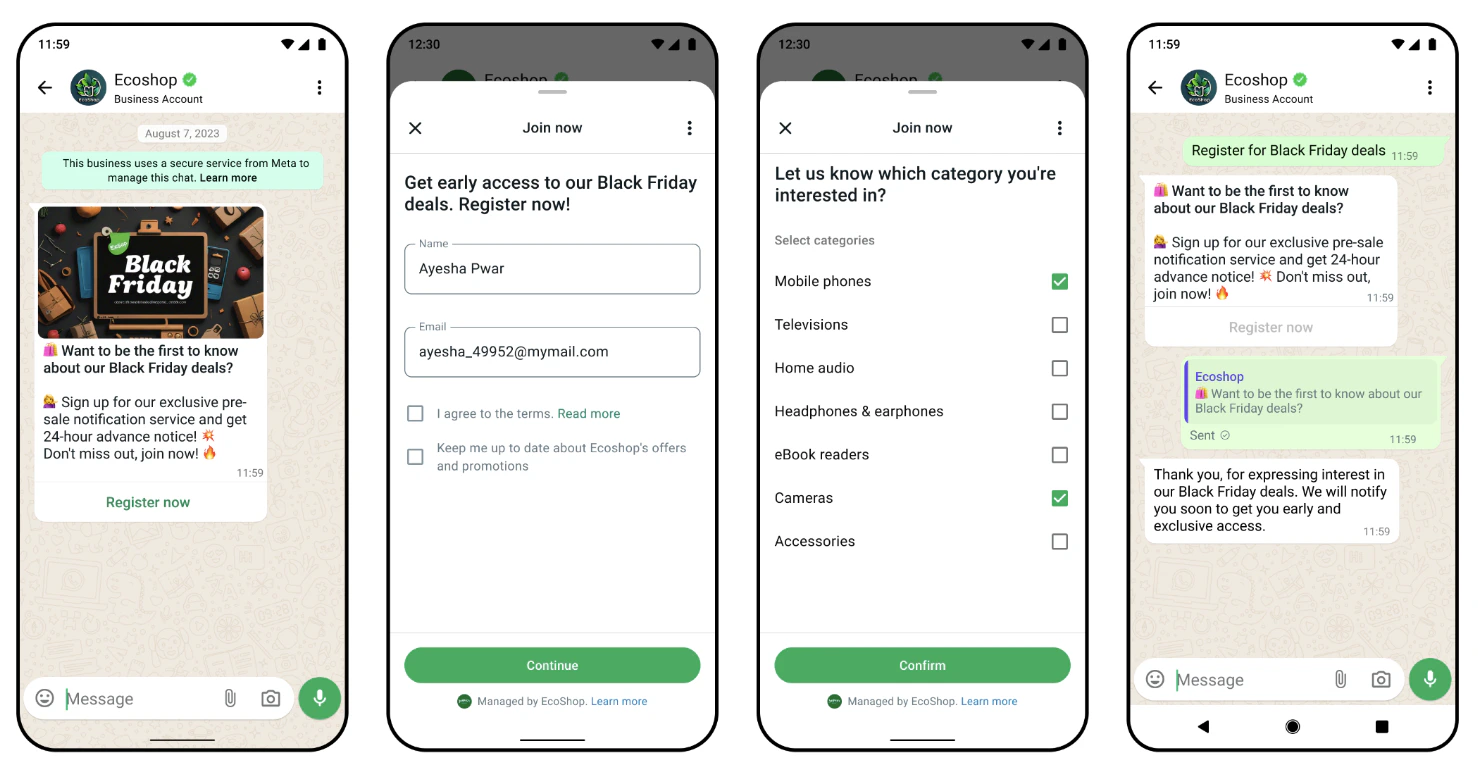
Format
Required Fields
Optional Fields
The parser is flexible on separators — it accepts
= or :, with or without spaces or quotes around values. All of these work:Examples
Simple — OTP / Password Entry
With Header and Footer
With Specific Start Screen
How the Response Works
When the user completes the flow and submits, the agent receives a message like:Password/passcode fields are automatically excluded from the WhatsApp chat summary UI (since Flows v5.1). However, the submitted values are still included in the webhook payload and will appear in the agent’s conversation history.
Handling Sensitive Data
WhatsApp hides password/passcode fields from the chat summary UI, but the raw values still arrive in the webhook and get stored in conversation history. There are two approaches depending on your security needs:Option A: Preprocessor masking (basic)
Use a preprocessor to mask sensitive fields before the agent sees the current message. Note that the original values may still appear in stored conversation history.Option B: Flow with endpoint (recommended for sensitive data)
For truly secure handling (OTP validation, password checks), use a flow with a data exchange endpoint. The sensitive data is validated server-side inside the flow before it closes. Thecomplete payload only sends the validation result (e.g., "otp_verified": true), so the raw value never reaches the agent or conversation history.
This requires setting up an encrypted endpoint — see WhatsApp Flows endpoint documentation for details.
Configure
Tell your agent in Persona or Skill Context which flow to use and when:Finding Your Flow ID
- Go to WhatsApp Manager > Account tools > Flows
- Click on your flow
- The Flow ID is shown in the URL or flow details
mode=draft.
Best For
- Appointment booking forms
- Lead generation & sign-up forms
- Customer feedback surveys
- Order details collection
- Any structured data collection that benefits from a form UI
- OTP / password / PIN entry (hidden from WhatsApp chat UI; for full security, use a flow with endpoint)