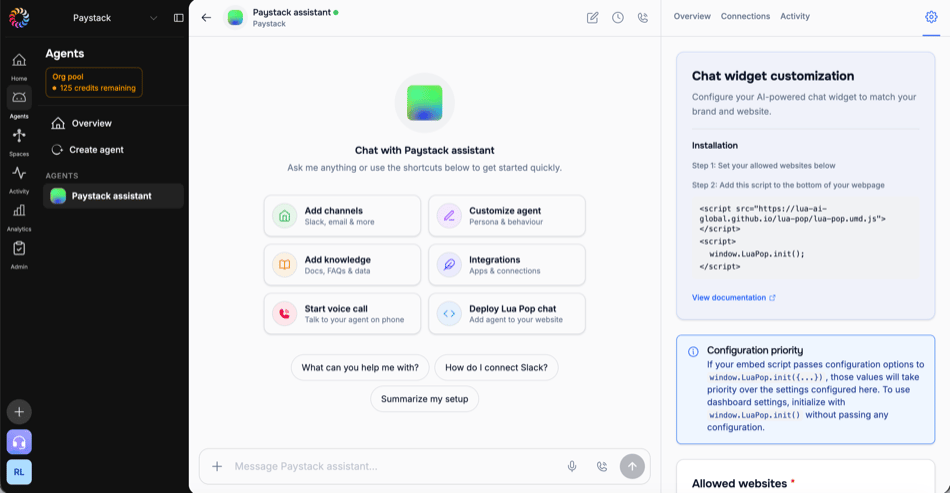
Installation Methods
CDN Script Quickest setup - no build process
NPM Package For modern frameworks and build tools
CDN Installation (Recommended)
Perfect for static websites, WordPress, Shopify, or any HTML page.
###Step 1: Add Script Tag
Add this code right before the closing </body> tag:
< script src = "https://lua-ai-global.github.io/lua-pop/lua-pop.umd.js" ></ script >
Step 2: Initialize
< script >
window . LuaPop . init ({
agentId: "your-agent-id" ,
position: "bottom-right" ,
});
</ script >
Complete Example
<! DOCTYPE html >
< html lang = "en" >
< head >
< meta charset = "UTF-8" >
< meta name = "viewport" content = "width=device-width, initial-scale=1.0" >
< title > My Website </ title >
</ head >
< body >
< h1 > Welcome to My Website </ h1 >
< p > Your content here... </ p >
<!-- LuaPop Chat Widget -->
< script src = "https://lua-ai-global.github.io/lua-pop/lua-pop.umd.js" ></ script >
< script >
window . LuaPop . init ({
agentId: "your-agent-id" ,
position: "bottom-right" ,
buttonText: "Chat with AI"
});
</ script >
</ body >
</ html >
NPM Installation
For React, Vue, Angular, or other modern frameworks.
Step 1: Install Package
Step 2: Import and Use
import { LuaPopWidget } from '@lua/pop' ;
import '@lua/pop/dist/style.css' ;
function App () {
return (
< div >
{ /* Your app content */ }
< LuaPopWidget
config = { {
agentId: "your-agent-id" ,
position: "bottom-right" ,
buttonText: "Chat with AI"
} }
apiUrl = "https://api.heylua.ai"
cdnUrl = "https://cdn.heylua.ai"
authUrl = "https://auth.heylua.ai"
/>
</ div >
);
}
< template >
< div >
<!-- Your app content -->
< LuaPopWidget : config = " chatConfig " />
</ div >
</ template >
< script setup >
import { LuaPopWidget } from '@lua/pop' ;
import '@lua/pop/dist/style.css' ;
const chatConfig = {
agentId: "your-agent-id" ,
position: "bottom-right" ,
};
</ script >
import { LuaPopWidget , LuaPopConfig } from '@lua/pop' ;
import '@lua/pop/dist/style.css' ;
const config : LuaPopConfig = {
agentId: "your-agent-id" ,
position: "bottom-right" ,
buttonText: "Chat with AI"
};
// Use in your framework
WordPress
Access Theme Editor
Go to Appearance → Theme File Editor
Edit footer.php
Find your theme’s footer.php file
Add Script
Add before </body>: < script src = "https://lua-ai-global.github.io/lua-pop/lua-pop.umd.js" ></ script >
< script >
window . LuaPop . init ({
agentId: "<?php echo get_option('luapop_agent_id'); ?>" ,
position: "bottom-right" ,
});
</ script >
Alternative: Use plugin like “Insert Headers and Footers” to add the script without editing theme files.
Shopify
Access Theme Editor
Go to Online Store → Themes → Edit code
Edit theme.liquid
Find theme.liquid in Layout folder
Add Script
Add before </body>: < script src = "https://lua-ai-global.github.io/lua-pop/lua-pop.umd.js" ></ script >
< script >
window . LuaPop . init ({
agentId: "your-agent-id" ,
chatTitle: "Shop Assistant" ,
buttonText: "🛍️ Shop Help" ,
position: "bottom-right" ,
});
</ script >
Save and Test
Click Save and view your store
Wix
Add Custom Code
Go to Settings → Custom Code
Add to Body End
Click + Add Custom Code → Body - end
Paste Code
< script src = "https://lua-ai-global.github.io/lua-pop/lua-pop.umd.js" ></ script >
< script >
window . LuaPop . init ({
agentId: "your-agent-id" ,
position: "bottom-right" ,
});
</ script >
Apply to All Pages
Select “All pages” and click Apply
Squarespace
Access Code Injection
Go to Settings → Advanced → Code Injection
Add to Footer
In the Footer section, add: < script src = "https://lua-ai-global.github.io/lua-pop/lua-pop.umd.js" ></ script >
< script >
window . LuaPop . init ({
agentId: "your-agent-id" ,
position: "bottom-right"
});
</ script >
Save
Click Save and your chat widget will appear on all pages
Webflow
Open Project Settings
Go to Project Settings → Custom Code
Add to Footer Code
Paste in Footer Code section: < script src = "https://lua-ai-global.github.io/lua-pop/lua-pop.umd.js" ></ script >
< script >
window . LuaPop . init ({
agentId: "your-agent-id" ,
position: "bottom-right"
});
</ script >
Publish
Publish your site to see the widget
Single Page Applications
React
// components/ChatWidget.tsx
import { useEffect } from 'react' ;
export default function ChatWidget () {
useEffect (() => {
// Load LuaPop script
const script = document . createElement ( 'script' );
script . src = 'https://lua-ai-global.github.io/lua-pop/lua-pop.umd.js' ;
script . onload = () => {
window . LuaPop ?. init ({
agentId: process . env . NEXT_PUBLIC_AGENT_ID ,
position: "bottom-right" ,
sessionId: `user- ${ Date . now () } `
});
};
document . body . appendChild ( script );
// Cleanup
return () => {
document . body . removeChild ( script );
};
}, []);
return null ;
}
// In your main App component
import ChatWidget from './components/ChatWidget' ;
function App () {
return (
< div >
{ /* Your app */ }
< ChatWidget />
</ div >
);
}
Next.js
// app/layout.tsx or pages/_app.tsx
import Script from 'next/script' ;
export default function RootLayout ({ children }) {
return (
< html >
< body >
{ children }
{ /* LuaPop Widget */ }
< Script
src = "https://lua-ai-global.github.io/lua-pop/lua-pop.umd.js"
strategy = "lazyOnload"
onLoad = { () => {
window . LuaPop ?. init ({
agentId: process . env . NEXT_PUBLIC_AGENT_ID ,
position: "bottom-right"
});
} }
/>
</ body >
</ html >
);
}
More Framework Examples Vue, Angular, Svelte, and more
Verification
Check Installation
Open your website and verify:
Chat Button Appears
Look for the chat button in your chosen position
Button Opens Chat
Click the button - chat window should open
Chat Responds
Send a test message - AI should respond
No Console Errors
Check browser console (F12) - no errors should appear
Browser Console Check
// Type this in browser console to verify LuaPop loaded
console . log ( window . LuaPop );
// Should show the LuaPop object
// Check current configuration
console . log ( window . LuaPop . config );
// Should show your configuration
Environment Variables
For different environments, use environment variables:
React/Next.js
Vue
Angular
# .env.local
NEXT_PUBLIC_AGENT_ID=your-agent-id
NEXT_PUBLIC_LUAPOP_ENV=production
window . LuaPop . init ({
agentId: process . env . NEXT_PUBLIC_AGENT_ID ,
environment: process . env . NEXT_PUBLIC_LUAPOP_ENV
});
# .env
VUE_APP_AGENT_ID=your-agent-id
VUE_APP_LUAPOP_ENV=production
window . LuaPop . init ({
agentId: process . env . VUE_APP_AGENT_ID ,
environment: process . env . VUE_APP_LUAPOP_ENV
});
// environment.ts
export const environment = {
agentId: 'your-agent-id' ,
luaPopEnv: 'production'
};
import { environment } from './environments/environment' ;
window . LuaPop . init ({
agentId: environment . agentId ,
environment: environment . luaPopEnv
});
Security Considerations
Never expose sensitive agent credentials in client-side code!
Best Practices
✅ Use environment-specific agent IDs
✅ Use staging environment for development
✅ Generate unique session IDs per user
✅ Don’t store user PII in runtimeContext
✅ Use HTTPS on your website
Example Secure Setup
window . LuaPop . init ({
agentId: process . env . LUAPOP_AGENT_ID , // From environment
environment: process . env . NODE_ENV === 'production' ? 'production' : 'staging' ,
sessionId: generateSecureSessionId (), // Your session logic
authToken: await getAuthToken () // If using authenticated users
});
Next Steps