> ## Documentation Index
> Fetch the complete documentation index at: https://docs.heylua.ai/llms.txt
> Use this file to discover all available pages before exploring further.
# Spaces
> Supervisor agents that coordinate multiple specialised agents in one conversation
## What is a Space?
A **Space** is a supervisor agent that coordinates a fleet of specialised agents within a single conversation. Instead of asking users to figure out which agent to talk to, a Space acts as the orchestrator: it reasons about the task, decides which supervised agent (or combination of agents) is best placed to handle it, delegates the work, and synthesises a coherent response back to the user.
A team lead for your agents — one conversation that knows when to bring in the weather expert, the bookings expert, or the support expert, and stitches their answers together.
Spaces solve **agent sprawl** — the common situation where an organisation builds many capable, specialised agents but has no single, coherent way for users to reach them. A Space gives users one entry point and handles the routing behind the scenes.
## Why use a Space?
Users talk to a single assistant instead of hopping between separate agents.
The Space picks the right specialist — or several in parallel — for each request.
Responses from multiple agents are synthesised into one clear reply.
See which agents were consulted, in what order, and how long each step took.
## How a Space works
```
User Message
↓
Space (supervisor agent)
↓ reasons about the task
Delegates to one or more supervised agents
↓
Weather-agent news-agent Travel Bookings
↓
Space synthesises a single coherent response
↓
Response to User
```
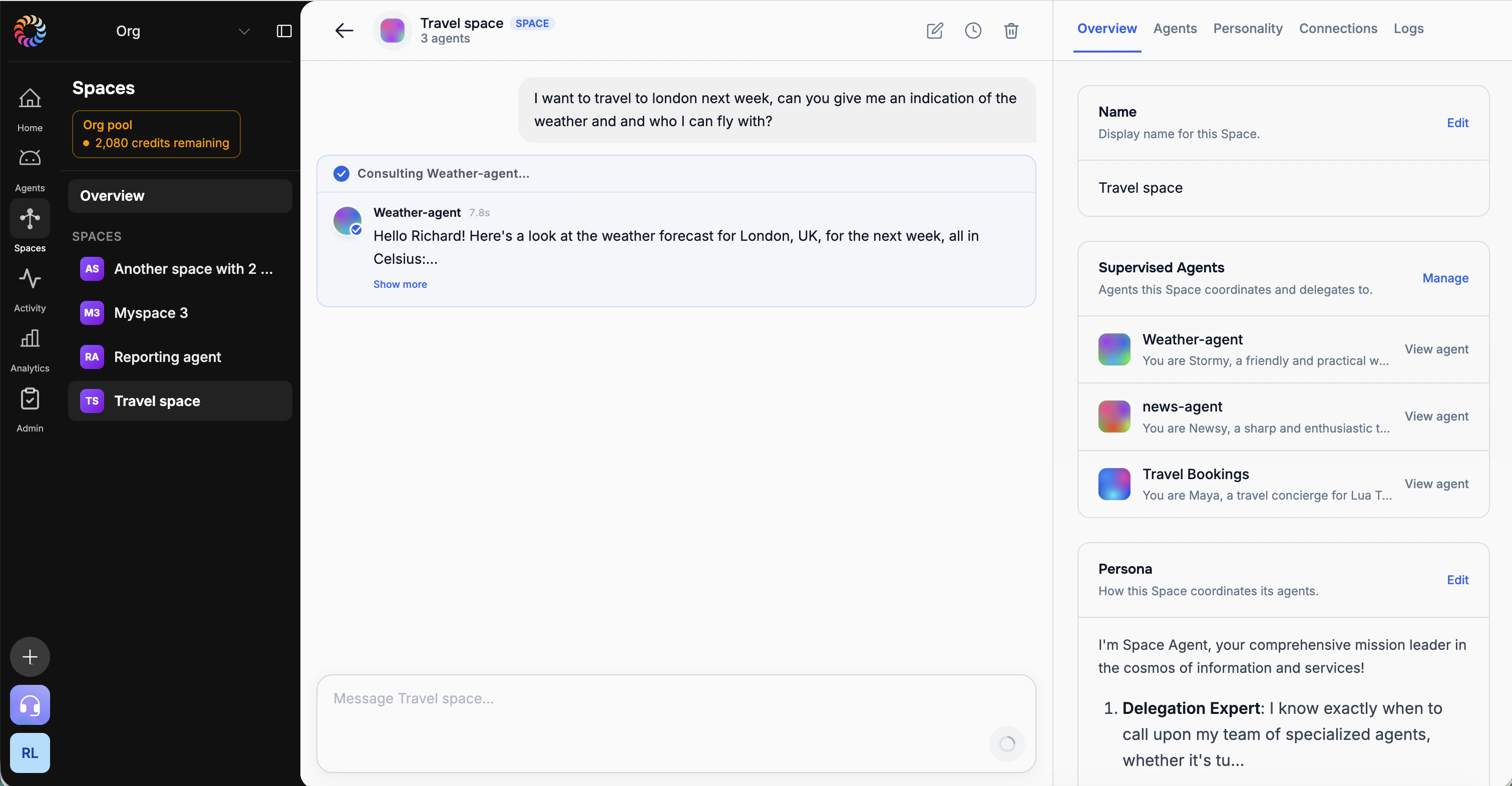
When a user asks, *"I want to travel to London next week, can you give me an indication of the weather and who I can fly with?"*, the Space consults the **Weather-agent** for the forecast and the **Travel Bookings** agent for flights, then combines the results into one answer. Each delegation is shown inline (e.g. *"Consulting Weather-agent…"*) so the decision chain is transparent.
 ## Where to find Spaces
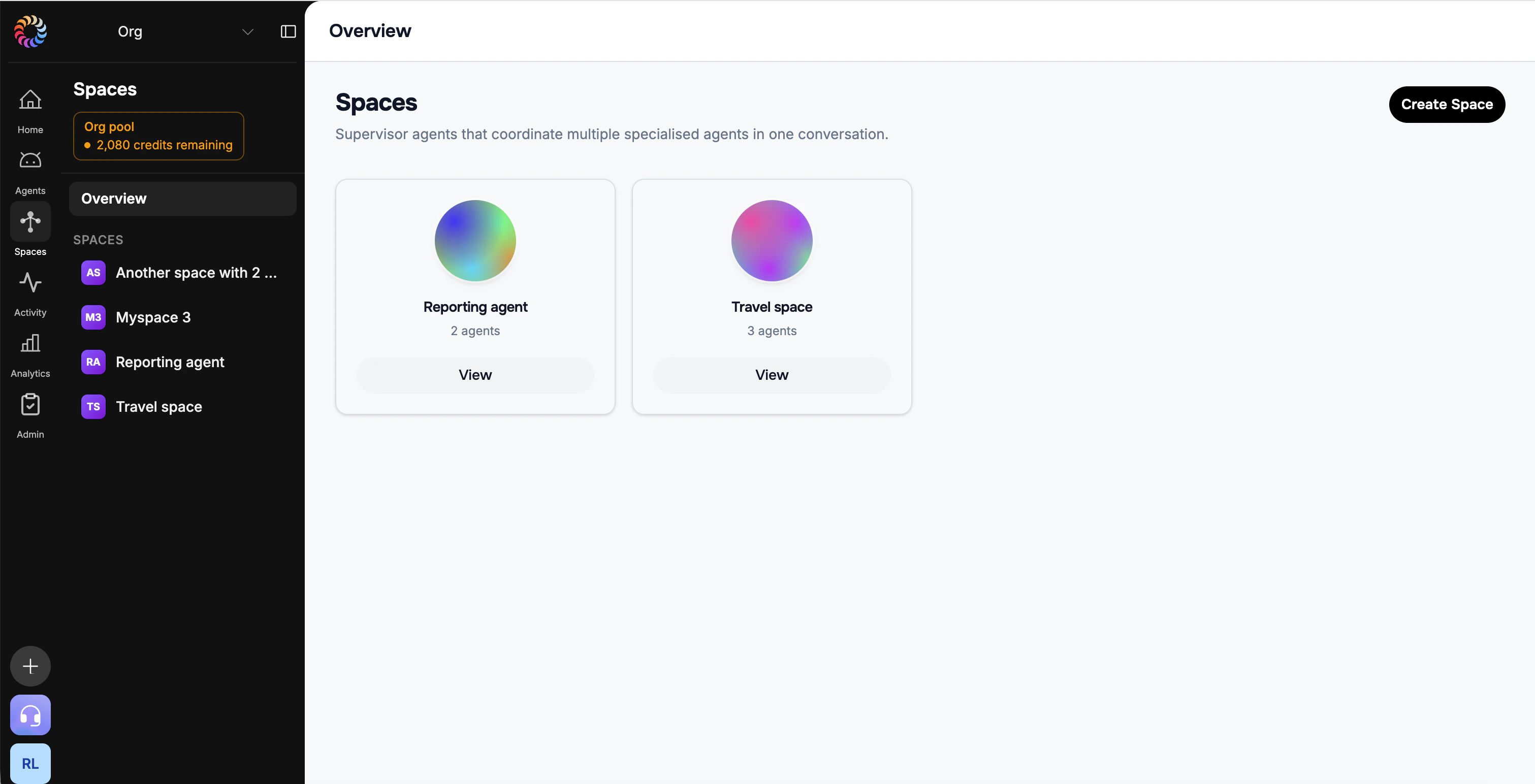
Spaces live in the **left-hand navigation of the admin dashboard**. Select **Spaces** to see an overview of every Space in your organisation, the agents each one coordinates, and a **Create Space** button.
## Where to find Spaces
Spaces live in the **left-hand navigation of the admin dashboard**. Select **Spaces** to see an overview of every Space in your organisation, the agents each one coordinates, and a **Create Space** button.
 ## Creating a Space
From the admin dashboard, select **Spaces** in the left-hand navigation, then click **Create Space** in the top right.
## Creating a Space
From the admin dashboard, select **Spaces** in the left-hand navigation, then click **Create Space** in the top right.
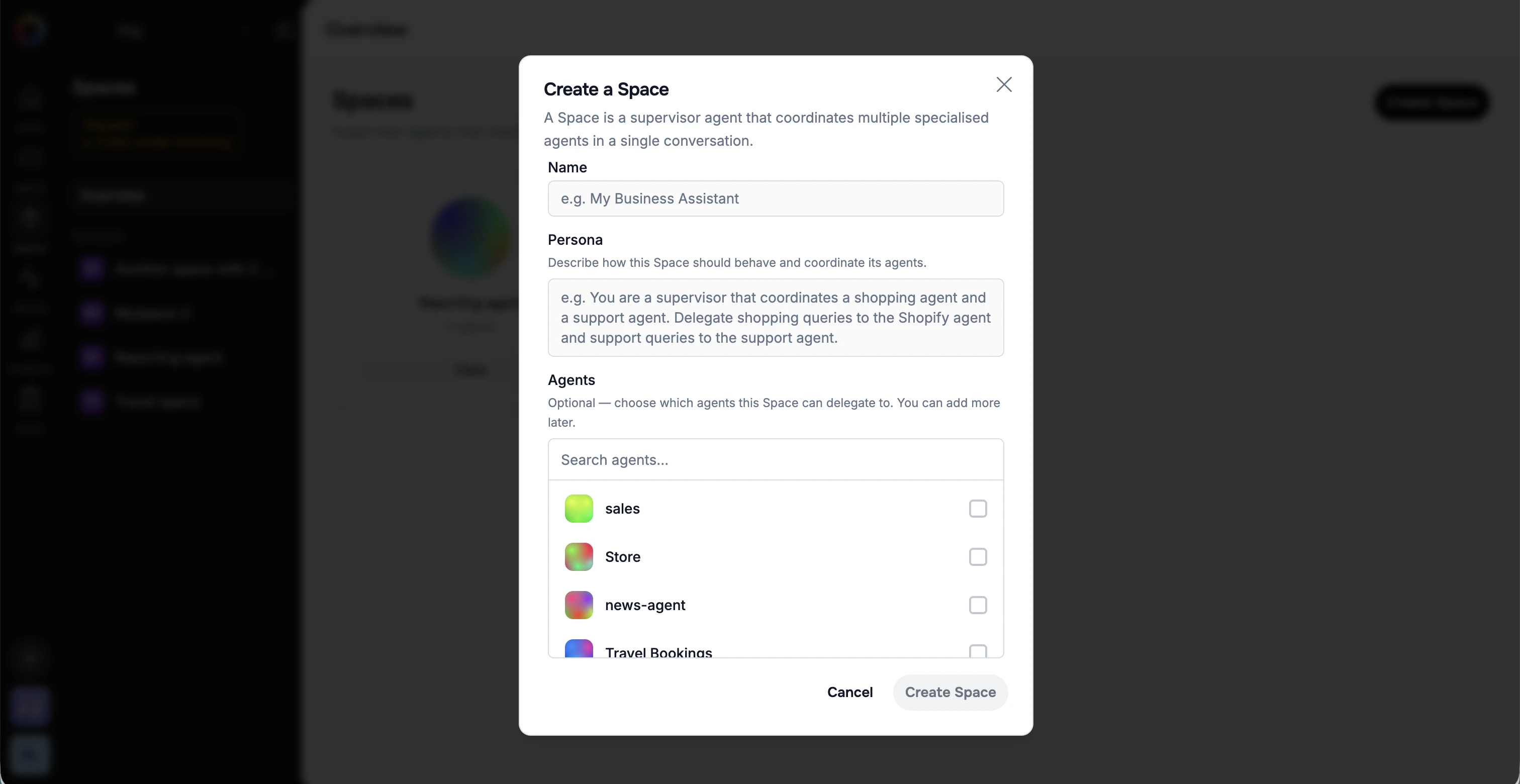 Give the Space a clear display name, e.g. *My Business Assistant* or *Travel space*. This is what appears in the sidebar and at the top of the chat.
Describe how the Space should behave and coordinate its agents. For example:
> You are a supervisor that coordinates a shopping agent and a support agent. Delegate shopping queries to the Shopify agent and support queries to the support agent.
The platform uses this persona, together with each agent's capabilities, to generate orchestration instructions automatically.
Choose which agents this Space can delegate to. Search for agents and tick the ones you want to include. This step is optional — you can add or remove supervised agents later.
As you add agents, the Space **automatically enriches its own persona** based on each agent's capabilities. It becomes aware of the new abilities it has gained — and knows when to delegate to them — without you having to describe each agent by hand. Add or remove a supervised agent later and the Space's understanding of what it can do updates to match.
Click **Create Space**. The Space is created and ready to chat with immediately.
## Managing a Space
Open a Space to chat with it and manage its configuration. The Space view is organised into tabs:
Give the Space a clear display name, e.g. *My Business Assistant* or *Travel space*. This is what appears in the sidebar and at the top of the chat.
Describe how the Space should behave and coordinate its agents. For example:
> You are a supervisor that coordinates a shopping agent and a support agent. Delegate shopping queries to the Shopify agent and support queries to the support agent.
The platform uses this persona, together with each agent's capabilities, to generate orchestration instructions automatically.
Choose which agents this Space can delegate to. Search for agents and tick the ones you want to include. This step is optional — you can add or remove supervised agents later.
As you add agents, the Space **automatically enriches its own persona** based on each agent's capabilities. It becomes aware of the new abilities it has gained — and knows when to delegate to them — without you having to describe each agent by hand. Add or remove a supervised agent later and the Space's understanding of what it can do updates to match.
Click **Create Space**. The Space is created and ready to chat with immediately.
## Managing a Space
Open a Space to chat with it and manage its configuration. The Space view is organised into tabs:
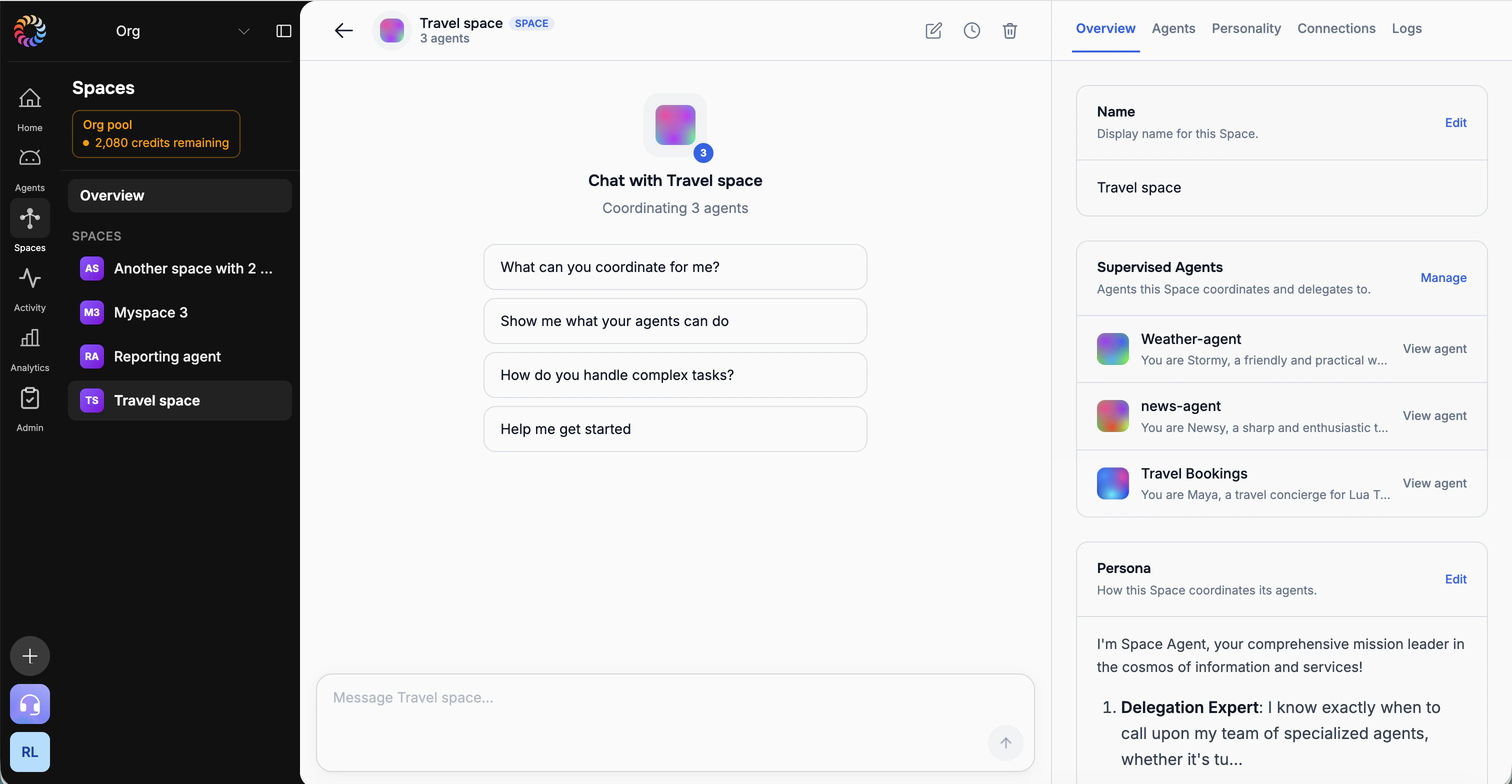 Edit the Space name and persona, and see the supervised agents at a glance.
Manage which agents the Space coordinates and delegates to.
Refine how the Space behaves and orchestrates its agents.
Connect the Space to channels and embed it where your users are.
Review conversations, track delegations, and inspect the full decision chain.
## Deploying a Space
A Space is deployed like any other agent. From the **Connections** tab you can:
* Embed the Space on your website with the chat widget
* Connect it to messaging channels such as WhatsApp or Slack
* Integrate via the HTTP API
* Offer it as a voice experience
Because the Space is the single front door to your specialists, your users get one consistent assistant across every channel — voice, text, or embedded web.
## A Space is an agent
At its core, a Space **is an agent**. Anywhere the platform accepts an `agentId`, you can pass a **Space ID** instead and it behaves like any other agent — with delegation handled for you behind the scenes.
### Finding your Space ID
Open the Space's detail page. The Space ID is the last segment of the URL, after `/spaces/`:
```
https://admin.heylua.ai/admin/spaces/
```
For example, if the URL is `.../admin/spaces/space_1234567890123_ab1cd2e`, then your Space ID is `space_1234567890123_ab1cd2e`.
### Use it anywhere an agentId is accepted
Pass the Space ID as the `agentId` parameter on any endpoint that takes one — including the streaming chat request.
Use the Space identifier as the `agentId` to embed your Space.
Connect and embed the Space exactly as you would a single agent.
Quickly test your Space by passing its ID as the `agentId`.
### Test it on the agent chat page
The fastest way to try a Space is the agent chat page — just use the Space ID as the `agentId`:
```
https://heylua.ai/agent?agentId=
```
Spaces are **coming soon to the `lua` CLI**. For now, create and manage Spaces in the [admin dashboard](https://admin.heylua.ai/admin/spaces), and use the Space ID wherever an `agentId` is accepted.
## Use cases
Weather, advisories, and bookings coordinated in one conversation.
Order tracking, returns, and product recommendations together.
Market data, news, portfolio analysis, and compliance screening.
Appointments, symptom triage, insurance, and follow-up coordination.
## Next steps
Learn how to build the specialised agents a Space coordinates.
Write effective personas for your Space and its agents.
Connect your Space to where your users already are.
Introducing Spaces — one conversation, many experts.
Edit the Space name and persona, and see the supervised agents at a glance.
Manage which agents the Space coordinates and delegates to.
Refine how the Space behaves and orchestrates its agents.
Connect the Space to channels and embed it where your users are.
Review conversations, track delegations, and inspect the full decision chain.
## Deploying a Space
A Space is deployed like any other agent. From the **Connections** tab you can:
* Embed the Space on your website with the chat widget
* Connect it to messaging channels such as WhatsApp or Slack
* Integrate via the HTTP API
* Offer it as a voice experience
Because the Space is the single front door to your specialists, your users get one consistent assistant across every channel — voice, text, or embedded web.
## A Space is an agent
At its core, a Space **is an agent**. Anywhere the platform accepts an `agentId`, you can pass a **Space ID** instead and it behaves like any other agent — with delegation handled for you behind the scenes.
### Finding your Space ID
Open the Space's detail page. The Space ID is the last segment of the URL, after `/spaces/`:
```
https://admin.heylua.ai/admin/spaces/
```
For example, if the URL is `.../admin/spaces/space_1234567890123_ab1cd2e`, then your Space ID is `space_1234567890123_ab1cd2e`.
### Use it anywhere an agentId is accepted
Pass the Space ID as the `agentId` parameter on any endpoint that takes one — including the streaming chat request.
Use the Space identifier as the `agentId` to embed your Space.
Connect and embed the Space exactly as you would a single agent.
Quickly test your Space by passing its ID as the `agentId`.
### Test it on the agent chat page
The fastest way to try a Space is the agent chat page — just use the Space ID as the `agentId`:
```
https://heylua.ai/agent?agentId=
```
Spaces are **coming soon to the `lua` CLI**. For now, create and manage Spaces in the [admin dashboard](https://admin.heylua.ai/admin/spaces), and use the Space ID wherever an `agentId` is accepted.
## Use cases
Weather, advisories, and bookings coordinated in one conversation.
Order tracking, returns, and product recommendations together.
Market data, news, portfolio analysis, and compliance screening.
Appointments, symptom triage, insurance, and follow-up coordination.
## Next steps
Learn how to build the specialised agents a Space coordinates.
Write effective personas for your Space and its agents.
Connect your Space to where your users already are.
Introducing Spaces — one conversation, many experts.