> ## Documentation Index
> Fetch the complete documentation index at: https://docs.heylua.ai/llms.txt
> Use this file to discover all available pages before exploring further.
# WooCommerce
> Add AI shopping assistant to your WooCommerce store
## Overview
### About WooCommerce
**WooCommerce** powers over 28% of all online stores worldwide, making it the most popular e-commerce platform. As a WordPress plugin, WooCommerce gives you complete control and flexibility to build exactly the online store you envision - from selling physical products to digital downloads and subscriptions.
### Supercharge Your WooCommerce Store with AI
The **Lua Shopping Assistant** transforms your WooCommerce store from a passive catalog into an active sales assistant. Give every visitor their own AI-powered personal shopper that helps them find products, answers questions, and guides them to checkout.
**Why This Matters for Your Business:**
* 💰 **Increase Sales** - AI actively helps customers buy, not just browse
* 🎯 **Reduce Cart Abandonment** - AI assists through entire purchase journey
* ⏰ **24/7 Customer Service** - Answer product questions anytime, automatically
* 📈 **Higher Engagement** - Conversations keep customers on your site longer
* 🛒 **Smart Upselling** - AI recommends complementary products naturally
* 📱 **Mobile Optimized** - Perfect chat experience on any device
* 💬 **Reduce Support Tickets** - AI handles common questions instantly
Native WooCommerce integration
No developers needed
Match your brand perfectly
Instant access to all products
## Installation
Download the latest WooCommerce plugin:
Latest version of the Lua Shopping Assistant plugin for WooCommerce
Click the link to download from [Google Drive](https://drive.google.com/file/d/16JQu-MYA05eoTFqV2SPFLk4f9IE7-GC-/view?usp=sharing). Save the `lua-shopping-assistant.zip` file to your computer.
Log into your WordPress admin panel
Navigate to: **Plugins** → **Add Plugin**
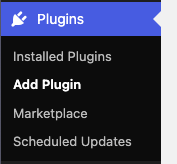 *Screenshot: WordPress sidebar showing Plugins menu option*
Click "Upload Plugin" button at the top
*Screenshot: WordPress sidebar showing Plugins menu option*
Click "Upload Plugin" button at the top
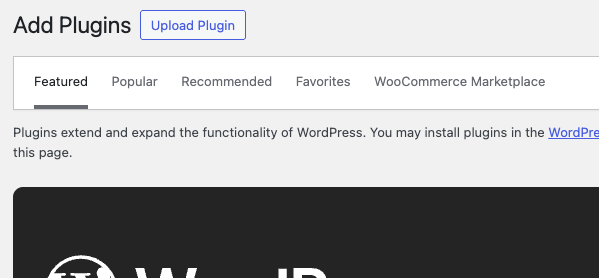 *Screenshot: "Upload Plugin" button and file chooser*
Click "Choose File" and select `lua-shopping-assistant.zip`
*Screenshot: "Upload Plugin" button and file chooser*
Click "Choose File" and select `lua-shopping-assistant.zip`
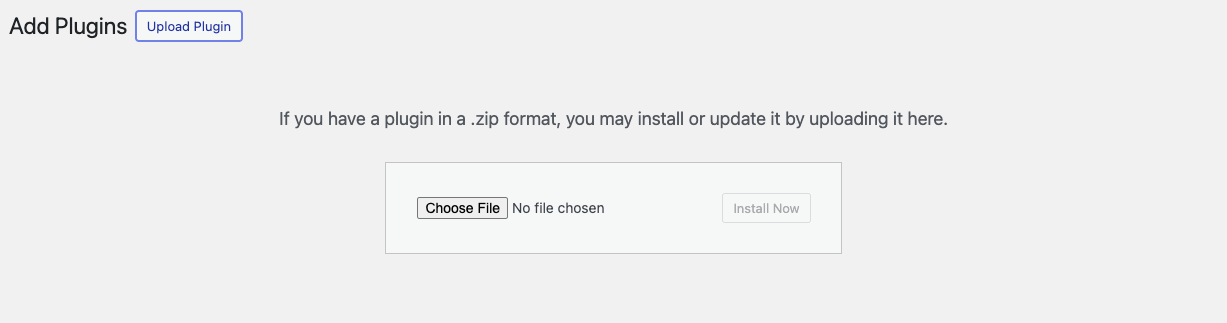 *Screenshot: File chooser showing lua-shopping-assistant.zip selected*
Click "Install Now" button
*Screenshot: File chooser showing lua-shopping-assistant.zip selected*
Click "Install Now" button
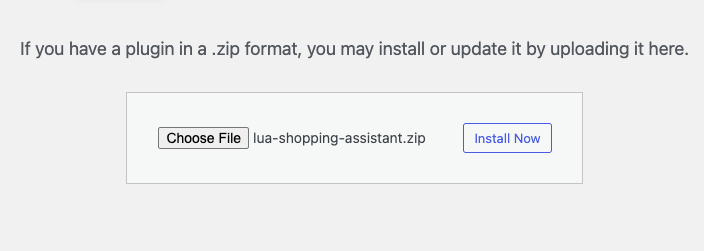 *Screenshot: Installation progress showing:*
* "Installing plugin from uploaded file: lua-shopping-assistant.zip"
* "Unpacking the package..."
* "Updating the plugin..."
* "Removing the current plugin..."
Plugin installs successfully
*Screenshot: Installation progress showing:*
* "Installing plugin from uploaded file: lua-shopping-assistant.zip"
* "Unpacking the package..."
* "Updating the plugin..."
* "Removing the current plugin..."
Plugin installs successfully
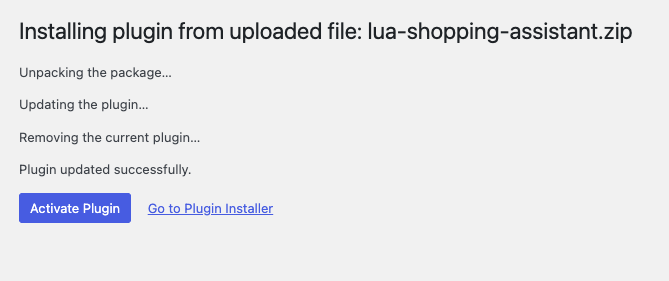 *Screenshot: Success message showing:*
* "Plugin updated successfully."
* "Activate Plugin" button
* "Go to Plugin Installer" link
Click "Activate Plugin" button
Plugin is now active and ready to configure
## Configuration
After activation, find "Lua Shopping Assistant" in WooCommerce menu
*Screenshot: Success message showing:*
* "Plugin updated successfully."
* "Activate Plugin" button
* "Go to Plugin Installer" link
Click "Activate Plugin" button
Plugin is now active and ready to configure
## Configuration
After activation, find "Lua Shopping Assistant" in WooCommerce menu
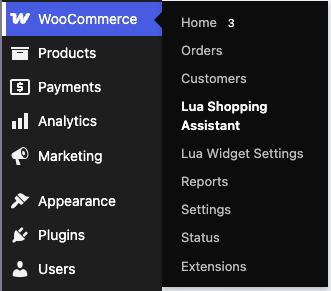 *Screenshot: WooCommerce sidebar showing:*
* Home
* Orders
* Customers
* **Lua Shopping Assistant** ← New menu item
* **Lua Widget Settings** ← Configuration page
* Reports
* Settings
Click "Lua Widget Settings"
*Screenshot: WooCommerce sidebar showing:*
* Home
* Orders
* Customers
* **Lua Shopping Assistant** ← New menu item
* **Lua Widget Settings** ← Configuration page
* Reports
* Settings
Click "Lua Widget Settings"
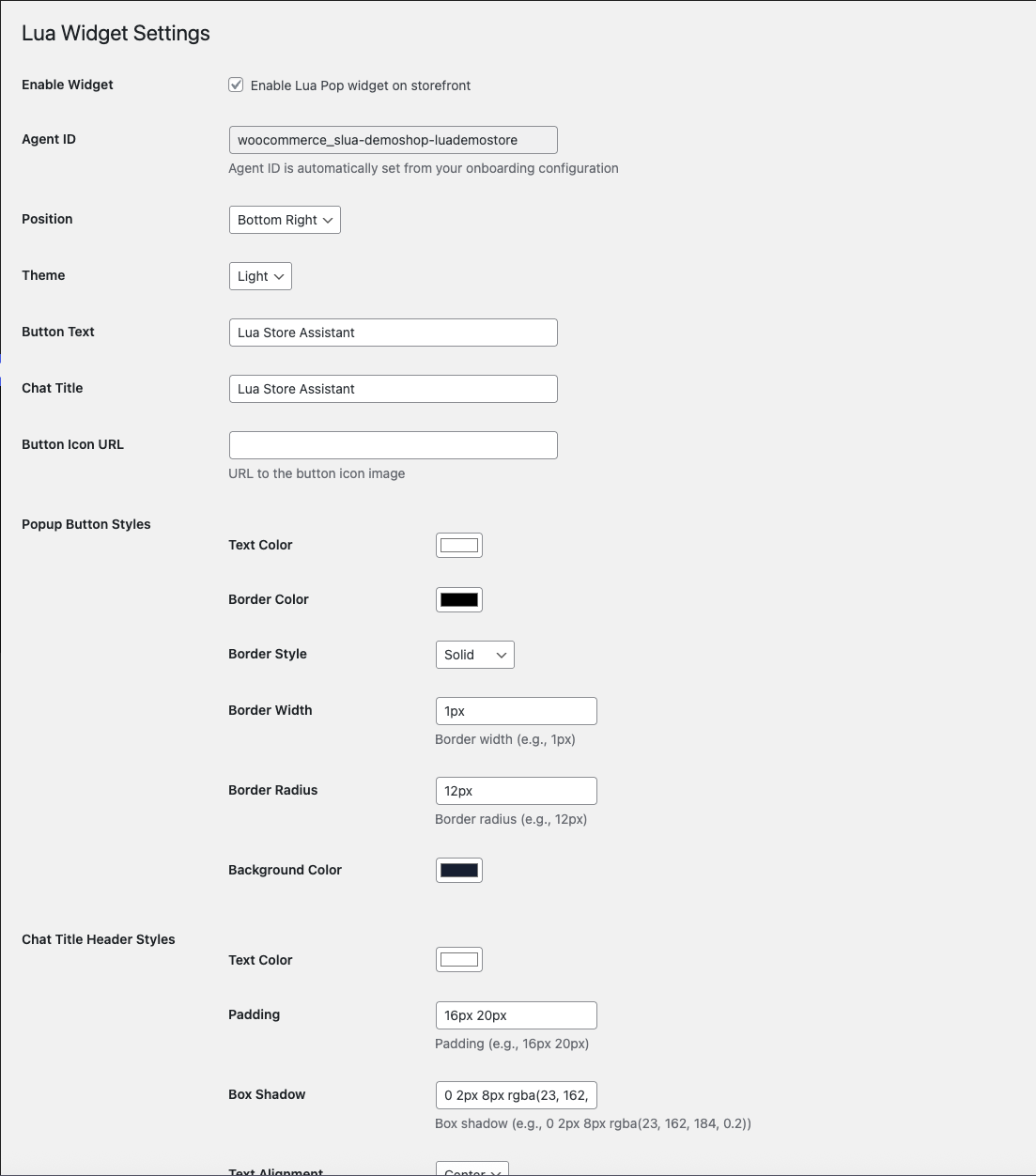 *Screenshot: Lua Widget Settings page showing all configuration options*
Check "Enable Lua Pop widget on storefront"
*Screenshot: Lua Widget Settings page showing all configuration options*
Check "Enable Lua Pop widget on storefront"
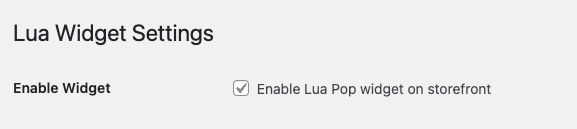 *Screenshot: Checkbox for enabling widget*
The Lua Widget Settings page provides all configuration options:
* Agent ID (auto-configured)
* Position (Bottom Right, Bottom Left, etc.)
* Theme (Light or Dark)
* Button Text and Title
* Custom styling options
For detailed styling and customization options, see our complete chat widget guide:
Complete guide to colors, positioning, themes, and custom styles
All LuaPop customization options work in the WooCommerce plugin!
Click "Save Changes" at the bottom of the page
*Screenshot: Checkbox for enabling widget*
The Lua Widget Settings page provides all configuration options:
* Agent ID (auto-configured)
* Position (Bottom Right, Bottom Left, etc.)
* Theme (Light or Dark)
* Button Text and Title
* Custom styling options
For detailed styling and customization options, see our complete chat widget guide:
Complete guide to colors, positioning, themes, and custom styles
All LuaPop customization options work in the WooCommerce plugin!
Click "Save Changes" at the bottom of the page
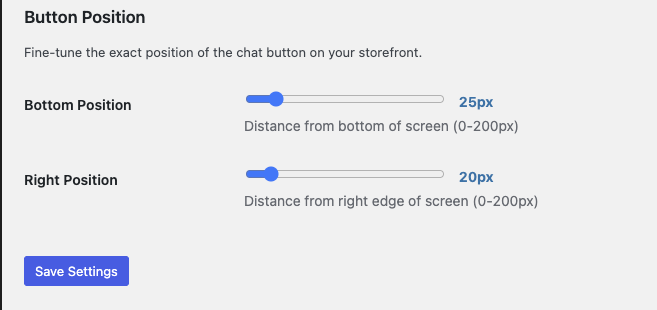 *Screenshot: "Save Changes" button*
## Widget Configuration
The WooCommerce plugin supports all LuaPop widget features:
* Position
* Theme
* Button text
* Chat title
* Custom colors
* Border styles
* Shadows
* Typography
See the Chat Widget Styling documentation for all customization options →
## Features
Agent can search your WooCommerce catalog
Provide specs, pricing, availability
Add products to cart
Check order tracking
## What Your Agent Can Do
With WooCommerce integration, your agent can:
* 🔍 **Search Products** - Find items in your catalog
* 📦 **Product Details** - Provide specs, pricing, stock status
* 🛒 **Add to Cart** - Help customers add items to cart
* 💳 **Checkout Assistance** - Guide through checkout process
* 📍 **Order Tracking** - Check order status and shipping
* ❓ **Answer Questions** - Product info, shipping, returns
* 💡 **Recommendations** - Suggest relevant products
## Customization Examples
### Minimal Style
```
Position: Bottom Right
Theme: Light
Button Text: "💬 Chat"
Text Color: #000000
Background: #FFFFFF
Border Radius: 50% (circular button)
```
### Branded Style
```
Position: Bottom Right
Theme: Dark
Button Text: "Need Help?"
Text Color: #FFFFFF
Background: Your brand color
Border: 2px solid
Border Radius: 12px
Chat Header: Match brand colors
```
### Prominent Style
```
Position: Bottom Right
Theme: Light
Button Text: "🛍️ Shopping Assistant"
Background: Bright color
Border: None
Border Radius: 25px
Box Shadow: 0 4px 12px rgba(0,0,0,0.15)
```
## Troubleshooting
**Check:**
1. Plugin is activated
2. "Enable Widget" is checked
3. Agent ID is correct
4. Save Changes clicked
5. Clear browser cache
6. Check browser console for errors
**Check:**
1. Agent ID is correct
2. Agent is deployed (`lua production`)
3. Skills are pushed (`lua push`)
4. Internet connection working
5. Check browser console for API errors
**Try:**
1. Save Changes after each modification
2. Clear browser cache (Cmd+Shift+R / Ctrl+Shift+R)
3. Check for CSS conflicts
4. Use browser dev tools to inspect
**Location:**
* WooCommerce → Lua Widget Settings
**If missing:**
* Verify plugin is activated
* Check Plugins → Installed Plugins
* Reactivate if needed
## Best Practices
**Bottom Right** (recommended)
* Standard placement
* Familiar to users
* Doesn't interfere with content
**Bottom Left**
* Alternative if right side is crowded
* Good for RTL languages
**Light Theme:**
* Clean, professional
* Good for bright store designs
**Dark Theme:**
* Modern, sleek
* Good for dark mode stores
* Less eye strain
**Good examples:**
* "Need Help?" - Friendly, inviting
* "Shop Assistant" - Clear purpose
* "💬 Chat with us" - Emoji adds personality
**Avoid:**
* Generic "Chat" - Too vague
* Too long text - Keep it short
Use your brand colors:
* Background: Your primary color
* Text: Contrasting color
* Border: Accent color
* Ensure good contrast for readability
## Plugin Updates
### Updating to New Version
Get updated `lua-shopping-assistant.zip`
Plugins → Add New → Upload Plugin
Select new zip file
WordPress will update the existing plugin
*Screenshot: "Save Changes" button*
## Widget Configuration
The WooCommerce plugin supports all LuaPop widget features:
* Position
* Theme
* Button text
* Chat title
* Custom colors
* Border styles
* Shadows
* Typography
See the Chat Widget Styling documentation for all customization options →
## Features
Agent can search your WooCommerce catalog
Provide specs, pricing, availability
Add products to cart
Check order tracking
## What Your Agent Can Do
With WooCommerce integration, your agent can:
* 🔍 **Search Products** - Find items in your catalog
* 📦 **Product Details** - Provide specs, pricing, stock status
* 🛒 **Add to Cart** - Help customers add items to cart
* 💳 **Checkout Assistance** - Guide through checkout process
* 📍 **Order Tracking** - Check order status and shipping
* ❓ **Answer Questions** - Product info, shipping, returns
* 💡 **Recommendations** - Suggest relevant products
## Customization Examples
### Minimal Style
```
Position: Bottom Right
Theme: Light
Button Text: "💬 Chat"
Text Color: #000000
Background: #FFFFFF
Border Radius: 50% (circular button)
```
### Branded Style
```
Position: Bottom Right
Theme: Dark
Button Text: "Need Help?"
Text Color: #FFFFFF
Background: Your brand color
Border: 2px solid
Border Radius: 12px
Chat Header: Match brand colors
```
### Prominent Style
```
Position: Bottom Right
Theme: Light
Button Text: "🛍️ Shopping Assistant"
Background: Bright color
Border: None
Border Radius: 25px
Box Shadow: 0 4px 12px rgba(0,0,0,0.15)
```
## Troubleshooting
**Check:**
1. Plugin is activated
2. "Enable Widget" is checked
3. Agent ID is correct
4. Save Changes clicked
5. Clear browser cache
6. Check browser console for errors
**Check:**
1. Agent ID is correct
2. Agent is deployed (`lua production`)
3. Skills are pushed (`lua push`)
4. Internet connection working
5. Check browser console for API errors
**Try:**
1. Save Changes after each modification
2. Clear browser cache (Cmd+Shift+R / Ctrl+Shift+R)
3. Check for CSS conflicts
4. Use browser dev tools to inspect
**Location:**
* WooCommerce → Lua Widget Settings
**If missing:**
* Verify plugin is activated
* Check Plugins → Installed Plugins
* Reactivate if needed
## Best Practices
**Bottom Right** (recommended)
* Standard placement
* Familiar to users
* Doesn't interfere with content
**Bottom Left**
* Alternative if right side is crowded
* Good for RTL languages
**Light Theme:**
* Clean, professional
* Good for bright store designs
**Dark Theme:**
* Modern, sleek
* Good for dark mode stores
* Less eye strain
**Good examples:**
* "Need Help?" - Friendly, inviting
* "Shop Assistant" - Clear purpose
* "💬 Chat with us" - Emoji adds personality
**Avoid:**
* Generic "Chat" - Too vague
* Too long text - Keep it short
Use your brand colors:
* Background: Your primary color
* Text: Contrasting color
* Border: Accent color
* Ensure good contrast for readability
## Plugin Updates
### Updating to New Version
Get updated `lua-shopping-assistant.zip`
Plugins → Add New → Upload Plugin
Select new zip file
WordPress will update the existing plugin
 *Screenshot: Update process screen*
Your configuration is automatically preserved
No need to reconfigure!
## Features Coming Soon
**🚀 Upcoming WooCommerce Features:**
* Direct "Add to Cart" from chat
* Order status checking
* Product recommendations
* Abandoned cart recovery
* Inventory notifications
* Custom product filters
* Multi-language support
## Support
Need help with WooCommerce integration?
* **Documentation**: This page
* **Email**: [support@heylua.ai](mailto:support@heylua.ai)
* **Admin Dashboard**: `lua admin` for agent management
* **Test Chat**: `lua chat` to test agent behavior
## Next Steps
Set up agent personality for shopping
Build custom shopping tools
Test shopping conversations
See complete shopping assistant
*Screenshot: Update process screen*
Your configuration is automatically preserved
No need to reconfigure!
## Features Coming Soon
**🚀 Upcoming WooCommerce Features:**
* Direct "Add to Cart" from chat
* Order status checking
* Product recommendations
* Abandoned cart recovery
* Inventory notifications
* Custom product filters
* Multi-language support
## Support
Need help with WooCommerce integration?
* **Documentation**: This page
* **Email**: [support@heylua.ai](mailto:support@heylua.ai)
* **Admin Dashboard**: `lua admin` for agent management
* **Test Chat**: `lua chat` to test agent behavior
## Next Steps
Set up agent personality for shopping
Build custom shopping tools
Test shopping conversations
See complete shopping assistant