> ## Documentation Index
> Fetch the complete documentation index at: https://docs.heylua.ai/llms.txt
> Use this file to discover all available pages before exploring further.
# Square
> Connect Square POS and online store with your AI shopping assistant
## Overview
### About Square
**Square** is the all-in-one commerce platform trusted by over 4 million businesses worldwide. From neighborhood coffee shops to global retailers, Square powers point of sale, online stores, inventory management, payments, and banking. Whether you're running a physical store, online shop, or restaurant, Square handles your entire commerce operation.
### Transform Your Square Store with AI
Integrate **Lua AI** with Square to turn your e-commerce business into an AI-powered sales machine. Your AI agent connects directly to your Square account, accessing your products, inventory, orders, and customer data to provide instant, personalized shopping assistance across all channels.
**The Business Impact:**
* 🚀 **Boost Sales** - AI converts browsers into buyers with personalized recommendations
* ⏰ **24/7 Availability** - Never miss a sale, even at 3 AM
* 💬 **Multi-Channel Commerce** - Sell on WhatsApp, Instagram, Facebook, Website
* 🎯 **Smart Upselling** - AI suggests complementary products naturally
* 📊 **Real-Time Inventory** - Access live stock levels from Square
* ⚡ **Instant Service** - No waiting, no phone calls, just instant answers
* 🛒 **Reduce Cart Abandonment** - AI guides customers through checkout
* 💰 **Higher Cart Values** - Intelligent product recommendations
Unified commerce platform
OAuth integration, zero configuration
Retail, Food & Beverage, and more
Intelligent product search and checkout
## What Square E-commerce Offers
According to [Square](https://squareup.com/us/en):
**Commerce Solutions:**
* 💳 **Payments** - Accept payments anywhere
* 🏪 **Point of Sale** - Retail and Restaurant POS
* 🌐 **Online Stores** - E-commerce websites and profiles
* 📦 **Inventory** - Real-time stock management
* 💰 **Banking** - Checking, savings, loans, credit cards
* 📊 **Analytics** - Business insights and reporting
* 👥 **Customer Engagement** - Loyalty, marketing, directories
**Business Types:**
* 🛍️ Retail (clothing, home & gift, grocery)
* 🍽️ Food & Beverage (restaurants, cafes, food trucks)
* 🎪 And many more
**Hardware:**
* Square Terminal, Register, Handheld
* Contactless readers, Kiosks, Stands
***
## Prerequisites
Before connecting Square to Lua:
1. **Active Square Account** - Sign up at [squareup.com](https://squareup.com)
**Important: Email Linking**
When you connect Square to Lua, your admin account will be automatically linked to an email address from your Square business. The system searches for an email in this priority order:
1. **Owner Email** - The merchant owner's email address
2. **Business Email** - Your main location's business email
3. **Team Member Email** - The first team member with owner role
Make sure at least one of these emails is valid and accessible, as you'll use it to access your Lua admin dashboard.
***
## Integration Setup
Prefer watching a video? Follow along with our step-by-step video guide
Open your browser and go to:
**[https://auth.heylua.ai/square/auth](https://auth.heylua.ai/square/auth)**
This secure OAuth flow connects your Square account to Lua without sharing
your password.
Click **"Sign in with Square"** or **"Continue with Square"** Enter your
Square account credentials: - Email address - Password - (Two-factor
authentication if enabled)
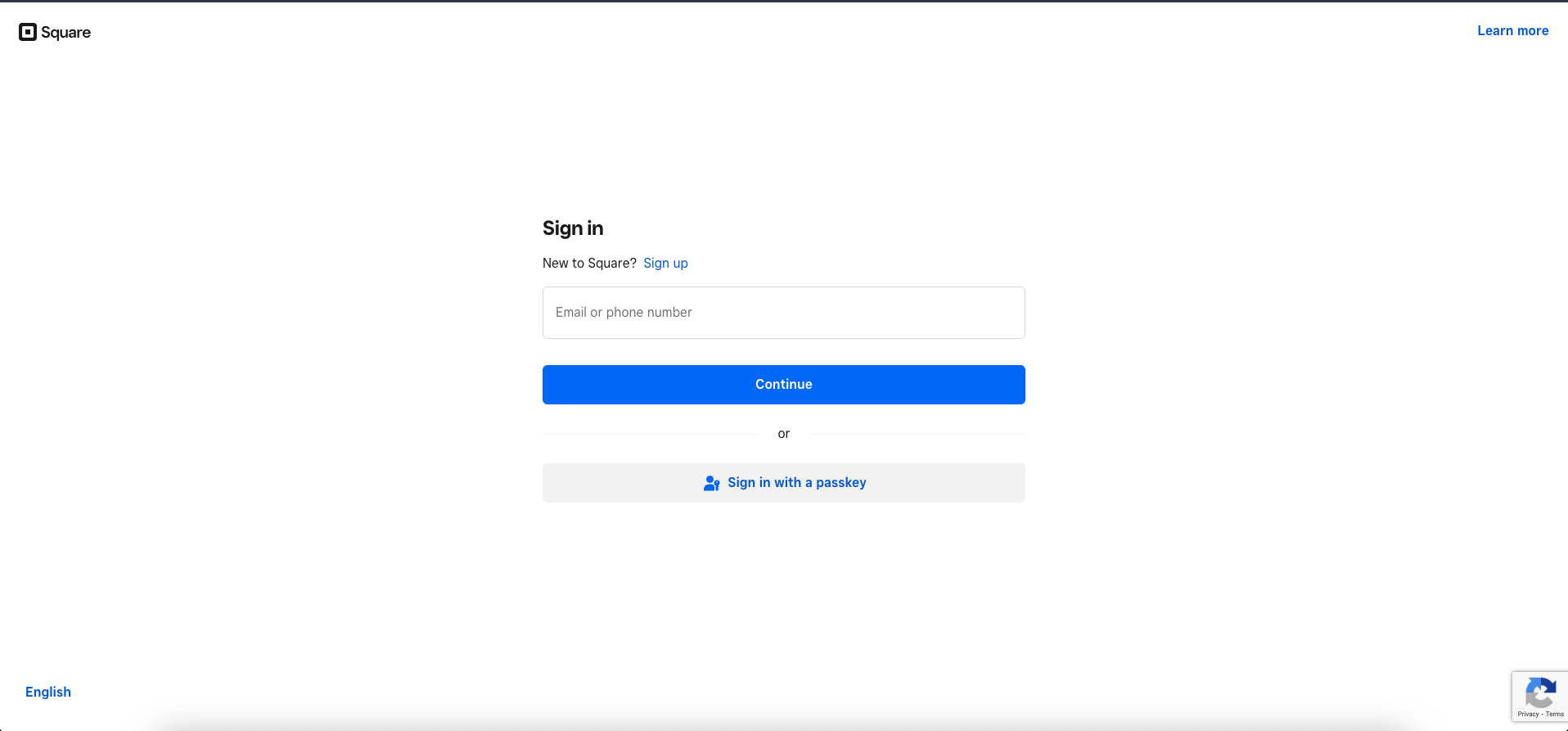 *Screenshot: Square login form showing email and password fields*
Using Square with multiple businesses? Don't worry - you'll select which one
to connect in the next step.
If your Square account manages multiple businesses, you'll see a selection
screen. Choose the business you want to connect to your Lua agent.
*Screenshot: Square login form showing email and password fields*
Using Square with multiple businesses? Don't worry - you'll select which one
to connect in the next step.
If your Square account manages multiple businesses, you'll see a selection
screen. Choose the business you want to connect to your Lua agent.
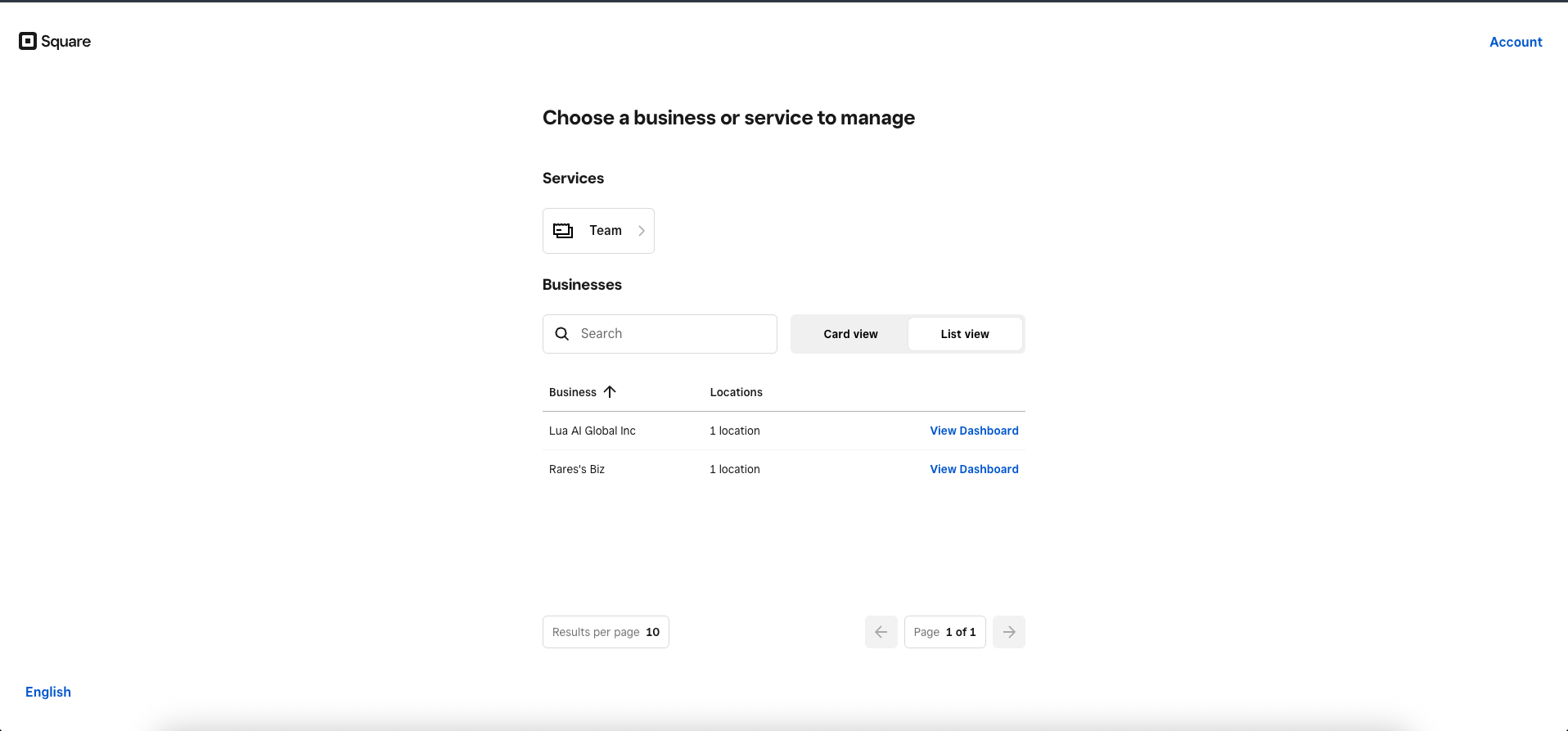 *Screenshot: Business selection screen showing multiple Square
locations/businesses*
**Managing multiple businesses?** You can connect different Lua agents to
different Square locations. Just repeat this process for each agent/business
combination.
Square will display the permissions that Lua needs to function.
**Lua requires access to:**
* 📦 Products & Inventory (for product search and availability),
* 🛒 Orders (for order creation and tracking),
* 👤 Customer Info (for personalized service),
* 💳 Payments (for checkout links)
Review the permissions and click **"Allow"** or **"Authorize"**
*Screenshot: Business selection screen showing multiple Square
locations/businesses*
**Managing multiple businesses?** You can connect different Lua agents to
different Square locations. Just repeat this process for each agent/business
combination.
Square will display the permissions that Lua needs to function.
**Lua requires access to:**
* 📦 Products & Inventory (for product search and availability),
* 🛒 Orders (for order creation and tracking),
* 👤 Customer Info (for personalized service),
* 💳 Payments (for checkout links)
Review the permissions and click **"Allow"** or **"Authorize"**
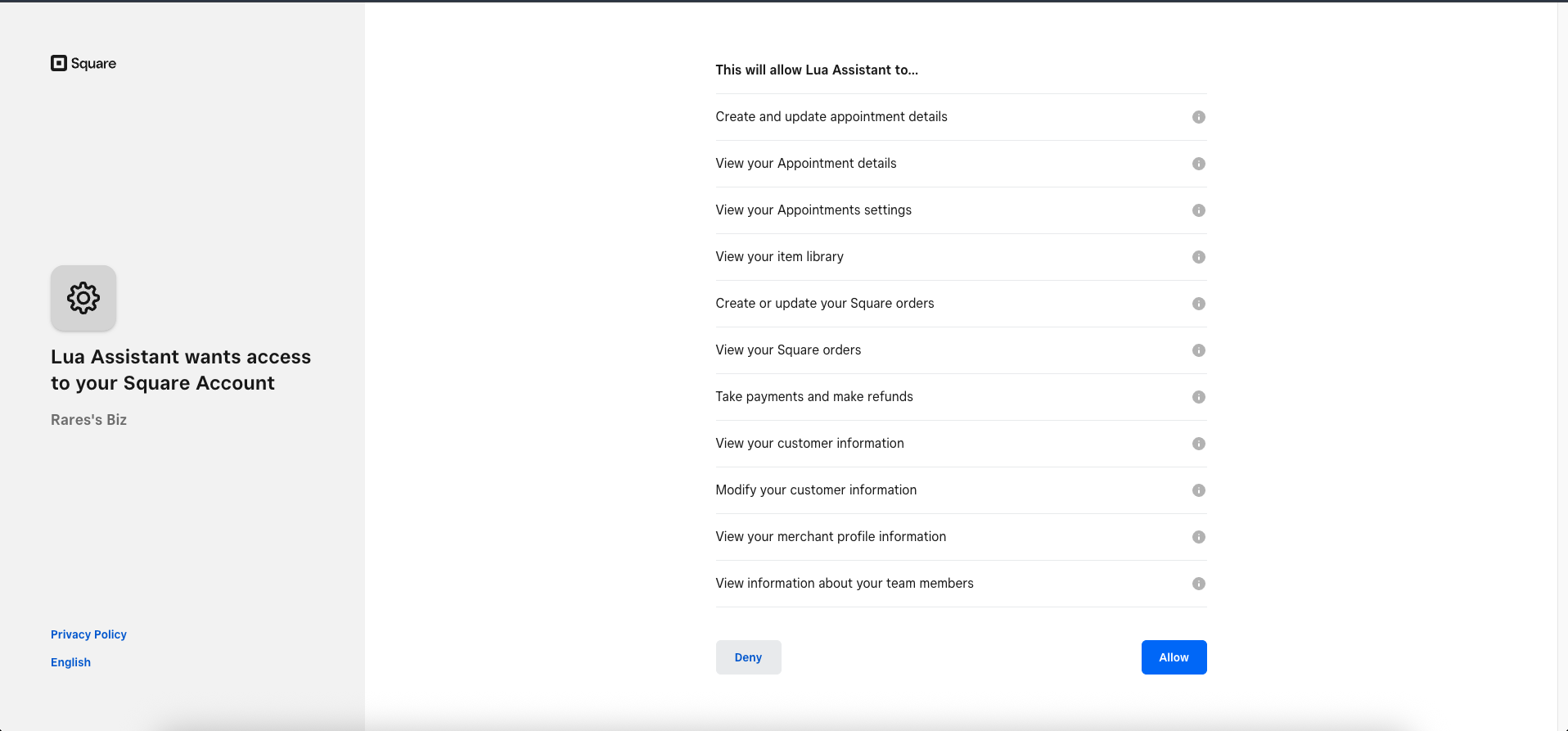 *Screenshot: Square OAuth permission screen listing required access scopes
with "Allow" button*
**About Permissions**: Lua only requests the minimum permissions needed to
help your customers. Your payment details and sensitive business data remain
secure with Square.
You'll be redirected to your **Lua Admin Dashboard** Your Square integration
is now active and ready to use!
*Screenshot: Square OAuth permission screen listing required access scopes
with "Allow" button*
**About Permissions**: Lua only requests the minimum permissions needed to
help your customers. Your payment details and sensitive business data remain
secure with Square.
You'll be redirected to your **Lua Admin Dashboard** Your Square integration
is now active and ready to use!
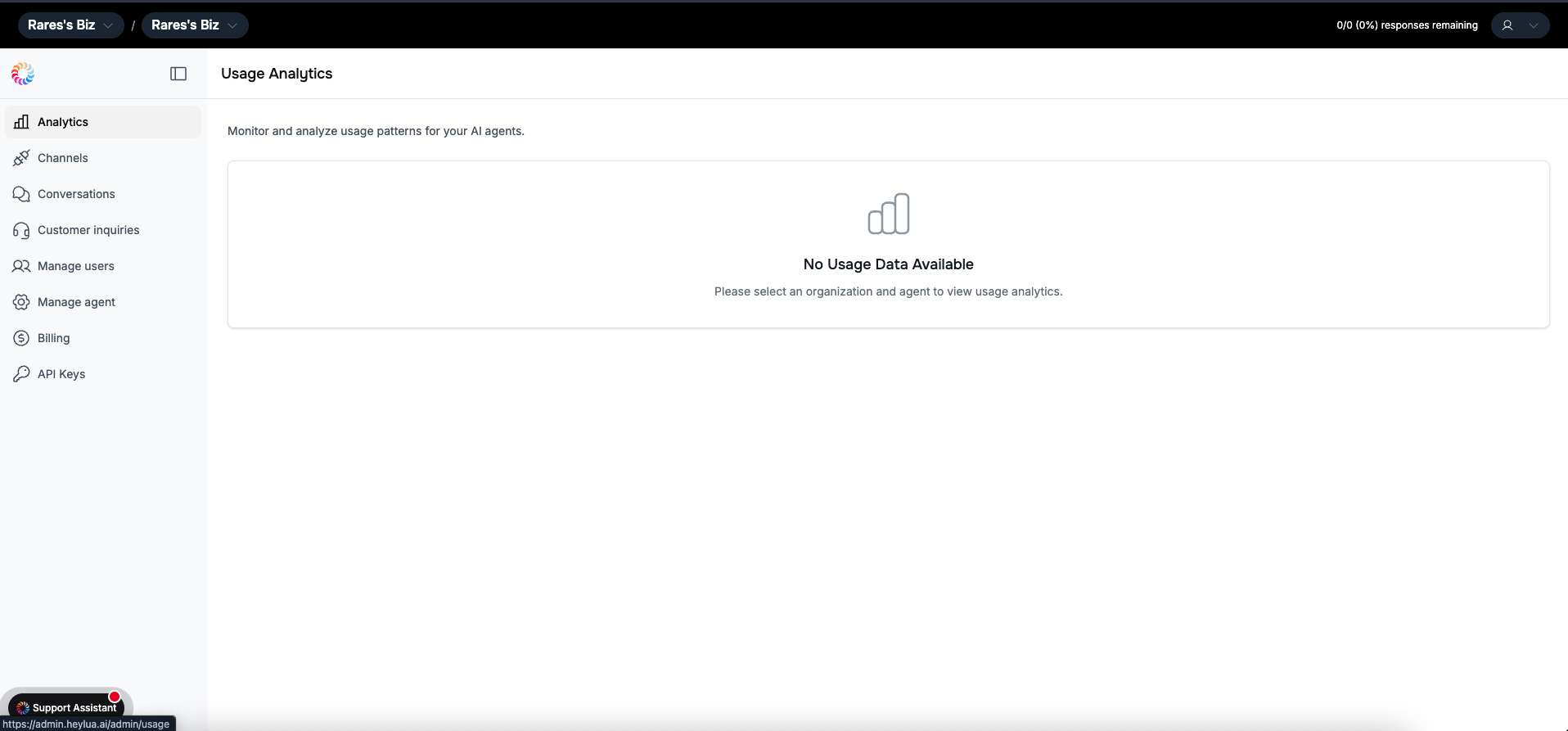 *Screenshot: Lua admin dashboard showing successful Square integration*
**Success!** Your Lua agent can now access your Square catalog, inventory,
and order data in real-time.
***
## What Your Agent Can Do
With Square e-commerce integration, your AI agent becomes a powerful shopping assistant:
Find items in your Square catalog
Real-time stock availability
Pricing, specs, descriptions, images
AI suggests relevant products
Create orders in conversation
One-click Square checkout URLs
Check order status and shipping
Access past purchases
***
## Use Cases by Industry
**Perfect for: Clothing, Home & Gift, Grocers, Specialty Retail**
Your AI shopping assistant can:
* "Show me men's jackets under \$100"
* Check if items are in stock
* Suggest matching accessories
* Create shopping carts
* Generate checkout links
* Track orders and shipping
**Example Conversation:**
```
Customer: "Do you have this dress in medium?"
Agent: [Searches Square inventory]
"Yes! The blue sundress is available in medium.
We have 3 in stock. Would you like to order it?"
Customer: "Yes please"
Agent: [Creates Square order]
"Perfect! I've added it to your cart.
Here's your checkout link: [Square Checkout]
You can pick it up today or have it shipped!"
```
**Perfect for: Quick Service, Full Service, Coffee Shops, Food Trucks** Your
AI can help with: - Menu questions and recommendations - Dietary restrictions
and allergens - Order ahead for pickup - Catering inquiries - Hours and
location info **Example Conversation:** `Customer: "What vegan options do
you have?" Agent: [Searches Square menu] "We have several vegan options: -
Beyond Burger with sweet potato fries - $14 - Buddha Bowl with quinoa and
veggies - $12 - Vegan Chocolate Cake - $6 Would you like to order ahead for
pickup?" Customer: "Yes, the Buddha Bowl" Agent: "Great choice! What time
would you like to pick it up?"`
**Perfect for: Wine & Liquor, Garden Centers, Pet Supplies, Electronics**
Specialized product knowledge:
* Answer detailed product questions
* Compare similar items
* Check compatibility
* Provide care instructions
* Suggest complementary products
**Example Conversation:**
```
Customer: "I need a wine that pairs well with salmon"
Agent: [Searches Square wine catalog]
"Great choice! For salmon, I recommend:
- Pinot Noir ($28) - Classic pairing
- Chardonnay ($32) - Buttery notes
- Sauvignon Blanc ($24) - Crisp and light
Would you like to know more about any of these?"
```
***
## Multi-Channel Sales
Square integration works across all Lua channels:
Embedded chat widget on your site
Sell via WhatsApp Business
Commerce through Instagram DMs
Messenger shopping experience
**One Square account. Multiple sales channels. All managed by AI.**
***
## Disconnecting Square Integration
If you need to disconnect Lua from your Square account:
Log into your Square account at [squareup.com](https://squareup.com)
Click on **Settings** in the left sidebar Select **App Integrations** from the
settings menu
*Screenshot: Lua admin dashboard showing successful Square integration*
**Success!** Your Lua agent can now access your Square catalog, inventory,
and order data in real-time.
***
## What Your Agent Can Do
With Square e-commerce integration, your AI agent becomes a powerful shopping assistant:
Find items in your Square catalog
Real-time stock availability
Pricing, specs, descriptions, images
AI suggests relevant products
Create orders in conversation
One-click Square checkout URLs
Check order status and shipping
Access past purchases
***
## Use Cases by Industry
**Perfect for: Clothing, Home & Gift, Grocers, Specialty Retail**
Your AI shopping assistant can:
* "Show me men's jackets under \$100"
* Check if items are in stock
* Suggest matching accessories
* Create shopping carts
* Generate checkout links
* Track orders and shipping
**Example Conversation:**
```
Customer: "Do you have this dress in medium?"
Agent: [Searches Square inventory]
"Yes! The blue sundress is available in medium.
We have 3 in stock. Would you like to order it?"
Customer: "Yes please"
Agent: [Creates Square order]
"Perfect! I've added it to your cart.
Here's your checkout link: [Square Checkout]
You can pick it up today or have it shipped!"
```
**Perfect for: Quick Service, Full Service, Coffee Shops, Food Trucks** Your
AI can help with: - Menu questions and recommendations - Dietary restrictions
and allergens - Order ahead for pickup - Catering inquiries - Hours and
location info **Example Conversation:** `Customer: "What vegan options do
you have?" Agent: [Searches Square menu] "We have several vegan options: -
Beyond Burger with sweet potato fries - $14 - Buddha Bowl with quinoa and
veggies - $12 - Vegan Chocolate Cake - $6 Would you like to order ahead for
pickup?" Customer: "Yes, the Buddha Bowl" Agent: "Great choice! What time
would you like to pick it up?"`
**Perfect for: Wine & Liquor, Garden Centers, Pet Supplies, Electronics**
Specialized product knowledge:
* Answer detailed product questions
* Compare similar items
* Check compatibility
* Provide care instructions
* Suggest complementary products
**Example Conversation:**
```
Customer: "I need a wine that pairs well with salmon"
Agent: [Searches Square wine catalog]
"Great choice! For salmon, I recommend:
- Pinot Noir ($28) - Classic pairing
- Chardonnay ($32) - Buttery notes
- Sauvignon Blanc ($24) - Crisp and light
Would you like to know more about any of these?"
```
***
## Multi-Channel Sales
Square integration works across all Lua channels:
Embedded chat widget on your site
Sell via WhatsApp Business
Commerce through Instagram DMs
Messenger shopping experience
**One Square account. Multiple sales channels. All managed by AI.**
***
## Disconnecting Square Integration
If you need to disconnect Lua from your Square account:
Log into your Square account at [squareup.com](https://squareup.com)
Click on **Settings** in the left sidebar Select **App Integrations** from the
settings menu
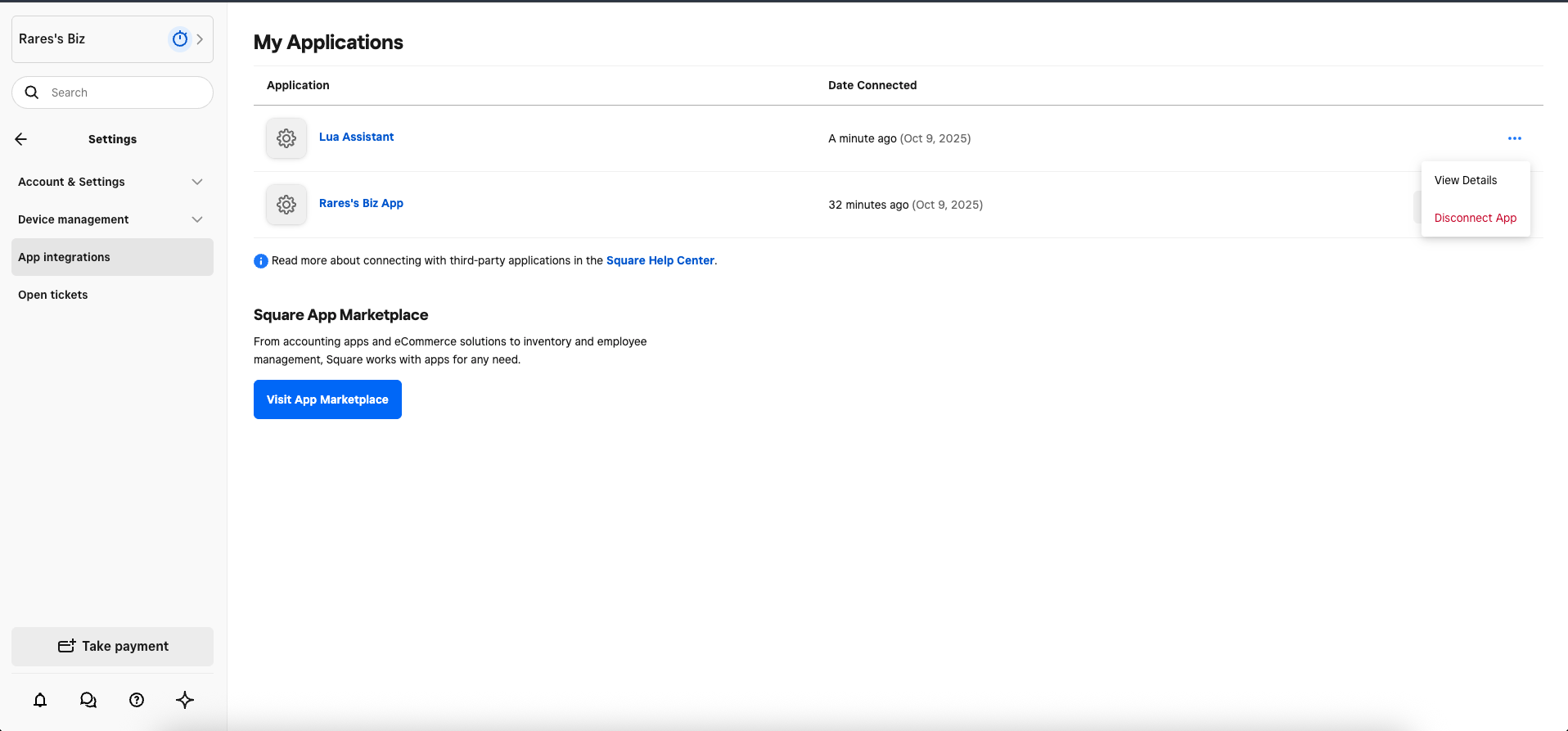 *Screenshot: Square Settings showing App Integrations section with Lua
Assistant listed*
Scroll through your connected apps to find **"Lua Assistant"** or **"Lua"**
Click the **three dots (⋮)** on the right side of the Lua Assistant row
Select **"Disconnect App"** from the dropdown menu Confirm the disconnection
when prompted
**This will immediately stop your Lua agent from accessing Square data.**
Your agent will no longer be able to search products, check inventory, or
create orders.
**Want to reconnect?** Just go through the [integration
setup](#integration-setup) process again. All your Lua agent configuration is
preserved.
***
## Real-World Examples
**The Daily Grind Coffee**
"We use Square for our POS and online ordering. Adding Lua was a game-changer - customers can now order ahead via WhatsApp, ask about our menu, and even purchase our coffee beans and merchandise. Our AI handles 100+ daily conversations, and sales from WhatsApp alone increased 40%."
**What they sell:** Coffee, pastries, merchandise
**Channels:** WhatsApp, Website widget
**Urban Threads Boutique** "Square powers our retail store and website. Our
Lua assistant helps customers on Instagram DMs find items, check if we have
their size, and buy without leaving Instagram. It's like having a virtual
sales associate in every customer's pocket. Cart conversion is up 60%." **What
they sell:** Women's clothing, accessories **Channels:** Instagram, Website,
Facebook
**Bella's Italian Kitchen**
"Square runs our entire restaurant - POS, online ordering, everything. With Lua, customers can ask about our menu on Facebook, check if we have gluten-free options, and place orders for pickup. During lunch rush, the AI handles 50+ order inquiries while our staff focuses on cooking. Takeout orders increased 35%."
**What they sell:** Italian food, catering
**Channels:** Facebook Messenger, Website, WhatsApp
***
## Troubleshooting
**Common causes:**
1. **Square account not fully set up** - Ensure you've completed Square onboarding
2. **Missing permissions** - Try disconnecting and reconnecting with all permissions granted
3. **Browser issues** - Clear cache or try a different browser
4. **Multiple browser tabs** - Close other Square auth tabs
5. **Business not selected** - If you have multiple locations, ensure you selected one
**Solution:** Start the integration process again at [auth.heylua.ai/square/auth](https://auth.heylua.ai/square/auth)
**Check:** 1. Products are published in Square (not in draft mode) 2. Products
have inventory assigned 3. Square catalog sync is complete (can take a few
minutes) 4. Integration permissions include "Items and Inventory" 5. Try
searching with exact product names first **Test:** In Lua admin, verify your
Square catalog is visible
**If you selected the wrong Square location:** 1. Go to Square Settings → App
Integrations 2. Disconnect Lua Assistant 3. Restart integration at
[auth.heylua.ai/square/auth](https://auth.heylua.ai/square/auth) 4. Select the
correct business this time
**Requirements for Square checkouts:** 1. Square Payments enabled 2. Products
have prices set 3. Online payment processing activated 4. Business
verification complete **Alternative:** Use Square invoices if checkout links
aren't available
**Check Square inventory:** 1. Verify stock levels in Square Dashboard 2.
Ensure inventory tracking is enabled for the product 3. Check if product
variations have separate stock 4. Allow a few minutes for inventory sync after
updates
**For multi-location Square accounts:**
Currently, each Lua agent connects to one Square location. To serve multiple locations:
* Create separate Lua agents for each location
* Connect each agent to its respective Square location
* Use location-specific channels or routing
Contact [support@heylua.ai](mailto:support@heylua.ai) for enterprise multi-location solutions
***
## Best Practices
**For better AI performance:**
* ✅ Use clear, descriptive product names
* ✅ Add detailed descriptions
* ✅ Include product images
* ✅ Use categories and tags
* ✅ Set accurate inventory levels
* ✅ Keep pricing up to date
**Why:** The AI uses this information to help customers find products faster
**Track your AI commerce assistant:** 1. **In Lua Admin:** - Conversation
metrics - Most requested products - Cart conversion rates - Drop-off points 2.
**In Square Dashboard:** - Sales attributed to online channels - Average order
value - Customer acquisition costs 3. **Optimize based on data:** - Identify
popular products to feature - Improve agent responses for common questions -
Adjust product descriptions based on searches
**Prepare your agent for:**
* Out of stock situations → Offer alternatives
* Large orders → Confirm stock and offer bulk pricing
* Special requests → Collect details and offer callback
* Refunds/Returns → Direct to appropriate channel
Set clear policies in your agent's persona
***
## Pricing & Square Plans
The Lua integration works with all Square plans:
* ✅ **Square Free** - Basic POS
* ✅ **Square Plus** (\$29/month) - Advanced features
* ✅ **Square Premium** (\$69+/month) - Multi-location, advanced features
**Getting started?** Square's free plan is perfect for testing the Lua
integration. Upgrade as your business grows to unlock advanced commerce
features.
Learn more about [Square pricing](https://squareup.com/us/en/pricing)
***
## Next Steps
Start integration in 5 minutes
See complete shopping assistant
Add WhatsApp, Instagram, Facebook
Test Square integration locally
***
Having trouble with Square integration? Email us at **[support@heylua.ai](mailto:support@heylua.ai)** or
check the [troubleshooting section](#troubleshooting) above.
*Screenshot: Square Settings showing App Integrations section with Lua
Assistant listed*
Scroll through your connected apps to find **"Lua Assistant"** or **"Lua"**
Click the **three dots (⋮)** on the right side of the Lua Assistant row
Select **"Disconnect App"** from the dropdown menu Confirm the disconnection
when prompted
**This will immediately stop your Lua agent from accessing Square data.**
Your agent will no longer be able to search products, check inventory, or
create orders.
**Want to reconnect?** Just go through the [integration
setup](#integration-setup) process again. All your Lua agent configuration is
preserved.
***
## Real-World Examples
**The Daily Grind Coffee**
"We use Square for our POS and online ordering. Adding Lua was a game-changer - customers can now order ahead via WhatsApp, ask about our menu, and even purchase our coffee beans and merchandise. Our AI handles 100+ daily conversations, and sales from WhatsApp alone increased 40%."
**What they sell:** Coffee, pastries, merchandise
**Channels:** WhatsApp, Website widget
**Urban Threads Boutique** "Square powers our retail store and website. Our
Lua assistant helps customers on Instagram DMs find items, check if we have
their size, and buy without leaving Instagram. It's like having a virtual
sales associate in every customer's pocket. Cart conversion is up 60%." **What
they sell:** Women's clothing, accessories **Channels:** Instagram, Website,
Facebook
**Bella's Italian Kitchen**
"Square runs our entire restaurant - POS, online ordering, everything. With Lua, customers can ask about our menu on Facebook, check if we have gluten-free options, and place orders for pickup. During lunch rush, the AI handles 50+ order inquiries while our staff focuses on cooking. Takeout orders increased 35%."
**What they sell:** Italian food, catering
**Channels:** Facebook Messenger, Website, WhatsApp
***
## Troubleshooting
**Common causes:**
1. **Square account not fully set up** - Ensure you've completed Square onboarding
2. **Missing permissions** - Try disconnecting and reconnecting with all permissions granted
3. **Browser issues** - Clear cache or try a different browser
4. **Multiple browser tabs** - Close other Square auth tabs
5. **Business not selected** - If you have multiple locations, ensure you selected one
**Solution:** Start the integration process again at [auth.heylua.ai/square/auth](https://auth.heylua.ai/square/auth)
**Check:** 1. Products are published in Square (not in draft mode) 2. Products
have inventory assigned 3. Square catalog sync is complete (can take a few
minutes) 4. Integration permissions include "Items and Inventory" 5. Try
searching with exact product names first **Test:** In Lua admin, verify your
Square catalog is visible
**If you selected the wrong Square location:** 1. Go to Square Settings → App
Integrations 2. Disconnect Lua Assistant 3. Restart integration at
[auth.heylua.ai/square/auth](https://auth.heylua.ai/square/auth) 4. Select the
correct business this time
**Requirements for Square checkouts:** 1. Square Payments enabled 2. Products
have prices set 3. Online payment processing activated 4. Business
verification complete **Alternative:** Use Square invoices if checkout links
aren't available
**Check Square inventory:** 1. Verify stock levels in Square Dashboard 2.
Ensure inventory tracking is enabled for the product 3. Check if product
variations have separate stock 4. Allow a few minutes for inventory sync after
updates
**For multi-location Square accounts:**
Currently, each Lua agent connects to one Square location. To serve multiple locations:
* Create separate Lua agents for each location
* Connect each agent to its respective Square location
* Use location-specific channels or routing
Contact [support@heylua.ai](mailto:support@heylua.ai) for enterprise multi-location solutions
***
## Best Practices
**For better AI performance:**
* ✅ Use clear, descriptive product names
* ✅ Add detailed descriptions
* ✅ Include product images
* ✅ Use categories and tags
* ✅ Set accurate inventory levels
* ✅ Keep pricing up to date
**Why:** The AI uses this information to help customers find products faster
**Track your AI commerce assistant:** 1. **In Lua Admin:** - Conversation
metrics - Most requested products - Cart conversion rates - Drop-off points 2.
**In Square Dashboard:** - Sales attributed to online channels - Average order
value - Customer acquisition costs 3. **Optimize based on data:** - Identify
popular products to feature - Improve agent responses for common questions -
Adjust product descriptions based on searches
**Prepare your agent for:**
* Out of stock situations → Offer alternatives
* Large orders → Confirm stock and offer bulk pricing
* Special requests → Collect details and offer callback
* Refunds/Returns → Direct to appropriate channel
Set clear policies in your agent's persona
***
## Pricing & Square Plans
The Lua integration works with all Square plans:
* ✅ **Square Free** - Basic POS
* ✅ **Square Plus** (\$29/month) - Advanced features
* ✅ **Square Premium** (\$69+/month) - Multi-location, advanced features
**Getting started?** Square's free plan is perfect for testing the Lua
integration. Upgrade as your business grows to unlock advanced commerce
features.
Learn more about [Square pricing](https://squareup.com/us/en/pricing)
***
## Next Steps
Start integration in 5 minutes
See complete shopping assistant
Add WhatsApp, Instagram, Facebook
Test Square integration locally
***
Having trouble with Square integration? Email us at **[support@heylua.ai](mailto:support@heylua.ai)** or
check the [troubleshooting section](#troubleshooting) above.