> ## Documentation Index
> Fetch the complete documentation index at: https://docs.heylua.ai/llms.txt
> Use this file to discover all available pages before exploring further.
# Shopify
> Add AI shopping assistant to your Shopify store
## Overview
### About Shopify
**Shopify** is the world's leading e-commerce platform, powering over 4 million online stores globally. From small businesses to enterprise brands, Shopify provides everything you need to sell products online - inventory management, payment processing, shipping, and a beautiful storefront.
### Transform Your Shopify Store with AI
The **Lua AI Shopping Assistant** turns your Shopify store into an AI-powered sales machine. Instead of customers browsing alone, they get a personal shopping assistant available 24/7 across WhatsApp, Instagram, Facebook Messenger, and your website.
**The Impact:**
* 🚀 **Boost Conversions** - AI guides customers from browsing to checkout
* 💬 **Multi-Channel Sales** - Sell on social media with the same AI assistant
* ⏰ **24/7 Availability** - Never miss a sale, even at 3 AM
* 🎯 **Personalized Shopping** - AI recommends products based on preferences
* 📱 **Meet Customers Anywhere** - Website, WhatsApp, Instagram, Facebook
* ⚡ **Instant Responses** - No waiting for human agents
* 💰 **Higher Cart Values** - AI upsells and cross-sells intelligently
Official verified Shopify app
Install and configure in minutes
WhatsApp, Instagram, Facebook, Website
Smart product search and recommendations
## App Store Link
Visit the Shopify App Store to install
## Features
According to the [Shopify App Store](https://apps.shopify.com/lua-shopping-assistant):
* 🔍 **AI-powered product search** - Help customers find exactly what they need
* 💡 **Personalized recommendations** - Smart product suggestions
* 🛒 **Cart creation in chat** - Build carts directly in conversations
* 💳 **Checkout links** - One-click checkout from chat
* 📱 **Multi-channel** - Messenger, Instagram, WhatsApp, Website
* 🌍 **Multi-language** - Supports 100+ languages
* 📊 **Analytics** - Track conversions and engagement
* ⚡ **Fast setup** - Less than 10 minutes to launch
**Rating**: ⭐⭐⭐⭐⭐ 5.0
***
## Installation from Shopify App Store
Go to the [Lua AI Shopping Assistant](https://apps.shopify.com/lua-shopping-assistant) page
Or search for "Lua AI Shopping Assistant" in Shopify App Store
Click the "Install" button on the app page
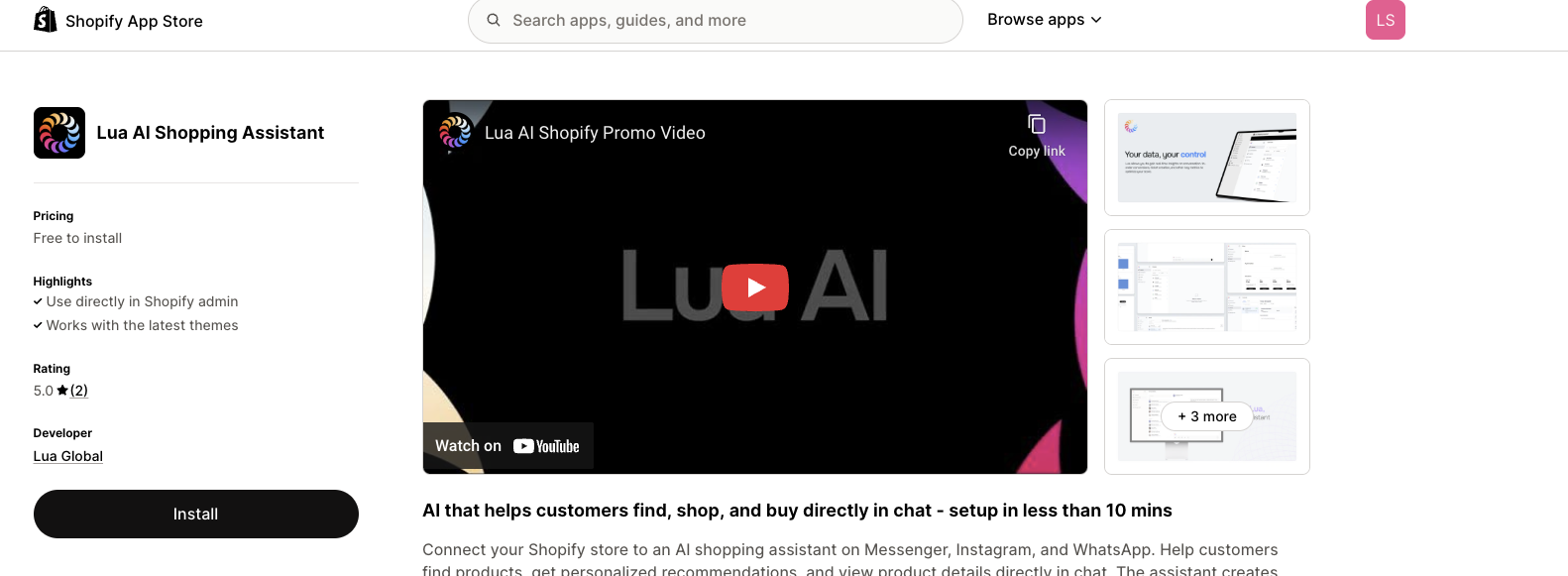 *Screenshot: Shopify App Store page with "Install" button highlighted*
Shopify will ask for permissions. Review and click "Install"
*Screenshot: Shopify App Store page with "Install" button highlighted*
Shopify will ask for permissions. Review and click "Install"
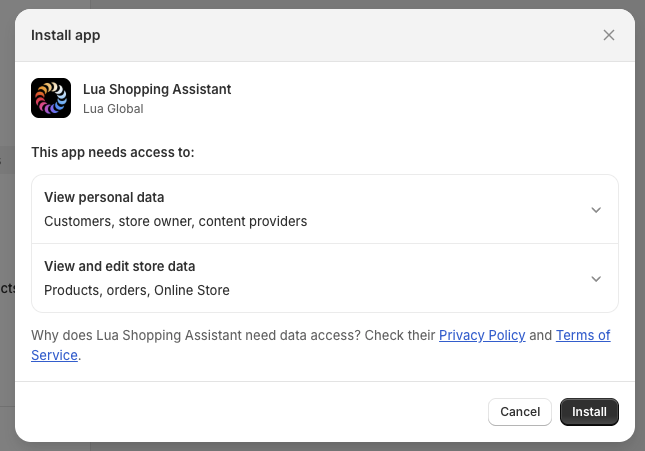 *Screenshot: Permission request dialog showing:*
* Read/write products
* Read/write orders
* Read customer data
* "Install" button
App installs and admin dashboard loads
*Screenshot: Permission request dialog showing:*
* Read/write products
* Read/write orders
* Read customer data
* "Install" button
App installs and admin dashboard loads
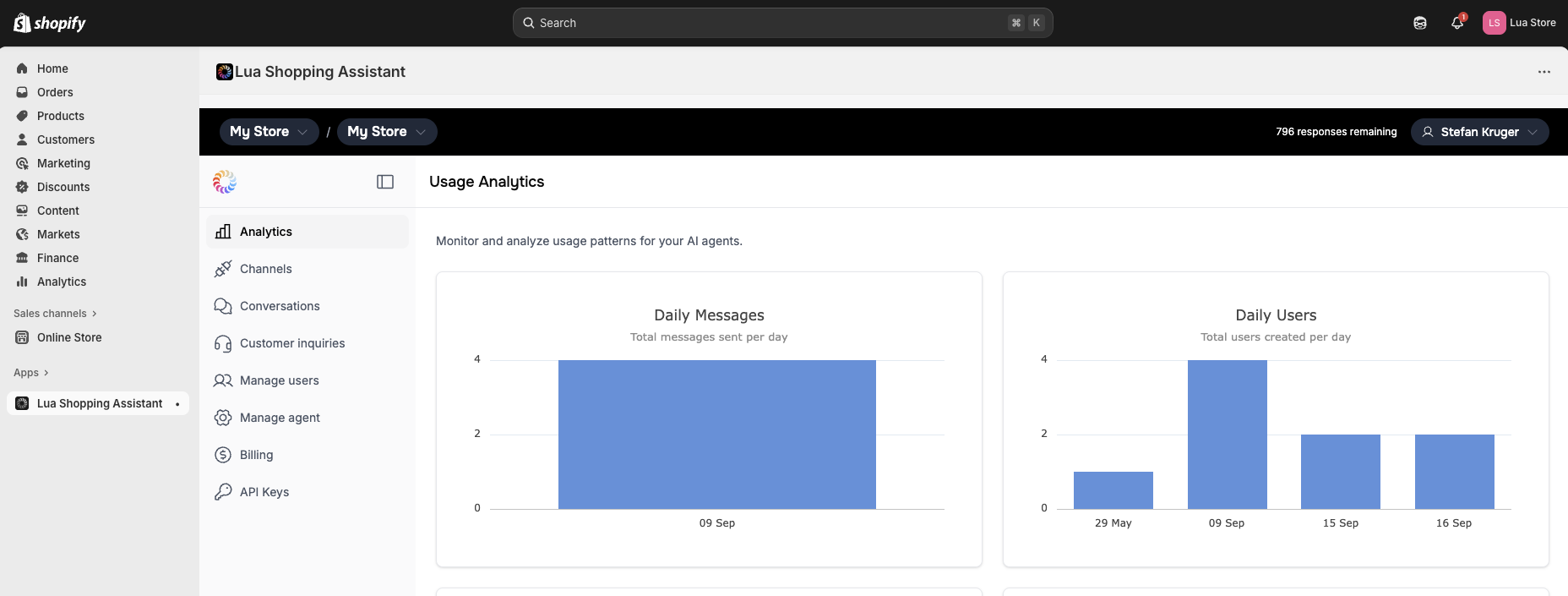 *Screenshot: Lua admin dashboard loaded within Shopify admin*
***
## Activate Chat Widget on Website
After installation, enable the chat widget on your storefront:
In Shopify admin: **Sales Channels** → **Online Store**
*Screenshot: Lua admin dashboard loaded within Shopify admin*
***
## Activate Chat Widget on Website
After installation, enable the chat widget on your storefront:
In Shopify admin: **Sales Channels** → **Online Store**
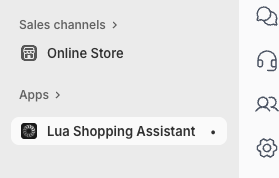 *Screenshot: Shopify sidebar showing Sales Channels → Online Store*
Click **Themes** → **Customize**
*Screenshot: Shopify sidebar showing Sales Channels → Online Store*
Click **Themes** → **Customize**
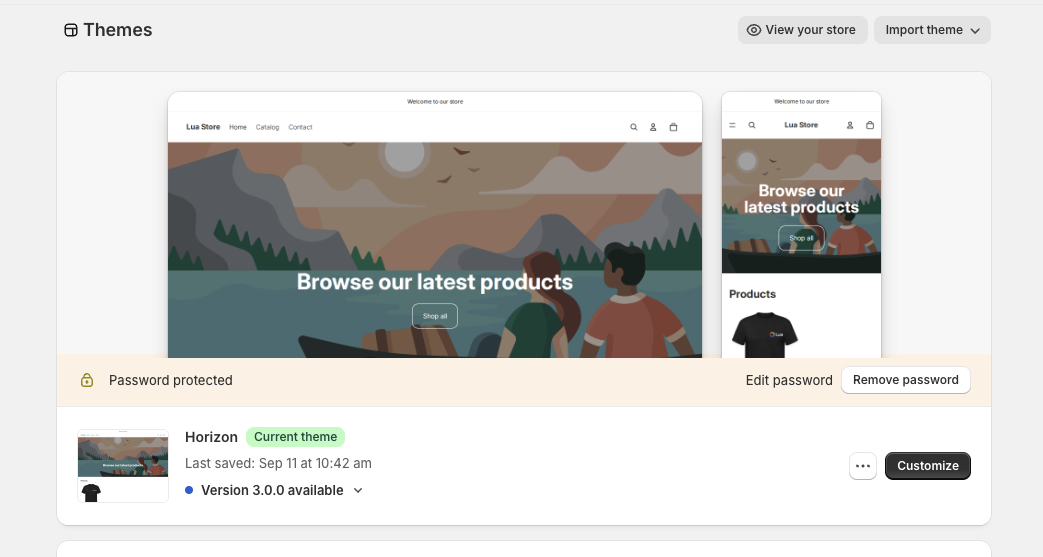 *Screenshot: Themes page with "Customize" button*
In the theme customizer, click **App embeds** in the left sidebar
*Screenshot: Themes page with "Customize" button*
In the theme customizer, click **App embeds** in the left sidebar
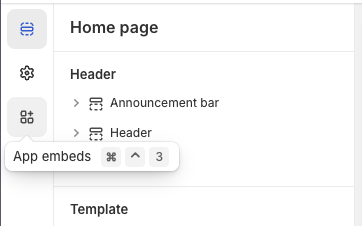 *Screenshot: Theme customizer showing "App embeds" in left navigation*
Locate "LuaPop Chat" in the app embeds list
*Screenshot: Theme customizer showing "App embeds" in left navigation*
Locate "LuaPop Chat" in the app embeds list
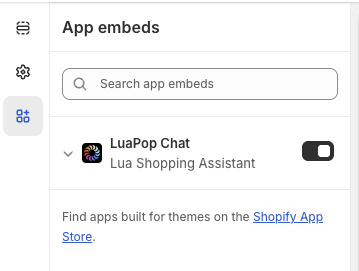 *Screenshot: App embeds list showing "LuaPop Chat" with toggle*
1. Toggle the switch to **Active**
2. Customize appearance:
* Position (Bottom Right, Bottom Left, etc.)
* Theme (Light or Dark)
* Button text
* Colors and styling
*Screenshot: App embeds list showing "LuaPop Chat" with toggle*
1. Toggle the switch to **Active**
2. Customize appearance:
* Position (Bottom Right, Bottom Left, etc.)
* Theme (Light or Dark)
* Button text
* Colors and styling
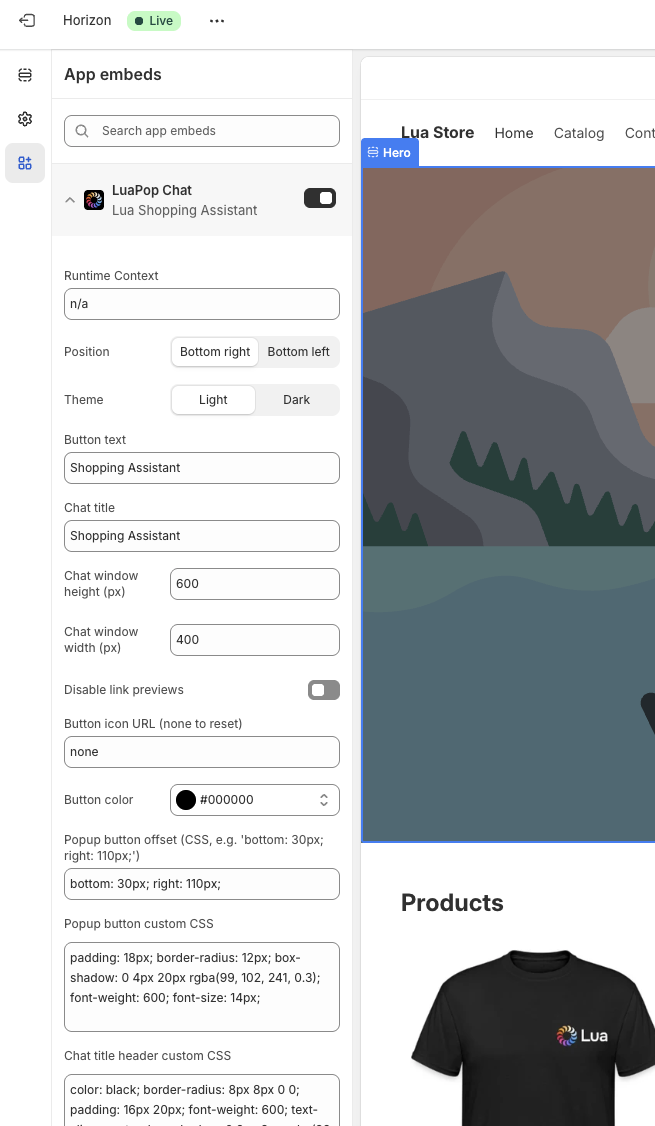 *Screenshot: LuaPop settings panel showing:*
* Active toggle (ON)
* Position dropdown
* Theme selector
* Button text field
* Color pickers
* Styling options
Click **Save** in the top right corner
*Screenshot: LuaPop settings panel showing:*
* Active toggle (ON)
* Position dropdown
* Theme selector
* Button text field
* Color pickers
* Styling options
Click **Save** in the top right corner
 *Screenshot: Theme customizer with "Save" button highlighted in top right*
***
## Styling & Customization
For complete styling options and customization:
Complete guide to colors, positioning, themes, and custom styles →
All LuaPop customization options are available in the Shopify app embed settings!
***
## What Your Agent Can Do
With Shopify integration, your agent can:
* 🔍 **Product Search** - Find items in your catalog
* 📦 **Product Details** - Specs, pricing, availability, reviews
* 🛒 **Cart Creation** - Build carts in chat conversations
* 💳 **Checkout Links** - Generate one-click checkout URLs
* 📍 **Order Tracking** - Check order status and shipping
* 💡 **Smart Recommendations** - Personalized product suggestions
* ❓ **Answer Questions** - Product info, shipping, returns, policies
* 🌐 **Multi-Channel** - Same assistant on web, WhatsApp, Instagram, Facebook
***
## Multi-Channel Setup
The Shopify app supports multiple channels beyond website chat:
Connect WhatsApp Business
Link Instagram Business account
Connect Facebook Page
Chat widget (auto-enabled)
See Channels documentation to connect WhatsApp, Instagram, and Facebook →
***
## Troubleshooting
**Check:**
1. App embed is toggled to **Active**
2. Theme customizer changes were **Saved**
3. Clear browser cache and refresh
4. Check theme compatibility
5. View published theme (not preview)
**Check:**
1. Agent is deployed (`lua production`)
2. Skills are pushed (`lua push`)
3. Check browser console for errors
4. Verify agent ID is correct
5. Test in admin dashboard
**Location:**
* Theme Customizer → Left sidebar → App embeds
**If missing:**
* Ensure app is installed
* Try different theme
* Contact Shopify support
**Check:**
1. Products are published in Shopify
2. Products have inventory
3. Agent has product search tools
4. Test with simple product names
***
## Best Practices
**Bottom Right** (default)
* Standard placement
* Familiar to users
* Doesn't interfere with product images
Mobile-optimized automatically
Customize colors to match your store:
* Use your brand colors
* Match header/footer styling
* Ensure good contrast
* Test on mobile and desktop
```bash theme={null}
# Test your agent first
lua chat
# Test product searches
# Test cart creation
# Test checkout links
# Then enable on store
```
* Check analytics in Shopify admin
* View conversations in `lua admin`
* Track conversions from chat
* Optimize based on usage
***
## App Updates
The Shopify app updates automatically:
* ✅ Latest features added automatically
* ✅ Security patches applied
* ✅ No manual update needed
* ✅ Changes announced in app dashboard
***
## Support & Resources
View app listing and reviews
Set up shopping assistant personality
Customize chat appearance
Email: [support@heylua.ai](mailto:support@heylua.ai)
***
## What Customers Are Saying
From the [Shopify App Store](https://apps.shopify.com/lua-shopping-assistant) reviews:
> "Great product- helped us automate customer queries & turn chats into sales."\
> — Ma boutique, France
> "I installed Lua to help me sell on Instagram & WhatsApp- loving it so far!"\
> — Rocco & Rose, United Kingdom
**Rating**: ⭐⭐⭐⭐⭐ 5.0 out of 5
***
## Next Steps
Get started on Shopify App Store
Add WhatsApp, Instagram, Facebook
See complete shopping assistant
Test shopping conversations
*Screenshot: Theme customizer with "Save" button highlighted in top right*
***
## Styling & Customization
For complete styling options and customization:
Complete guide to colors, positioning, themes, and custom styles →
All LuaPop customization options are available in the Shopify app embed settings!
***
## What Your Agent Can Do
With Shopify integration, your agent can:
* 🔍 **Product Search** - Find items in your catalog
* 📦 **Product Details** - Specs, pricing, availability, reviews
* 🛒 **Cart Creation** - Build carts in chat conversations
* 💳 **Checkout Links** - Generate one-click checkout URLs
* 📍 **Order Tracking** - Check order status and shipping
* 💡 **Smart Recommendations** - Personalized product suggestions
* ❓ **Answer Questions** - Product info, shipping, returns, policies
* 🌐 **Multi-Channel** - Same assistant on web, WhatsApp, Instagram, Facebook
***
## Multi-Channel Setup
The Shopify app supports multiple channels beyond website chat:
Connect WhatsApp Business
Link Instagram Business account
Connect Facebook Page
Chat widget (auto-enabled)
See Channels documentation to connect WhatsApp, Instagram, and Facebook →
***
## Troubleshooting
**Check:**
1. App embed is toggled to **Active**
2. Theme customizer changes were **Saved**
3. Clear browser cache and refresh
4. Check theme compatibility
5. View published theme (not preview)
**Check:**
1. Agent is deployed (`lua production`)
2. Skills are pushed (`lua push`)
3. Check browser console for errors
4. Verify agent ID is correct
5. Test in admin dashboard
**Location:**
* Theme Customizer → Left sidebar → App embeds
**If missing:**
* Ensure app is installed
* Try different theme
* Contact Shopify support
**Check:**
1. Products are published in Shopify
2. Products have inventory
3. Agent has product search tools
4. Test with simple product names
***
## Best Practices
**Bottom Right** (default)
* Standard placement
* Familiar to users
* Doesn't interfere with product images
Mobile-optimized automatically
Customize colors to match your store:
* Use your brand colors
* Match header/footer styling
* Ensure good contrast
* Test on mobile and desktop
```bash theme={null}
# Test your agent first
lua chat
# Test product searches
# Test cart creation
# Test checkout links
# Then enable on store
```
* Check analytics in Shopify admin
* View conversations in `lua admin`
* Track conversions from chat
* Optimize based on usage
***
## App Updates
The Shopify app updates automatically:
* ✅ Latest features added automatically
* ✅ Security patches applied
* ✅ No manual update needed
* ✅ Changes announced in app dashboard
***
## Support & Resources
View app listing and reviews
Set up shopping assistant personality
Customize chat appearance
Email: [support@heylua.ai](mailto:support@heylua.ai)
***
## What Customers Are Saying
From the [Shopify App Store](https://apps.shopify.com/lua-shopping-assistant) reviews:
> "Great product- helped us automate customer queries & turn chats into sales."\
> — Ma boutique, France
> "I installed Lua to help me sell on Instagram & WhatsApp- loving it so far!"\
> — Rocco & Rose, United Kingdom
**Rating**: ⭐⭐⭐⭐⭐ 5.0 out of 5
***
## Next Steps
Get started on Shopify App Store
Add WhatsApp, Instagram, Facebook
See complete shopping assistant
Test shopping conversations