> ## Documentation Index
> Fetch the complete documentation index at: https://docs.heylua.ai/llms.txt
> Use this file to discover all available pages before exploring further.
# Response Formatting
> Create rich, visual responses across all channels
## Overview
Make your agent's responses visually appealing with **formatting components** that work across WhatsApp, Facebook, Instagram, Email, Slack, and your website.
**Important**: You must explicitly instruct your agent in the **Persona** or **Skill Context** to use these components. They won't be used automatically!
These components work in **proactive messages** too — the `text` you pass to [`Channels.send`](/api/channels) (and `user.send()`) supports the same `:::` blocks, rendered on channels that support them. See [Proactive Messaging](/channels/proactive-messaging#components-in-proactive-messages).
## 10 Visual Components
**Products, rooms, menus**
Structured lists with images, titles, and descriptions
**Carousel display**
Swipeable cards for visual browsing (WhatsApp only)
**Interactive buttons**
Clickable action buttons for next steps
**Web URLs**
Links with rich previews
**Photo galleries**
Multiple images in gallery format
**File downloads**
Send PDFs, contracts, invoices, and other files
**Checkout links**
Secure payment and booking links
**Interactive forms**
WhatsApp Flows for secure data collection (WhatsApp only)
**Website navigation**
Direct users to pages (WebChat only)
**Emoji reactions**
React to the user's message instead of replying
## Quick Example
### E-commerce Product Response
**Without formatting:**
```
We have the UltraBook Pro for $1,299 and Student Laptop for $599.
```
**With formatting:**
```
::: list-item

# UltraBook Pro
$1,299 · In Stock — 16GB RAM, 512GB SSD. Free 2-day shipping.
:::
::: list-item

# Student Laptop
$599 · Available — 8GB RAM, 256GB SSD. One-year warranty.
:::
::: actions
- Add to Cart
- Compare Laptops
- View Full Specs
:::
```
**Result**: Beautiful visual cards with images, structured info, and clickable actions!
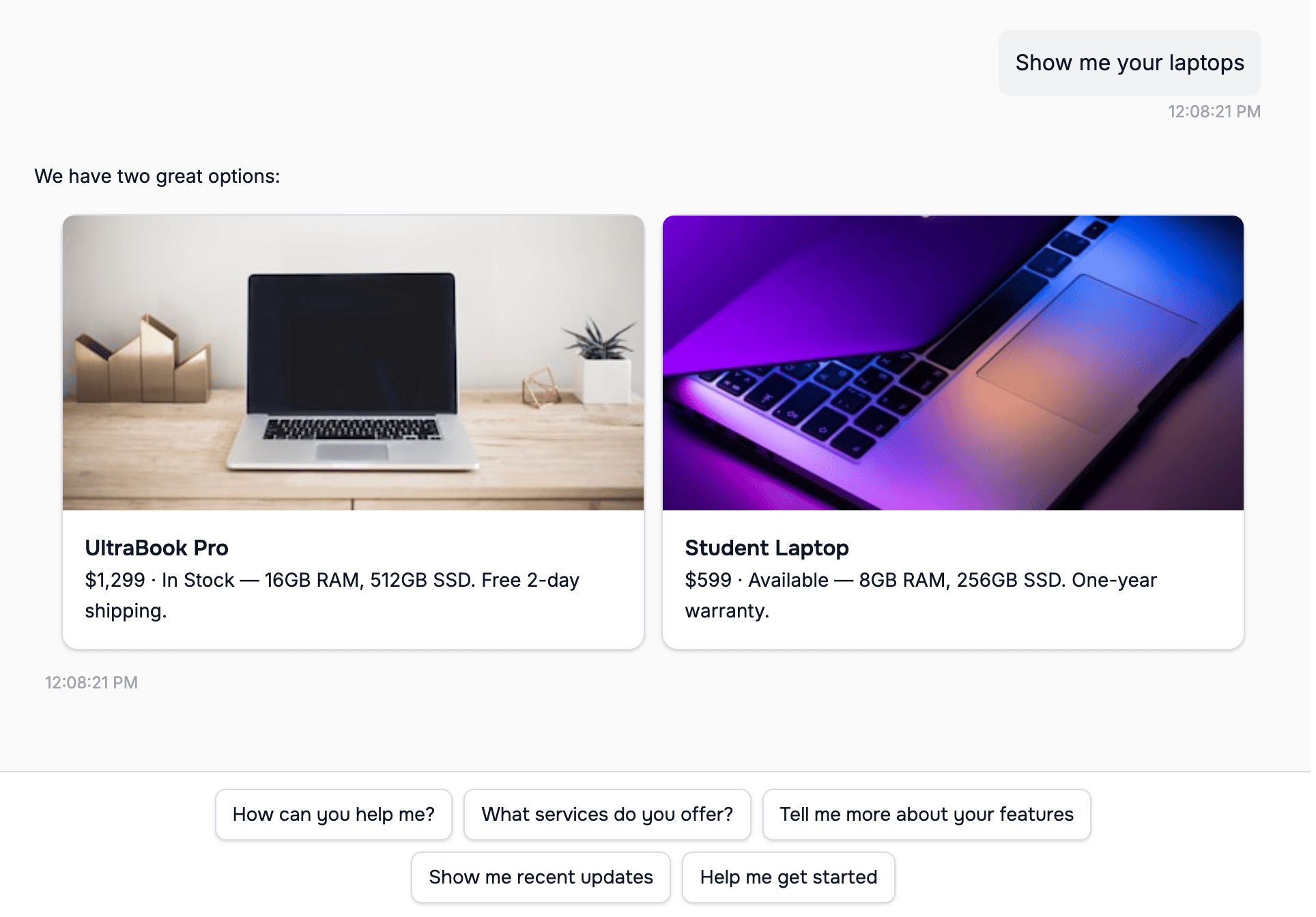 *The formatted markup above, rendered as visual cards in the Lua Pop chat widget.*
## How to Configure
Tell your agent in **Persona** or **Skill Context**:
```typescript theme={null}
persona: `
When showing products, use list-item format:
::: list-item

# Product Name
$Price · Stock. Description here.
:::
Then provide actions:
::: actions
- Add to Cart
- View Details
:::
`
```
Learn how to configure your agent's persona
## Platform Support
Most components work across all channels:
* ✅ WhatsApp Business
* ✅ Facebook Messenger
* ✅ Instagram Messenger
* ✅ Email
* ✅ Slack
* ✅ Website (LuaPop)
**Channel-specific components:**
* **Navigate** - WebChat/LuaPop only (requires onNavigate handler)
* **Horizontal-List-Item** - WhatsApp only (falls back to list-item on other channels)
* **Flow** - WhatsApp only (sends interactive WhatsApp Flows for secure data collection)
* **Reaction** - WhatsApp, Instagram, Facebook Messenger, Slack, iMessage, and web chat (ignored elsewhere)
## Explore Components
Click on any component in the left sidebar to see:
* Complete format specification
* Multiple examples across channels
* How to configure in persona/context
* Best practices
* Troubleshooting
Most commonly used component
Make responses interactive
Add formatting instructions
Verify formatting works
*The formatted markup above, rendered as visual cards in the Lua Pop chat widget.*
## How to Configure
Tell your agent in **Persona** or **Skill Context**:
```typescript theme={null}
persona: `
When showing products, use list-item format:
::: list-item

# Product Name
$Price · Stock. Description here.
:::
Then provide actions:
::: actions
- Add to Cart
- View Details
:::
`
```
Learn how to configure your agent's persona
## Platform Support
Most components work across all channels:
* ✅ WhatsApp Business
* ✅ Facebook Messenger
* ✅ Instagram Messenger
* ✅ Email
* ✅ Slack
* ✅ Website (LuaPop)
**Channel-specific components:**
* **Navigate** - WebChat/LuaPop only (requires onNavigate handler)
* **Horizontal-List-Item** - WhatsApp only (falls back to list-item on other channels)
* **Flow** - WhatsApp only (sends interactive WhatsApp Flows for secure data collection)
* **Reaction** - WhatsApp, Instagram, Facebook Messenger, Slack, iMessage, and web chat (ignored elsewhere)
## Explore Components
Click on any component in the left sidebar to see:
* Complete format specification
* Multiple examples across channels
* How to configure in persona/context
* Best practices
* Troubleshooting
Most commonly used component
Make responses interactive
Add formatting instructions
Verify formatting works