> ## Documentation Index
> Fetch the complete documentation index at: https://docs.heylua.ai/llms.txt
> Use this file to discover all available pages before exploring further.
# Images Component
> Display image galleries and multiple photos
## Overview
The **Images** component displays multiple images in gallery format.
## Format
```
::: images


:::
```
## Example
```
::: images


:::
```
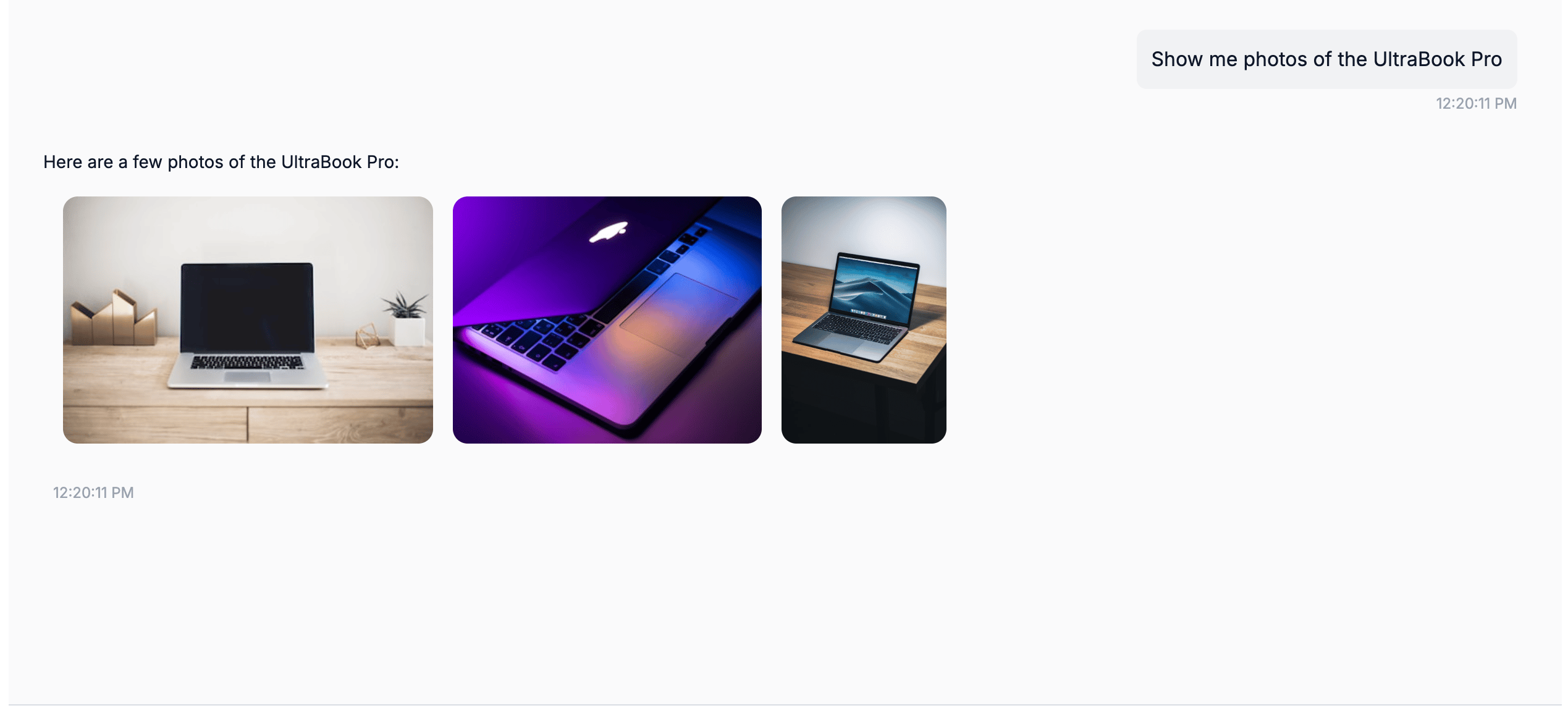 *An image gallery rendered in the Lua Pop web widget.*
## Configure
```typescript theme={null}
persona: `
When showing product photos, use images component:
::: images


:::
Always show multiple angles.
`
```
## Best For
* Product photos
* Property images
* Menu item photos
* Before/after
* Gallery views
Next: Payment links
*An image gallery rendered in the Lua Pop web widget.*
## Configure
```typescript theme={null}
persona: `
When showing product photos, use images component:
::: images


:::
Always show multiple angles.
`
```
## Best For
* Product photos
* Property images
* Menu item photos
* Before/after
* Gallery views
Next: Payment links