> ## Documentation Index
> Fetch the complete documentation index at: https://docs.heylua.ai/llms.txt
> Use this file to discover all available pages before exploring further.
# WhatsApp Business
> Connect your agent to WhatsApp Business API
## Overview
WhatsApp Business API allows your agent to communicate with customers via WhatsApp - the world's most popular messaging app with 2+ billion users.
Professional customer communication
Images, videos, documents, location
98% open rates
Available in 180+ countries
## Prerequisites
Before connecting WhatsApp, you need:
Meta updates its developer dashboard and Business Suite UI frequently. The steps below describe what you need; for exact, up-to-date clicks, follow Meta's official [WhatsApp Cloud API — Get Started](https://developers.facebook.com/docs/whatsapp/cloud-api/get-started) guide.
Create account at [https://business.facebook.com](https://business.facebook.com)
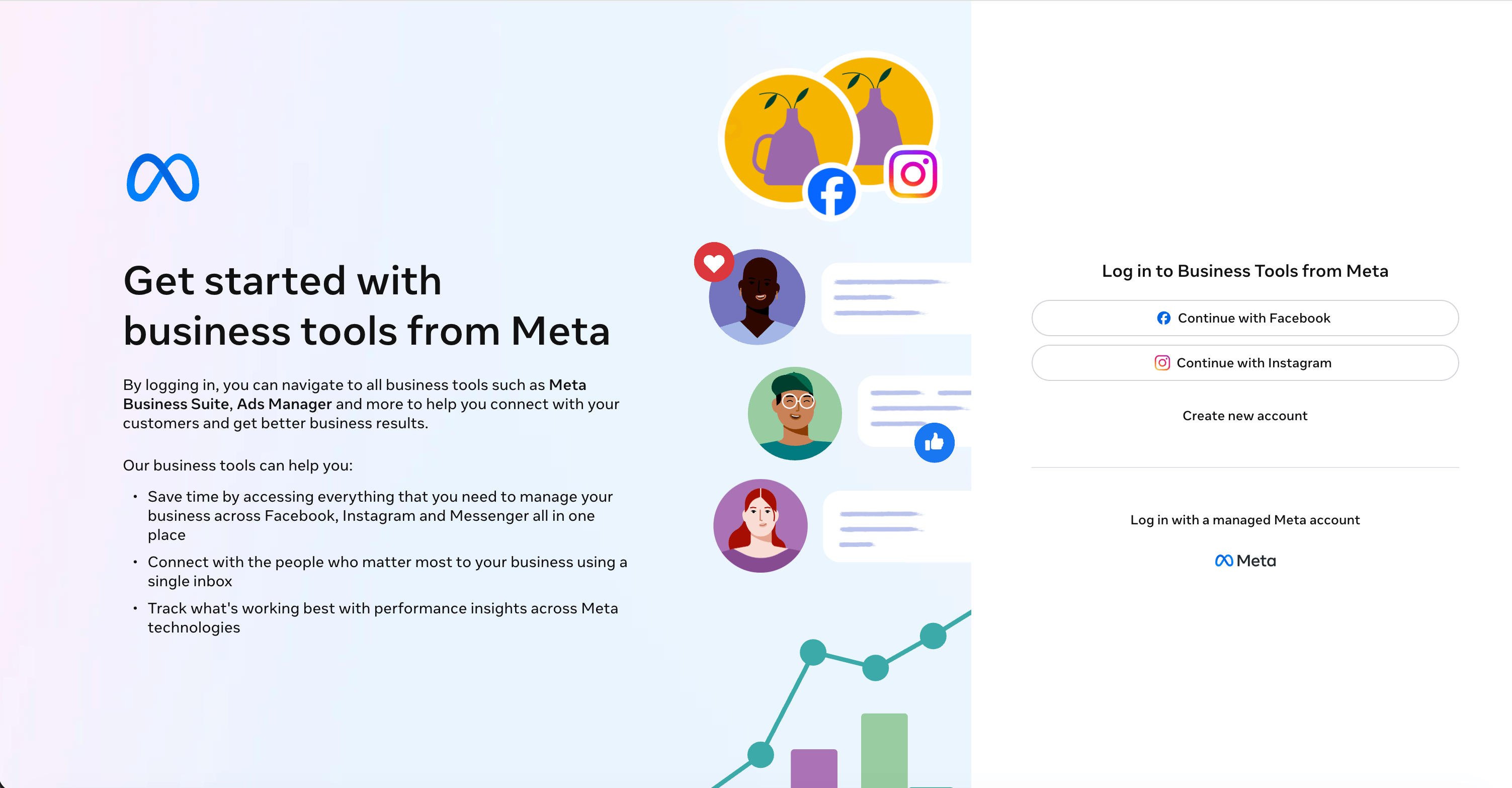 *Screenshot: Meta Business account creation page*
In Meta's developer dashboard, create an app and select the **WhatsApp** use case. A WhatsApp Business Account is created for you, and you can open it under **WhatsApp → API Setup**.
See Meta's official guide: [Create an app with the WhatsApp use case](https://developers.facebook.com/docs/development/create-an-app/whatsapp-use-case/).
Add and verify a business phone number, or use the free test number Meta provides for development. See Meta's [Get Started guide](https://developers.facebook.com/docs/whatsapp/cloud-api/get-started) for adding and verifying numbers.
Collect the required information:
* **Phone Number ID**
* **WhatsApp Business Account (WABA) ID**
* **Access Token**
All three appear on the **WhatsApp → API Setup** page of your app in the [Meta developer dashboard](https://developers.facebook.com/apps). For production, generate a permanent token via a System User — see Meta's [Get Started guide](https://developers.facebook.com/docs/whatsapp/cloud-api/get-started).
## Connection Method 1: CLI
### Step-by-Step CLI Setup
```bash theme={null}
lua channels
```
```
✅ Using agent: myAgent
? What would you like to do?
❯ 🔗 Link new channel
```
```
? Select channel type:
❯ 📱 WhatsApp
💬 Facebook Messenger
📧 Email
🔒 Slack (Private)
```
```
? Enter phone number ID: 647834045087314
```
Find this in Meta Business Suite → WhatsApp → Phone Numbers
```
? Enter WhatsApp Business Account ID (WABA ID): 1390592278829291
```
Find this in Meta Business Suite → WhatsApp → Settings
```
? Enter access token: ****
```
Generate in Meta Business Suite → System Users → Generate Token
```
📡 Creating WhatsApp channel...
✅ WhatsApp channel created successfully!
📱 Phone Number: +15557986280
📊 Status: CONNECTED
🌍 Country: USA
🎯 Webhook URL: https://wa.heylua.ai/whatsapp/webhook/abc123
```
### Configure Webhook in Meta
Copy the webhook URL from the CLI output.
In your app's developer dashboard, go to **WhatsApp → Configuration**.
Click **Edit**, paste the webhook URL as the **Callback URL**, enter your **Verify token**, and save.
Under **Webhook fields**, click **Manage** and subscribe to `messages` and `message_status`.
Meta sends a verification request to confirm the webhook. A green check confirms it's connected.
Meta's webhook setup UI changes periodically. For the current steps and field names, follow Meta's official guide: [Set up Webhooks for WhatsApp Cloud API](https://developers.facebook.com/docs/whatsapp/cloud-api/guides/set-up-webhooks).
## Connection Method 2: Admin Dashboard
### Step-by-Step Dashboard Setup
The dashboard uses Meta's **Embedded Signup**, so you don't enter credentials or configure webhooks by hand. Signing in with Facebook lets Meta provision (or connect) your WhatsApp Business Account, phone number, and webhook automatically. Use the [CLI method](#connection-method-1-cli) instead if you already have credentials and prefer to enter them manually.
```bash theme={null}
lua admin
```
Or visit [https://admin.heylua.ai](https://admin.heylua.ai).
Click **Agents** in the main side navigation, then select your agent's card.
Click the **+** (plus) icon to add a channel, then choose **WhatsApp**.
*Screenshot: Meta Business account creation page*
In Meta's developer dashboard, create an app and select the **WhatsApp** use case. A WhatsApp Business Account is created for you, and you can open it under **WhatsApp → API Setup**.
See Meta's official guide: [Create an app with the WhatsApp use case](https://developers.facebook.com/docs/development/create-an-app/whatsapp-use-case/).
Add and verify a business phone number, or use the free test number Meta provides for development. See Meta's [Get Started guide](https://developers.facebook.com/docs/whatsapp/cloud-api/get-started) for adding and verifying numbers.
Collect the required information:
* **Phone Number ID**
* **WhatsApp Business Account (WABA) ID**
* **Access Token**
All three appear on the **WhatsApp → API Setup** page of your app in the [Meta developer dashboard](https://developers.facebook.com/apps). For production, generate a permanent token via a System User — see Meta's [Get Started guide](https://developers.facebook.com/docs/whatsapp/cloud-api/get-started).
## Connection Method 1: CLI
### Step-by-Step CLI Setup
```bash theme={null}
lua channels
```
```
✅ Using agent: myAgent
? What would you like to do?
❯ 🔗 Link new channel
```
```
? Select channel type:
❯ 📱 WhatsApp
💬 Facebook Messenger
📧 Email
🔒 Slack (Private)
```
```
? Enter phone number ID: 647834045087314
```
Find this in Meta Business Suite → WhatsApp → Phone Numbers
```
? Enter WhatsApp Business Account ID (WABA ID): 1390592278829291
```
Find this in Meta Business Suite → WhatsApp → Settings
```
? Enter access token: ****
```
Generate in Meta Business Suite → System Users → Generate Token
```
📡 Creating WhatsApp channel...
✅ WhatsApp channel created successfully!
📱 Phone Number: +15557986280
📊 Status: CONNECTED
🌍 Country: USA
🎯 Webhook URL: https://wa.heylua.ai/whatsapp/webhook/abc123
```
### Configure Webhook in Meta
Copy the webhook URL from the CLI output.
In your app's developer dashboard, go to **WhatsApp → Configuration**.
Click **Edit**, paste the webhook URL as the **Callback URL**, enter your **Verify token**, and save.
Under **Webhook fields**, click **Manage** and subscribe to `messages` and `message_status`.
Meta sends a verification request to confirm the webhook. A green check confirms it's connected.
Meta's webhook setup UI changes periodically. For the current steps and field names, follow Meta's official guide: [Set up Webhooks for WhatsApp Cloud API](https://developers.facebook.com/docs/whatsapp/cloud-api/guides/set-up-webhooks).
## Connection Method 2: Admin Dashboard
### Step-by-Step Dashboard Setup
The dashboard uses Meta's **Embedded Signup**, so you don't enter credentials or configure webhooks by hand. Signing in with Facebook lets Meta provision (or connect) your WhatsApp Business Account, phone number, and webhook automatically. Use the [CLI method](#connection-method-1-cli) instead if you already have credentials and prefer to enter them manually.
```bash theme={null}
lua admin
```
Or visit [https://admin.heylua.ai](https://admin.heylua.ai).
Click **Agents** in the main side navigation, then select your agent's card.
Click the **+** (plus) icon to add a channel, then choose **WhatsApp**.
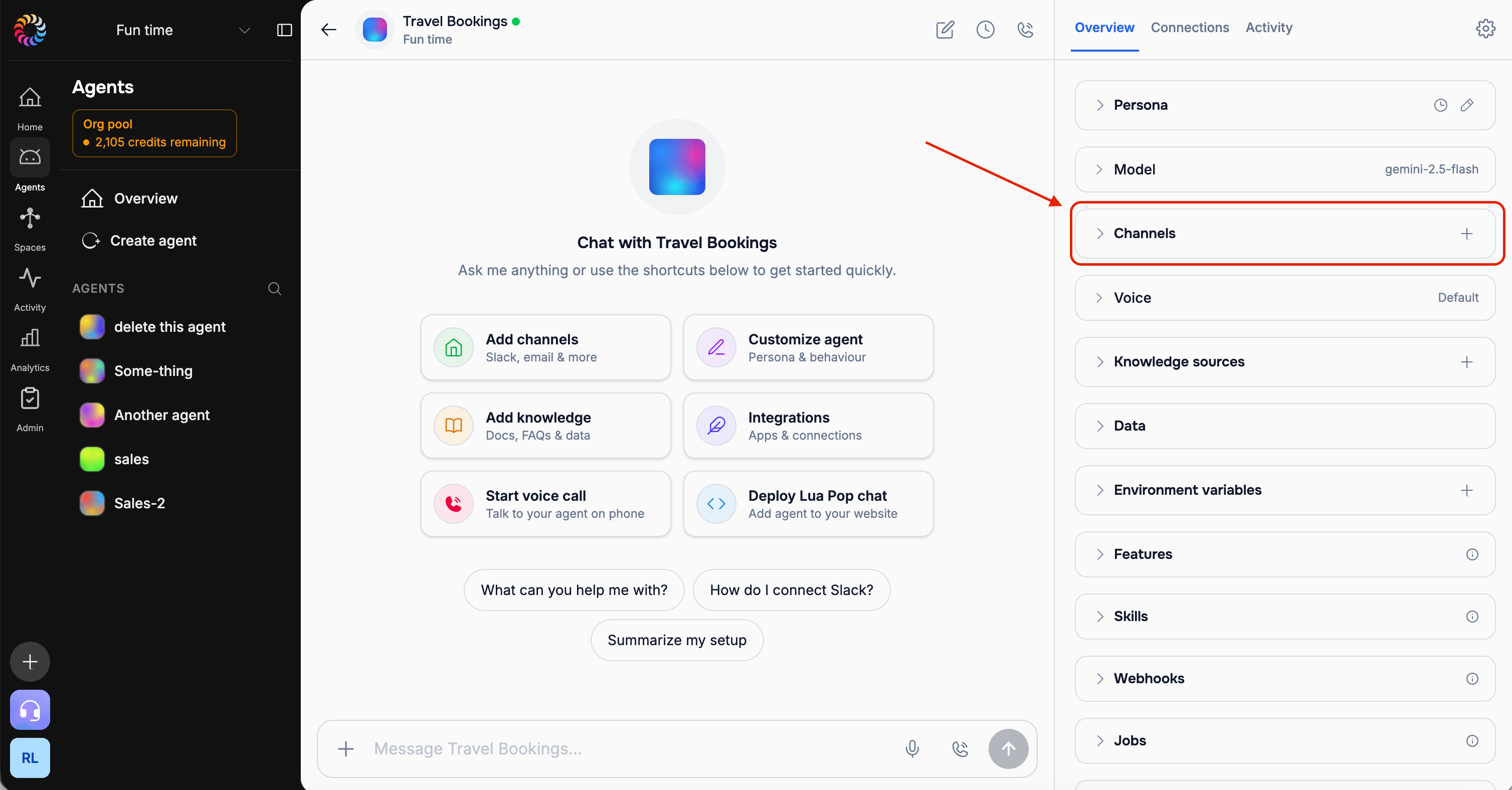 *Screenshot: The agent's add-channel (+) control and the WhatsApp option*
Tick the box to accept the **Terms of Service** and **Privacy Policy**, then click **Connect**.
A Meta **Embedded Signup** popup opens. Log in with your Facebook details and continue the Facebook workflow — select or create your Business account, WhatsApp Business Account, and phone number. Meta handles verification and webhook setup for you.
This popup is Meta's own UI and changes periodically. See Meta's [Embedded Signup overview](https://developers.facebook.com/docs/whatsapp/embedded-signup) if you get stuck.
When signup completes, you'll see a **"WhatsApp channel connected"** confirmation and WhatsApp appears in your connected channels.
## Testing Your WhatsApp Channel
From your phone, send WhatsApp message to your business number
```
You: Hi!
```
Your agent should respond automatically
```
Agent: Hello! How can I help you today?
```
View conversation in admin dashboard
*Screenshot: The agent's add-channel (+) control and the WhatsApp option*
Tick the box to accept the **Terms of Service** and **Privacy Policy**, then click **Connect**.
A Meta **Embedded Signup** popup opens. Log in with your Facebook details and continue the Facebook workflow — select or create your Business account, WhatsApp Business Account, and phone number. Meta handles verification and webhook setup for you.
This popup is Meta's own UI and changes periodically. See Meta's [Embedded Signup overview](https://developers.facebook.com/docs/whatsapp/embedded-signup) if you get stuck.
When signup completes, you'll see a **"WhatsApp channel connected"** confirmation and WhatsApp appears in your connected channels.
## Testing Your WhatsApp Channel
From your phone, send WhatsApp message to your business number
```
You: Hi!
```
Your agent should respond automatically
```
Agent: Hello! How can I help you today?
```
View conversation in admin dashboard
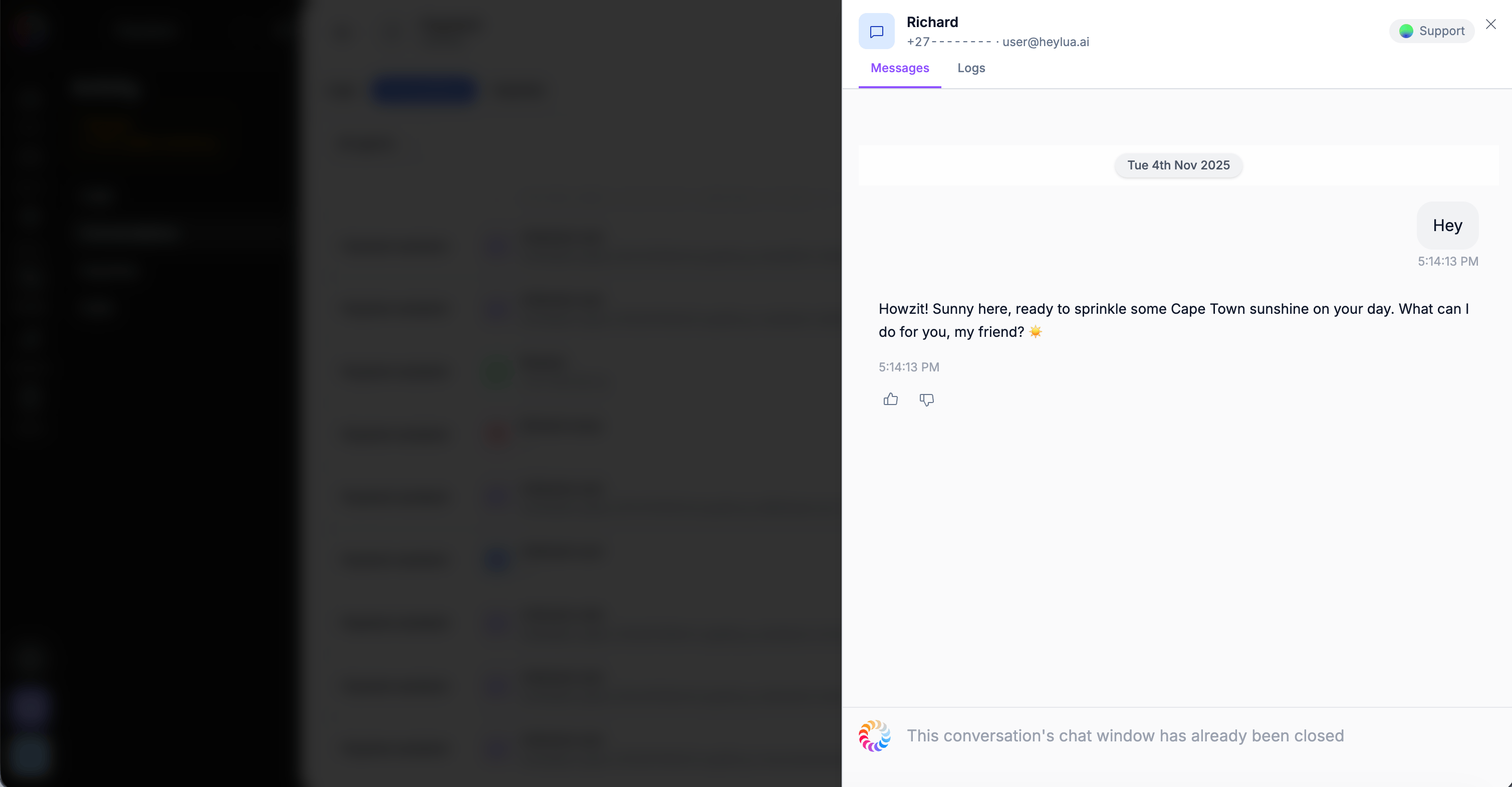 *Screenshot: Real-time conversation view*
## Message Status Events
When you send messages via WhatsApp (including template messages), Meta sends status updates back to Lua as messages progress through delivery. Lua captures these events and can forward them to your webhooks.
### Status Lifecycle
A typical message goes through these statuses:
```
sent → delivered → read
```
| Status | Meaning |
| ----------- | ------------------------------------------------------- |
| `sent` | Message accepted by WhatsApp servers |
| `delivered` | Message delivered to recipient's device |
| `read` | Recipient opened and read the message |
| `failed` | Message could not be delivered (includes error details) |
| `played` | Recipient played a voice or video message |
### Tracking Delivery with Webhooks
To receive these events in your code, subscribe a webhook to the event types you need:
```bash theme={null}
lua webhooks subscribe --webhook-name my-tracker --event message.sent
lua webhooks subscribe --webhook-name my-tracker --event message.delivered
lua webhooks subscribe --webhook-name my-tracker --event message.read
lua webhooks subscribe --webhook-name my-tracker --event message.failed
```
Your webhook receives the full status payload including the message ID, recipient, timestamp, conversation context, and pricing information. See the [Webhooks API Reference](/api/luawebhook#event-subscriptions) for the complete payload shape.
Status events are particularly useful when sending template messages via the [Templates API](/api/templates). After sending a campaign, subscribe to `message.delivered` and `message.read` to measure engagement, or `message.failed` to catch delivery issues.
### Prerequisites
For status events to flow through, make sure you've subscribed to `messages` **and** `message_status` in your Meta webhook configuration (see [Configure Webhook in Meta](#configure-webhook-in-meta) above).
## Status & Quality
### Connection Status
* 🟢 **CONNECTED** - Working normally
* 🔴 **DISCONNECTED** - Needs reconnection
* 🟡 **PENDING** - Setup in progress
### Quality Rating
Meta assigns quality ratings based on user feedback:
* 🟢 **GREEN** - High quality (good!)
* 🟡 **YELLOW** - Medium quality (watch carefully)
* 🔴 **RED** - Low quality (take action)
Low quality ratings can result in rate limiting or account restrictions. Monitor quality in admin dashboard.
## Sending Proactive Messages
Your agent can message WhatsApp users on its own — order updates, reminders, follow-ups — using the [Channels API](/api/channels), not just reply to inbound messages.
```typescript theme={null}
import { Channels } from 'lua-cli';
// In-window: free-form message (within 24h of the user's last message)
await Channels.send({
channel: 'whatsapp',
to: { userId: 'user_123' },
text: 'Your order has shipped! 📦'
});
// Outside the window: send an approved template to re-open the conversation
await Channels.whatsapp.sendTemplate({
to: { phoneNumber: '+14155552671' },
templateName: 'order_update',
languageCode: 'en_US',
messageContext: 'Told the customer their order shipped'
});
```
WhatsApp allows **free-form** messages only within **24 hours** of the user's last inbound message. Outside that window, use an approved template (or rely on the default queue behavior). See [Proactive Messaging](/channels/proactive-messaging#the-whatsapp-24-hour-window) and [Channel Capabilities](/channels/channel-capabilities#whatsapp).
## Best Practices
* Respond within 24 hours
* Quick responses improve quality rating
* Agent handles this automatically
* Use templates for notifications
* Required for messages after 24 hours
* Set up in Meta Business Suite
* Users must message you first
* Cannot send unsolicited messages
* Respect user privacy
```bash theme={null}
lua admin
# Check quality rating regularly
# Address any user complaints promptly
```
## Troubleshooting
**Causes:**
* Token expired
* WABA disabled
* Phone number removed
**Solution:**
1. Regenerate access token
2. Update in admin dashboard
3. Verify WABA is active
**Check:**
* Quality rating (RED = issues)
* Webhook configured correctly
* Phone number status in Meta
* Message templates approved
**Actions:**
1. Review recent conversations
2. Check user feedback in Meta
3. Improve agent responses
4. Address user complaints
5. May need to adjust persona
## Next Steps
Connect another channel
Test agent behavior
View channel analytics
Complete CLI guide
*Screenshot: Real-time conversation view*
## Message Status Events
When you send messages via WhatsApp (including template messages), Meta sends status updates back to Lua as messages progress through delivery. Lua captures these events and can forward them to your webhooks.
### Status Lifecycle
A typical message goes through these statuses:
```
sent → delivered → read
```
| Status | Meaning |
| ----------- | ------------------------------------------------------- |
| `sent` | Message accepted by WhatsApp servers |
| `delivered` | Message delivered to recipient's device |
| `read` | Recipient opened and read the message |
| `failed` | Message could not be delivered (includes error details) |
| `played` | Recipient played a voice or video message |
### Tracking Delivery with Webhooks
To receive these events in your code, subscribe a webhook to the event types you need:
```bash theme={null}
lua webhooks subscribe --webhook-name my-tracker --event message.sent
lua webhooks subscribe --webhook-name my-tracker --event message.delivered
lua webhooks subscribe --webhook-name my-tracker --event message.read
lua webhooks subscribe --webhook-name my-tracker --event message.failed
```
Your webhook receives the full status payload including the message ID, recipient, timestamp, conversation context, and pricing information. See the [Webhooks API Reference](/api/luawebhook#event-subscriptions) for the complete payload shape.
Status events are particularly useful when sending template messages via the [Templates API](/api/templates). After sending a campaign, subscribe to `message.delivered` and `message.read` to measure engagement, or `message.failed` to catch delivery issues.
### Prerequisites
For status events to flow through, make sure you've subscribed to `messages` **and** `message_status` in your Meta webhook configuration (see [Configure Webhook in Meta](#configure-webhook-in-meta) above).
## Status & Quality
### Connection Status
* 🟢 **CONNECTED** - Working normally
* 🔴 **DISCONNECTED** - Needs reconnection
* 🟡 **PENDING** - Setup in progress
### Quality Rating
Meta assigns quality ratings based on user feedback:
* 🟢 **GREEN** - High quality (good!)
* 🟡 **YELLOW** - Medium quality (watch carefully)
* 🔴 **RED** - Low quality (take action)
Low quality ratings can result in rate limiting or account restrictions. Monitor quality in admin dashboard.
## Sending Proactive Messages
Your agent can message WhatsApp users on its own — order updates, reminders, follow-ups — using the [Channels API](/api/channels), not just reply to inbound messages.
```typescript theme={null}
import { Channels } from 'lua-cli';
// In-window: free-form message (within 24h of the user's last message)
await Channels.send({
channel: 'whatsapp',
to: { userId: 'user_123' },
text: 'Your order has shipped! 📦'
});
// Outside the window: send an approved template to re-open the conversation
await Channels.whatsapp.sendTemplate({
to: { phoneNumber: '+14155552671' },
templateName: 'order_update',
languageCode: 'en_US',
messageContext: 'Told the customer their order shipped'
});
```
WhatsApp allows **free-form** messages only within **24 hours** of the user's last inbound message. Outside that window, use an approved template (or rely on the default queue behavior). See [Proactive Messaging](/channels/proactive-messaging#the-whatsapp-24-hour-window) and [Channel Capabilities](/channels/channel-capabilities#whatsapp).
## Best Practices
* Respond within 24 hours
* Quick responses improve quality rating
* Agent handles this automatically
* Use templates for notifications
* Required for messages after 24 hours
* Set up in Meta Business Suite
* Users must message you first
* Cannot send unsolicited messages
* Respect user privacy
```bash theme={null}
lua admin
# Check quality rating regularly
# Address any user complaints promptly
```
## Troubleshooting
**Causes:**
* Token expired
* WABA disabled
* Phone number removed
**Solution:**
1. Regenerate access token
2. Update in admin dashboard
3. Verify WABA is active
**Check:**
* Quality rating (RED = issues)
* Webhook configured correctly
* Phone number status in Meta
* Message templates approved
**Actions:**
1. Review recent conversations
2. Check user feedback in Meta
3. Improve agent responses
4. Address user complaints
5. May need to adjust persona
## Next Steps
Connect another channel
Test agent behavior
View channel analytics
Complete CLI guide