> ## Documentation Index
> Fetch the complete documentation index at: https://docs.heylua.ai/llms.txt
> Use this file to discover all available pages before exploring further.

# Website Chat Widget

> Embed the Lua Pop chat widget on your website

## Overview

Lua Pop is an embeddable chat widget that brings your AI agent directly to your website - no channel connection needed, just add a script tag!

<CardGroup cols={2}>
  <Card title="2-Minute Setup" icon="clock">
    Single script tag
  </Card>

  <Card title="Fully Customizable" icon="palette">
    Match your brand
  </Card>

  <Card title="Voice Chat" icon="microphone">
    Optional voice support
  </Card>

  <Card title="Any Framework" icon="code">
    Works everywhere
  </Card>
</CardGroup>

## Two ways to set it up

* **No code** — configure the widget visually in the admin dashboard, then drop in a one-line `window.LuaPop.init()` snippet.
* **Inline** — pass your options directly to `window.LuaPop.init({ ... })` in code.

<Info>
  **Configuration priority:** dashboard settings apply only when you call `window.LuaPop.init()` with **no arguments**. If your embed script passes options to `window.LuaPop.init({ ... })`, those values take priority over the settings configured in the dashboard.
</Info>

## Configure in the dashboard (no code)

<Steps>
  <Step title="Open the widget settings">
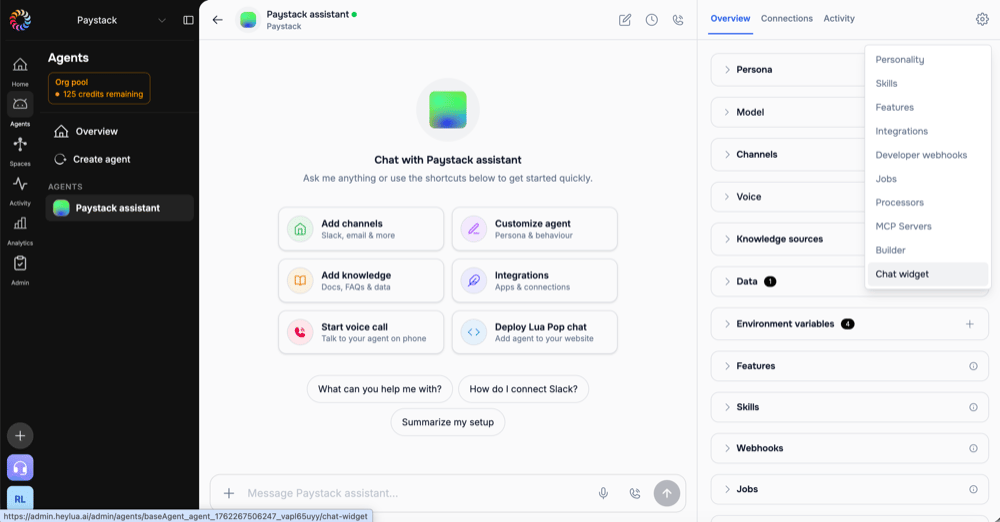
    In the admin dashboard, click **Agents** in the side navigation, select your agent's card, click the **settings cog** in the top right, then choose **Chat widget**.
    <Frame>
      <img src="https://mintcdn.com/luaglobal/5airD3u2P6mv3Ovl/images/channels/admin-widget-settings-menu.png?fit=max&auto=format&n=5airD3u2P6mv3Ovl&q=85&s=fb749e237100a649394cc00a6ead3e69" alt="Open Chat widget settings from the agent settings menu" width="1000" height="522" data-path="images/channels/admin-widget-settings-menu.png" />
    </Frame>
  </Step>

  <Step title="Customize the widget">
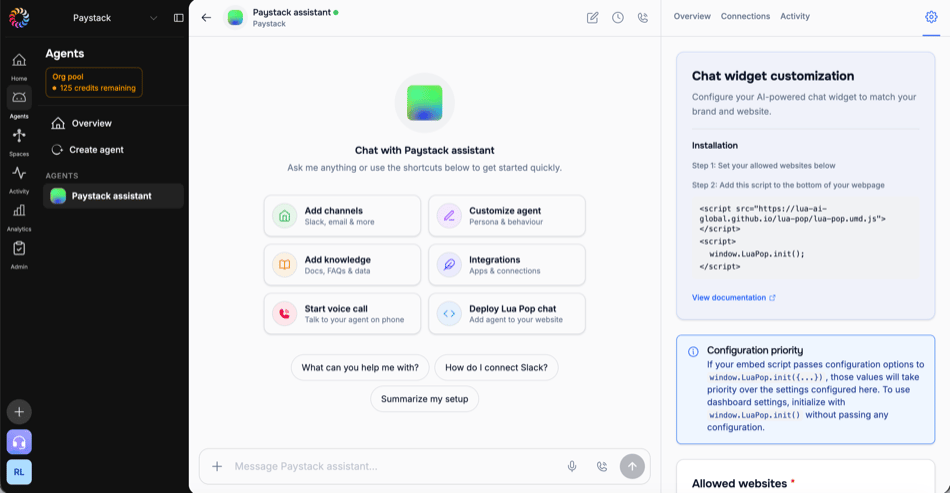
    Adjust the settings in the **Chat widget customization** panel on the right.
    <Frame>
      <img src="https://mintcdn.com/luaglobal/5airD3u2P6mv3Ovl/images/channels/admin-widget-customization.png?fit=max&auto=format&n=5airD3u2P6mv3Ovl&q=85&s=0946122dad269fc855e4256a9619a839" alt="Chat widget customization panel" width="950" height="493" data-path="images/channels/admin-widget-customization.png" />
    </Frame>

    The panel includes:

    * **Allowed websites** *(required)* — the domains the widget is allowed to load on.
    * **Excluded paths** — pages where the widget should stay hidden (e.g. `/checkout`).
    * **General** — display mode (**floating** or **embedded**), custom instructions, chat input placeholder, and welcome message.
    * **Floating button settings** *(floating mode)* — position, **draggable button**, button text, color and icon, button spacing, and chat window size.
    * **Embedded settings** *(embedded mode)* — target container ID and conversation starters.
    * **Features** — voice mode, microphone, attachments, and link previews.
    * **Chat header** — chat title and header colors.

    Click **Create channel** (or **Update configuration**) to save.
  </Step>

  <Step title="Add the embed snippet">
    Under **Installation**, copy the snippet and place it before the closing `</body>` tag on your site:

    ```html theme={null}
    <script src="https://lua-ai-global.github.io/lua-pop/lua-pop.umd.js"></script>
    <script>
      window.LuaPop.init();
    </script>
    ```

    Because `init()` is called with no arguments, the widget uses the settings you configured in the dashboard.
  </Step>
</Steps>

## Configure inline (code)

Prefer to keep configuration in code? Pass your options directly to `init()`. These override any dashboard settings.

```html theme={null}
<script src="https://lua-ai-global.github.io/lua-pop/lua-pop.umd.js"></script>
<script>
  window.LuaPop.init({
    agentId: "your-agent-id",

    // Position
    position: "bottom-right",  // or bottom-left, top-right, top-left
    draggable: true,           // let visitors drag the button to reposition it

    // Appearance
    buttonColor: "#ff173a",
    buttonText: "💬 Chat with us",
    chatTitle: "Customer Support",

    // Features
    voiceModeEnabled: true,

    // Branding
    chatHeaderSubtitle: {
      visible: true,
      brandName: "Your Company",
      iconUrl: "/logo.png"
    }
  });
</script>
```

Get your agent ID from your `lua.skill.yaml` file. Place the script before the closing `</body>` tag.

## Complete Documentation

<Card title="Full Lua Pop Guide" icon="book" href="/chat-widget/quick-start" horizontal>
  Complete chat widget documentation with configuration, styling, events, frameworks, and more
</Card>

## Framework Integration

<Tabs>
  <Tab title="React">
    ```tsx theme={null}
    import { useEffect } from 'react';

    export default function ChatWidget() {
      useEffect(() => {
        const script = document.createElement('script');
        script.src = 'https://lua-ai-global.github.io/lua-pop/lua-pop.umd.js';
        script.onload = () => {
          window.LuaPop?.init({
            agentId: process.env.REACT_APP_AGENT_ID,
            position: "bottom-right"
          });
        };
        document.body.appendChild(script);
      }, []);
      return null;
    }
    ```
  </Tab>

  <Tab title="Next.js">
    ```tsx theme={null}
    import Script from 'next/script';

    export default function Layout({ children }) {
      return (
        <>
          {children}
          <Script 
            src="https://lua-ai-global.github.io/lua-pop/lua-pop.umd.js"
            onLoad={() => {
              window.LuaPop?.init({
                agentId: process.env.NEXT_PUBLIC_AGENT_ID
              });
            }}
          />
        </>
      );
    }
    ```
  </Tab>

  <Tab title="WordPress">
    Add to theme's `footer.php` or use "Insert Headers and Footers" plugin
  </Tab>

  <Tab title="Shopify">
    Add to `theme.liquid` before `</body>`
  </Tab>
</Tabs>

<Card title="Framework Guides" href="/chat-widget/frameworks">
  Complete integration guides for all frameworks
</Card>

## Next Steps

<CardGroup cols={2}>
  <Card title="Widget Configuration" icon="cog" href="/chat-widget/configuration">
    All configuration options
  </Card>

  <Card title="Styling Guide" icon="palette" href="/chat-widget/styling">
    Customize appearance
  </Card>
</CardGroup>
