> ## Documentation Index
> Fetch the complete documentation index at: https://docs.heylua.ai/llms.txt
> Use this file to discover all available pages before exploring further.
# Microsoft Teams
> Connect your agent to Microsoft Teams
## Overview
Microsoft Teams integration lets your agent respond inside Teams chats and channels - a natural fit for internal tooling and organizations already standardized on Microsoft 365.
Built for Microsoft 365 organizations
DMs, group chats, and @mentions in team channels
Use Lua's shared bot with no Azure setup
Full control with your own Azure Bot registration
## Two ways to connect
**Fastest option**
* No Azure account or app registration needed
* Install Lua's shared Teams app into your tenant
* Best for getting started quickly or trying Teams out
Available in the dashboard.
**Full control**
* Your own Azure Bot resource, App ID, and secret
* Your own Teams app manifest and branding
* For organizations that require their own Azure app registration
Available in the dashboard.
## Connection Method 1: Use Lua's Teams bot (Quick Start)
This is the fastest way to get your agent into Teams — Lua provides a ready-made Teams app, so there's no Azure Bot resource or app registration to create.
```bash theme={null}
lua admin
```
Or visit [https://admin.heylua.ai](https://admin.heylua.ai).
Click **Agents** in the main side navigation, select your agent's card, click the **+** (plus) icon to add a channel, then choose **Microsoft Teams**.
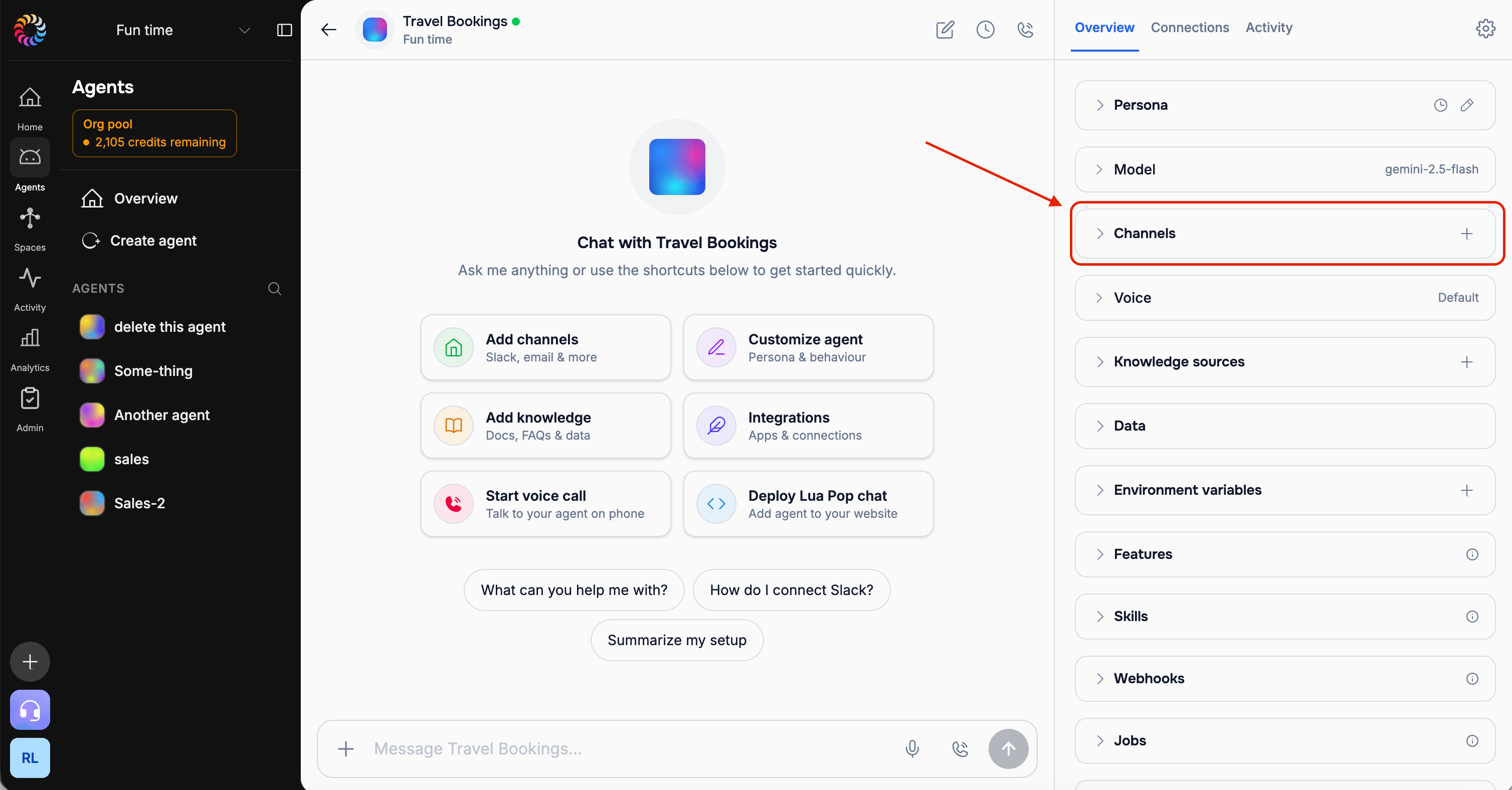 *Screenshot: The agent's add-channel (+) control and the channel options*
Pick **Use Lua's Teams bot**. No Azure credentials are required for this path.
The dashboard gives you a Teams app package to install (or a direct install link). In Microsoft Teams, an admin uploads the app: **Apps → Manage your apps → Upload a custom app**, then selects the package Lua provided. If your tenant restricts custom app uploads, a Teams admin may need to approve it first in the Teams admin center.
Installing the app doesn't yet link it to your agent — one quick step does. The dashboard gives you a **Connect** link. Open it: it starts a chat with the Lua bot and pre-fills a one-time connect message. Just **send** it, and the bot replies *"Connected to agent…"* — your tenant is now linked to this agent.
The connect link is single-use and expires after 24 hours. If it expires before you use it, regenerate it from the dashboard.
**@mention** the bot in a team channel, or send it a direct message, and your agent will reply.
## Connection Method 2: Bring Your Own Bot (Advanced)
Use this path if your organization requires its own Azure app registration, or you want the bot to appear under your own branding.
In [portal.azure.com](https://portal.azure.com), create a new **Azure Bot** resource. When prompted for the app type, choose **Single-Tenant** — you're connecting your own tenant, and multi-tenant app creation is deprecated for new bots.
On the Azure Bot resource, copy the **Microsoft App ID** and your **Tenant ID**. You'll paste both into the Lua dashboard later.
Under the bot's app registration, go to **Certificates & secrets** and create a new **client secret** (also called the App password). Copy the secret value immediately — Azure only shows it once.
Treat the client secret like a password — anyone with it can act as your bot.
On the Azure Bot resource, open **Channels** and add **Microsoft Teams**.
On the Azure Bot resource's **Configuration** page, set the **Messaging endpoint** to:
```
https://wa.heylua.ai/teams/webhook
```
Your Teams app needs a manifest with `botId` set to your Microsoft App ID and the scopes your agent needs (`team`, `groupChat`, `personal`). The Lua dashboard generates a ready-to-use manifest for you once you've entered your App ID — download it and, in Microsoft Teams, upload it via **Apps → Manage your apps → Upload a custom app**.
See Microsoft's [Teams app manifest schema](https://learn.microsoft.com/en-us/microsoftteams/platform/resources/schema/manifest-schema) if you want to customize it further.
Back in the Lua dashboard, choose **Bring your own bot** and paste your **App ID**, **App password** (client secret), and **Tenant ID**, then click **Connect**.
**@mention** the bot in a team channel, or send it a direct message, and your agent will reply.
## Notes & limitations
* **Reactive replies and warm follow-ups only.** Your agent replies wherever it's been messaged or @mentioned. There is no cold-start path — you can't message a Teams user who has never contacted your agent. See [Channel Capabilities](/channels/channel-capabilities) for the full outbound matrix.
* **Where the bot replies.** The bot responds in the same chat or channel it was messaged or @mentioned in — a DM gets a DM reply, a channel @mention gets a channel reply.
* **Tenant admin approval.** Depending on your Microsoft 365 tenant's app policies, uploading a custom Teams app (Lua's shared bot or your own manifest) may require a Teams admin to allow custom app uploads or approve the app in the Teams admin center.
* **Further reading:** Microsoft's [Azure Bot Service documentation](https://learn.microsoft.com/en-us/azure/bot-service/) and [Teams app manifest schema](https://learn.microsoft.com/en-us/microsoftteams/platform/resources/schema/manifest-schema).
## Sending Proactive Messages
To message a Teams user your agent is already in conversation with, load the [`User`](/api/user) and call `user.send(...)`, or use [`Channels.send`](/api/channels) with `channel: 'teams'` and `to: { userId }`:
```typescript theme={null}
import { Channels } from 'lua-cli';
await Channels.send({
channel: 'teams',
to: { userId },
text: 'Heads up — your report is ready.',
});
```
Teams is **warm-only** — you can only reach a user who already has a conversation with your agent. See [Proactive Messaging](/channels/proactive-messaging) for the model and per-channel rules.
## Next Steps
Add Slack support
Manage all channels
*Screenshot: The agent's add-channel (+) control and the channel options*
Pick **Use Lua's Teams bot**. No Azure credentials are required for this path.
The dashboard gives you a Teams app package to install (or a direct install link). In Microsoft Teams, an admin uploads the app: **Apps → Manage your apps → Upload a custom app**, then selects the package Lua provided. If your tenant restricts custom app uploads, a Teams admin may need to approve it first in the Teams admin center.
Installing the app doesn't yet link it to your agent — one quick step does. The dashboard gives you a **Connect** link. Open it: it starts a chat with the Lua bot and pre-fills a one-time connect message. Just **send** it, and the bot replies *"Connected to agent…"* — your tenant is now linked to this agent.
The connect link is single-use and expires after 24 hours. If it expires before you use it, regenerate it from the dashboard.
**@mention** the bot in a team channel, or send it a direct message, and your agent will reply.
## Connection Method 2: Bring Your Own Bot (Advanced)
Use this path if your organization requires its own Azure app registration, or you want the bot to appear under your own branding.
In [portal.azure.com](https://portal.azure.com), create a new **Azure Bot** resource. When prompted for the app type, choose **Single-Tenant** — you're connecting your own tenant, and multi-tenant app creation is deprecated for new bots.
On the Azure Bot resource, copy the **Microsoft App ID** and your **Tenant ID**. You'll paste both into the Lua dashboard later.
Under the bot's app registration, go to **Certificates & secrets** and create a new **client secret** (also called the App password). Copy the secret value immediately — Azure only shows it once.
Treat the client secret like a password — anyone with it can act as your bot.
On the Azure Bot resource, open **Channels** and add **Microsoft Teams**.
On the Azure Bot resource's **Configuration** page, set the **Messaging endpoint** to:
```
https://wa.heylua.ai/teams/webhook
```
Your Teams app needs a manifest with `botId` set to your Microsoft App ID and the scopes your agent needs (`team`, `groupChat`, `personal`). The Lua dashboard generates a ready-to-use manifest for you once you've entered your App ID — download it and, in Microsoft Teams, upload it via **Apps → Manage your apps → Upload a custom app**.
See Microsoft's [Teams app manifest schema](https://learn.microsoft.com/en-us/microsoftteams/platform/resources/schema/manifest-schema) if you want to customize it further.
Back in the Lua dashboard, choose **Bring your own bot** and paste your **App ID**, **App password** (client secret), and **Tenant ID**, then click **Connect**.
**@mention** the bot in a team channel, or send it a direct message, and your agent will reply.
## Notes & limitations
* **Reactive replies and warm follow-ups only.** Your agent replies wherever it's been messaged or @mentioned. There is no cold-start path — you can't message a Teams user who has never contacted your agent. See [Channel Capabilities](/channels/channel-capabilities) for the full outbound matrix.
* **Where the bot replies.** The bot responds in the same chat or channel it was messaged or @mentioned in — a DM gets a DM reply, a channel @mention gets a channel reply.
* **Tenant admin approval.** Depending on your Microsoft 365 tenant's app policies, uploading a custom Teams app (Lua's shared bot or your own manifest) may require a Teams admin to allow custom app uploads or approve the app in the Teams admin center.
* **Further reading:** Microsoft's [Azure Bot Service documentation](https://learn.microsoft.com/en-us/azure/bot-service/) and [Teams app manifest schema](https://learn.microsoft.com/en-us/microsoftteams/platform/resources/schema/manifest-schema).
## Sending Proactive Messages
To message a Teams user your agent is already in conversation with, load the [`User`](/api/user) and call `user.send(...)`, or use [`Channels.send`](/api/channels) with `channel: 'teams'` and `to: { userId }`:
```typescript theme={null}
import { Channels } from 'lua-cli';
await Channels.send({
channel: 'teams',
to: { userId },
text: 'Heads up — your report is ready.',
});
```
Teams is **warm-only** — you can only reach a user who already has a conversation with your agent. See [Proactive Messaging](/channels/proactive-messaging) for the model and per-channel rules.
## Next Steps
Add Slack support
Manage all channels