> ## Documentation Index
> Fetch the complete documentation index at: https://docs.heylua.ai/llms.txt
> Use this file to discover all available pages before exploring further.
# Slack
> Connect your agent to Slack workspaces
## Overview
Slack integration allows your agent to participate in workspace conversations - perfect for internal teams or community support.
Internal communication
Instant messaging
Popular with tech teams
Private Bot or Public App
## Two integration types
Slack supports two connection styles. The admin dashboard wizard walks you through either one and **generates the Slack app manifest for you**, so you don't have to configure scopes and event subscriptions by hand.
**Just your workspace**
* Single workspace
* Authenticates with a bot token (`xoxb-...`)
* Simplest option for internal team use
Available in the dashboard and CLI.
**A distributable app**
* Installable by other workspaces
* Authenticates with App ID, Client ID and Client Secret
* For distributing your agent beyond your own workspace
Available in the dashboard.
## Connection Method 1: Admin Dashboard (Recommended)
The dashboard provides a guided wizard and **generates a ready-to-paste Slack app manifest** after you connect, so you don't configure scopes, event subscriptions, or interactivity by hand.
```bash theme={null}
lua admin
```
Or visit [https://admin.heylua.ai](https://admin.heylua.ai).
Click **Agents** in the main side navigation, select your agent's card, click the **+** (plus) icon to add a channel, then choose **Slack**.
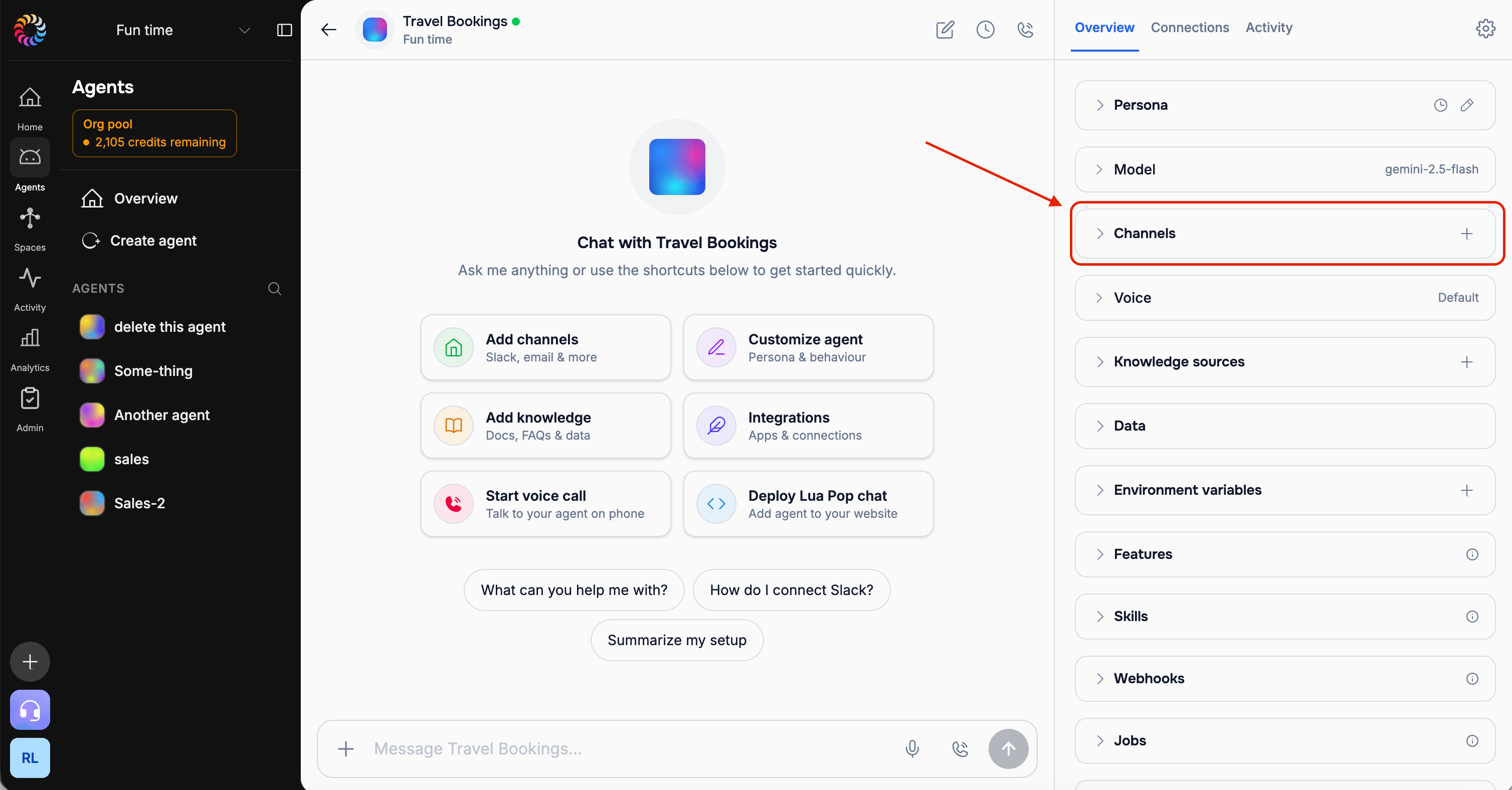 *Screenshot: The agent's add-channel (+) control and the channel options*
Pick the connection type:
* **Private — just my workspace**: use a bot token from a Slack app you control. Simplest if you only need the agent inside your own workspace.
* **Public — a distributable app**: build a Slack app other organizations can install.
Not sure? Start with **Private** — you can always add a public app later.
*Screenshot: The agent's add-channel (+) control and the channel options*
Pick the connection type:
* **Private — just my workspace**: use a bot token from a Slack app you control. Simplest if you only need the agent inside your own workspace.
* **Public — a distributable app**: build a Slack app other organizations can install.
Not sure? Start with **Private** — you can always add a public app later.
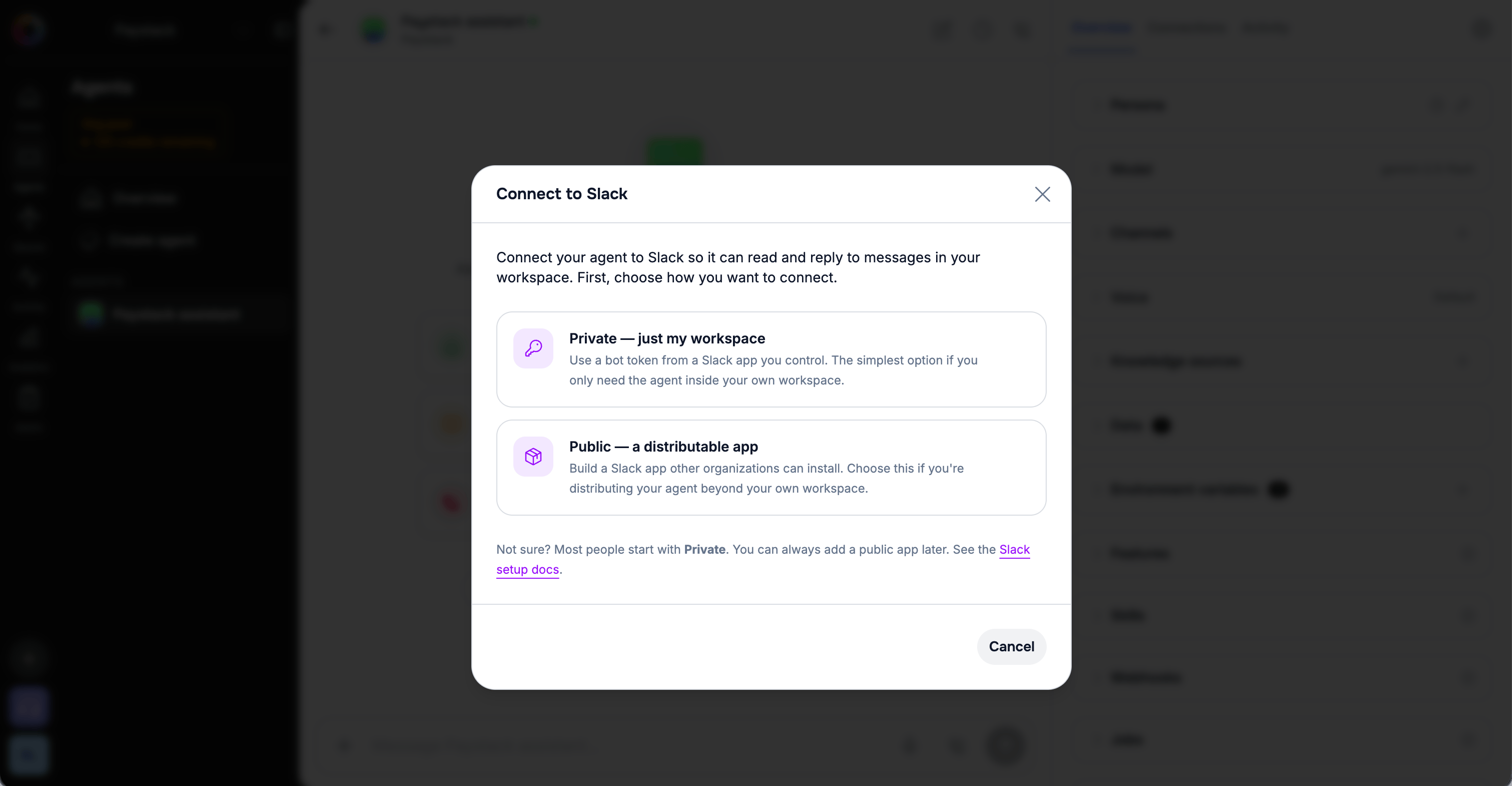 *Screenshot: The "Connect to Slack" step with the Private and Public choices*
If you don't already have one, the wizard walks you through creating it at [api.slack.com/apps](https://api.slack.com/apps) → **Create New App** → **From scratch**. Give it any name and pick your workspace.
1. In your app, open **OAuth & Permissions** and add the [bot token scopes](#required-bot-scopes) your agent needs.
2. Click **Install to Workspace** and approve the permissions.
3. Copy the **Bot User OAuth Token** — it starts with `xoxb-`.
Treat the bot token like a password — anyone with it can act as your bot.
1. Open **Basic Information → App Credentials**.
2. Copy your **App ID**, **Client ID**, and **Client Secret** (click **Show** to reveal the secret).
You don't need to set up scopes, redirect URLs, or event subscriptions yet — Lua generates a manifest for that after you connect.
Paste your details into the wizard and click **Connect**.
* **Private**: your bot token (`xoxb-...`).
* **Public**: App ID, Client ID, and Client Secret.
*Screenshot: The "Connect to Slack" step with the Private and Public choices*
If you don't already have one, the wizard walks you through creating it at [api.slack.com/apps](https://api.slack.com/apps) → **Create New App** → **From scratch**. Give it any name and pick your workspace.
1. In your app, open **OAuth & Permissions** and add the [bot token scopes](#required-bot-scopes) your agent needs.
2. Click **Install to Workspace** and approve the permissions.
3. Copy the **Bot User OAuth Token** — it starts with `xoxb-`.
Treat the bot token like a password — anyone with it can act as your bot.
1. Open **Basic Information → App Credentials**.
2. Copy your **App ID**, **Client ID**, and **Client Secret** (click **Show** to reveal the secret).
You don't need to set up scopes, redirect URLs, or event subscriptions yet — Lua generates a manifest for that after you connect.
Paste your details into the wizard and click **Connect**.
* **Private**: your bot token (`xoxb-...`).
* **Public**: App ID, Client ID, and Client Secret.
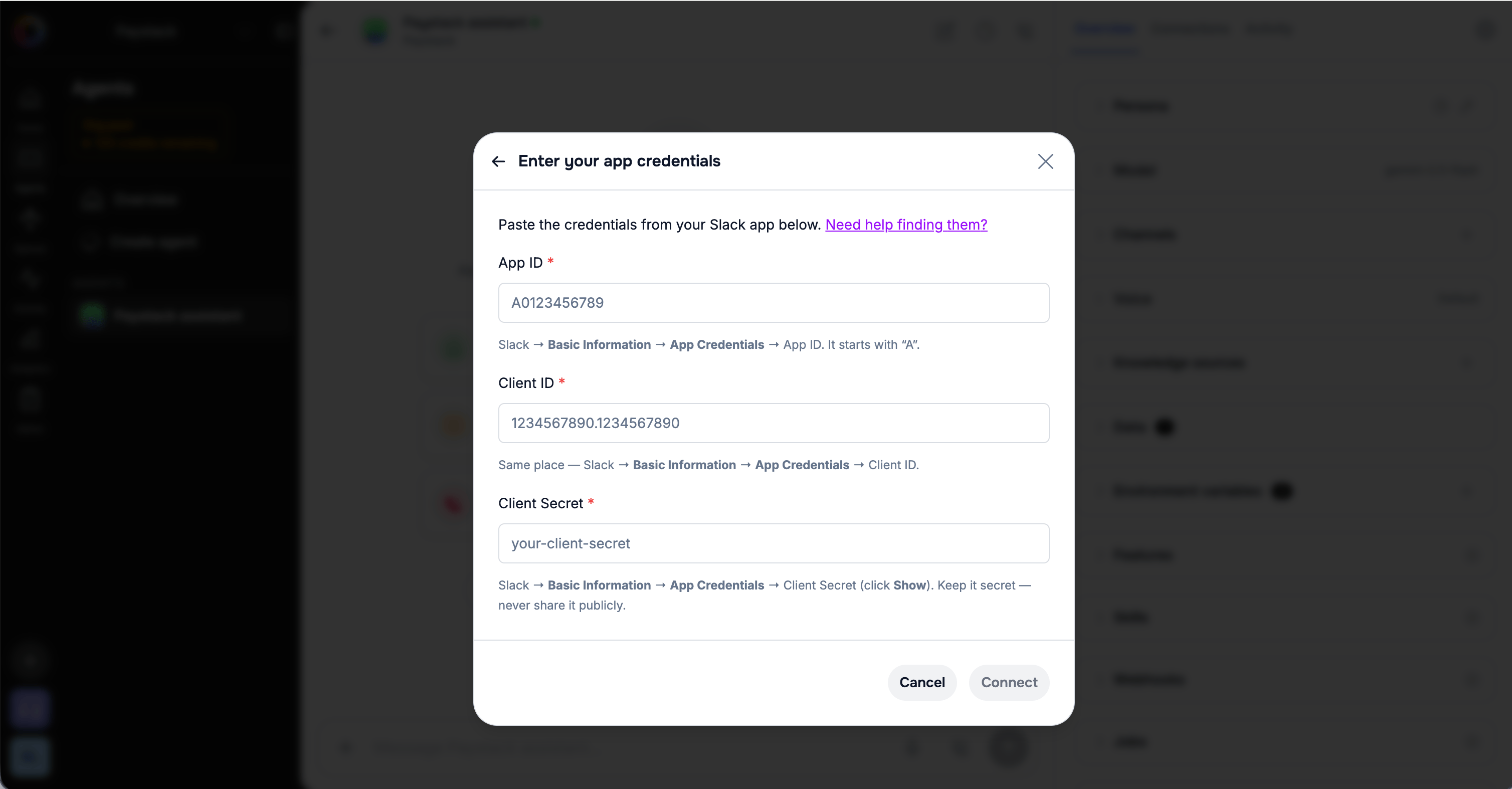 *Screenshot: The credentials step (bot token, or App ID / Client ID / Client Secret)*
After connecting, Lua shows a generated **app manifest**. Copy it, then in Slack open **App Manifest**, switch to the **JSON** tab, paste it in, and click **Save Changes**. This sets up the permissions and event subscriptions your agent needs.
*Screenshot: The credentials step (bot token, or App ID / Client ID / Client Secret)*
After connecting, Lua shows a generated **app manifest**. Copy it, then in Slack open **App Manifest**, switch to the **JSON** tab, paste it in, and click **Save Changes**. This sets up the permissions and event subscriptions your agent needs.
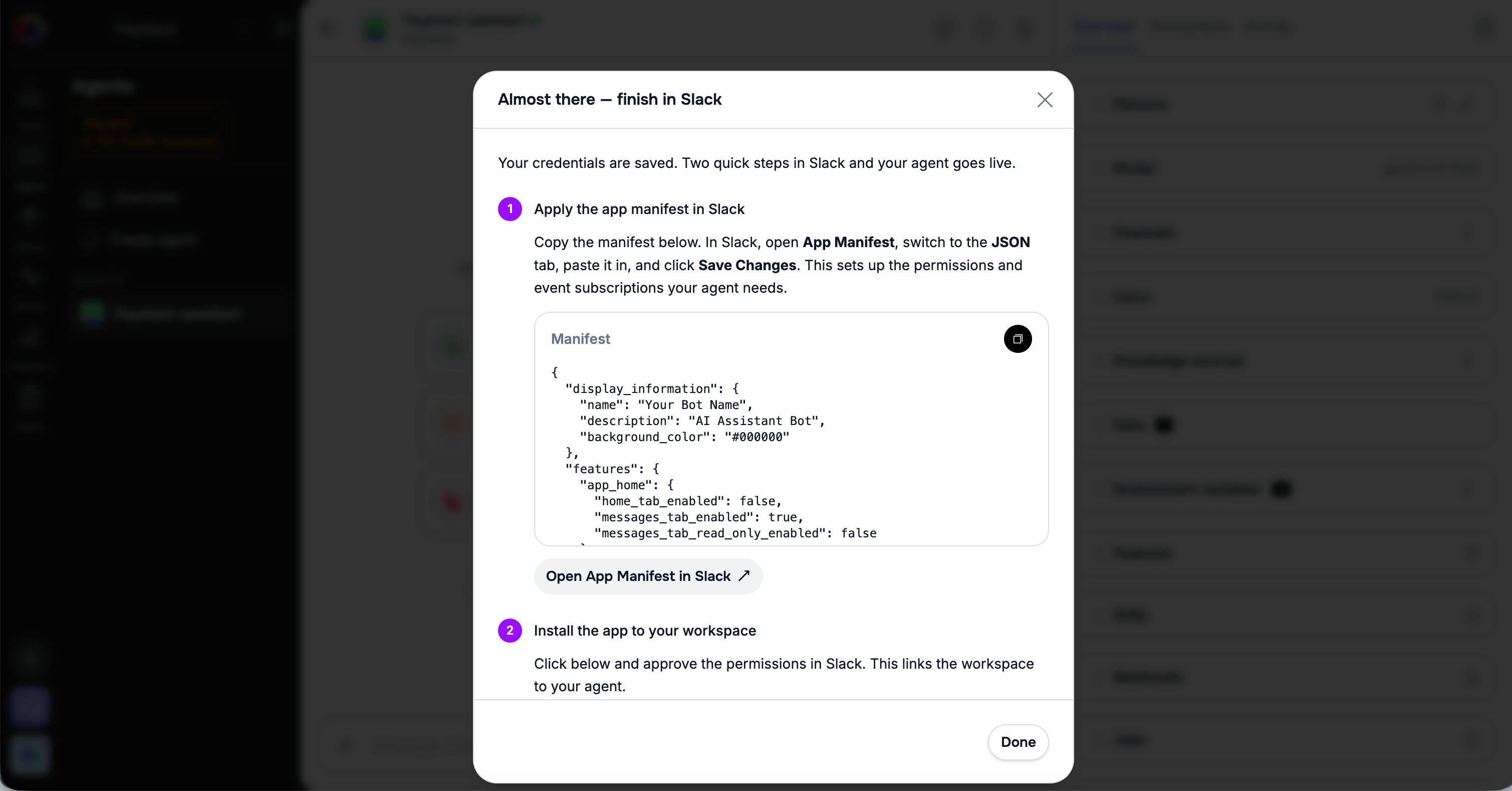 *Screenshot: The "finish in Slack" dialog with the generated manifest*
**Public apps:** use the **Add to Slack** button in the dialog to install. Don't use Slack's green **Install to Workspace** button on the Install App page — it creates a token inside Slack but never finishes the connection to Lua.
DM your bot in Slack, or **@mention** it in a channel it's been invited to, and your agent will reply.
## Required bot scopes
Add these **Bot Token Scopes** under **OAuth & Permissions**. The dashboard manifest includes them automatically; you only add them by hand for the private bot or CLI paths.
* `chat:write` — Send messages
* `channels:history` — Read public channel messages
* `groups:history` — Read private channel messages
* `im:history` — Read direct messages
* `mpim:history` — Read group direct messages
* `channels:read` — List public channels
* `groups:read` — List private channels
* `im:read` — List direct messages
* `mpim:read` — List group direct messages
* `users:read` — View user information
* `users:read.email` — View user emails
* `app_mentions:read` — Detect @mentions
* `files:read` — Access uploaded files
**Reading messages:**
* `channels:history` - Read public channel messages
* `groups:history` - Read private channel messages
* `im:history` - Read direct messages
* `mpim:history` - Read group direct messages
**Sending messages:**
* `chat:write` - Required to send any messages
**Reading channel info:**
* `channels:read` - List public channels
* `groups:read` - List private channels
* `im:read` - List DMs
* `mpim:read` - List group DMs
**User information:**
* `users:read` - Get user display names
* `users:read.email` - Get user email addresses
**Useful for:**
* Personalizing responses
* User identification
* Profile information
**Other features:**
* `app_mentions:read` - Detect when bot is @mentioned
* `files:read` - Read uploaded files
## Connection Method 2: CLI (Private Bot)
The CLI connects a **private** bot using a bot token. Create your Slack app at [api.slack.com/apps](https://api.slack.com/apps), add the [required scopes](#required-bot-scopes), install it to your workspace, and copy the bot token first.
```bash theme={null}
$ lua channels
✅ Using agent: myAgent
? What would you like to do? 🔗 Link new channel
? Select channel type: 🔒 Slack (Private)
? Enter Slack bot token (xoxb-...): ****
📡 Creating Slack channel...
✅ Slack channel created successfully!
💼 Bot Name: My Agent Bot
🏢 Workspace: My Company
🔗 Webhook: https://wa.heylua.ai/slack/webhook
```
For the CLI path you configure the Slack app yourself. Set both **Event Subscriptions** and **Interactivity** request URLs to `https://wa.heylua.ai/slack/webhook`, and subscribe to the `app_mention`, `message.channels`, `message.groups`, and `message.im` bot events. The dashboard does this for you via the generated manifest.
## Testing
DM your bot in Slack (or **@mention** it in a channel it's been invited to). Your agent replies automatically. Monitor the conversation in the admin dashboard.
## Sending Proactive Messages
To message a Slack user your agent is already in conversation with, load the [`User`](/api/user) and call `user.send(...)` — it delivers on the channel they're active on:
```typescript theme={null}
import { User } from 'lua-cli';
const user = await User.get(userId);
await user.send([{ type: 'text', text: 'Heads up — your report is ready.' }]);
```
Slack is **not yet** part of the unified [`Channels.send`](/api/channels) outbound API (which today covers WhatsApp, SMS, email, web chat, Teams, Instagram, and Messenger). For Slack, use `user.send()` to reach a user in an existing conversation.
## Next Steps
Add email support
Manage all channels
*Screenshot: The "finish in Slack" dialog with the generated manifest*
**Public apps:** use the **Add to Slack** button in the dialog to install. Don't use Slack's green **Install to Workspace** button on the Install App page — it creates a token inside Slack but never finishes the connection to Lua.
DM your bot in Slack, or **@mention** it in a channel it's been invited to, and your agent will reply.
## Required bot scopes
Add these **Bot Token Scopes** under **OAuth & Permissions**. The dashboard manifest includes them automatically; you only add them by hand for the private bot or CLI paths.
* `chat:write` — Send messages
* `channels:history` — Read public channel messages
* `groups:history` — Read private channel messages
* `im:history` — Read direct messages
* `mpim:history` — Read group direct messages
* `channels:read` — List public channels
* `groups:read` — List private channels
* `im:read` — List direct messages
* `mpim:read` — List group direct messages
* `users:read` — View user information
* `users:read.email` — View user emails
* `app_mentions:read` — Detect @mentions
* `files:read` — Access uploaded files
**Reading messages:**
* `channels:history` - Read public channel messages
* `groups:history` - Read private channel messages
* `im:history` - Read direct messages
* `mpim:history` - Read group direct messages
**Sending messages:**
* `chat:write` - Required to send any messages
**Reading channel info:**
* `channels:read` - List public channels
* `groups:read` - List private channels
* `im:read` - List DMs
* `mpim:read` - List group DMs
**User information:**
* `users:read` - Get user display names
* `users:read.email` - Get user email addresses
**Useful for:**
* Personalizing responses
* User identification
* Profile information
**Other features:**
* `app_mentions:read` - Detect when bot is @mentioned
* `files:read` - Read uploaded files
## Connection Method 2: CLI (Private Bot)
The CLI connects a **private** bot using a bot token. Create your Slack app at [api.slack.com/apps](https://api.slack.com/apps), add the [required scopes](#required-bot-scopes), install it to your workspace, and copy the bot token first.
```bash theme={null}
$ lua channels
✅ Using agent: myAgent
? What would you like to do? 🔗 Link new channel
? Select channel type: 🔒 Slack (Private)
? Enter Slack bot token (xoxb-...): ****
📡 Creating Slack channel...
✅ Slack channel created successfully!
💼 Bot Name: My Agent Bot
🏢 Workspace: My Company
🔗 Webhook: https://wa.heylua.ai/slack/webhook
```
For the CLI path you configure the Slack app yourself. Set both **Event Subscriptions** and **Interactivity** request URLs to `https://wa.heylua.ai/slack/webhook`, and subscribe to the `app_mention`, `message.channels`, `message.groups`, and `message.im` bot events. The dashboard does this for you via the generated manifest.
## Testing
DM your bot in Slack (or **@mention** it in a channel it's been invited to). Your agent replies automatically. Monitor the conversation in the admin dashboard.
## Sending Proactive Messages
To message a Slack user your agent is already in conversation with, load the [`User`](/api/user) and call `user.send(...)` — it delivers on the channel they're active on:
```typescript theme={null}
import { User } from 'lua-cli';
const user = await User.get(userId);
await user.send([{ type: 'text', text: 'Heads up — your report is ready.' }]);
```
Slack is **not yet** part of the unified [`Channels.send`](/api/channels) outbound API (which today covers WhatsApp, SMS, email, web chat, Teams, Instagram, and Messenger). For Slack, use `user.send()` to reach a user in an existing conversation.
## Next Steps
Add email support
Manage all channels