> ## Documentation Index
> Fetch the complete documentation index at: https://docs.heylua.ai/llms.txt
> Use this file to discover all available pages before exploring further.
# Instagram
> Connect your agent to Instagram Direct Messages
## Overview
Instagram integration allows your agent to respond to Direct Messages sent to your Instagram Business account.
Image and video-focused
Popular with Gen Z and Millennials
Respond to messages and story interactions
Professional presence
## Prerequisites
Meta updates Instagram and its developer tools frequently. The steps below describe what you need; for exact, up-to-date screens, see Meta's [Instagram Platform documentation](https://developers.facebook.com/docs/instagram-platform).
Convert your Instagram account to a Professional (Business or Creator) account.
Connect your Instagram account to a Facebook Business Page.
Allow message access so your agent can receive DMs (in Instagram: **Settings → Messages and story replies → Connected tools → Allow access to messages**).
## Connection Method: Admin Dashboard Only
**Instagram connection is only available through the admin dashboard** due to OAuth requirements and Meta's authentication flow.
```bash theme={null}
lua admin
```
Or visit [https://admin.heylua.ai](https://admin.heylua.ai).
Click **Agents** in the main side navigation, then select your agent's card.
Click the **+** (plus) icon to add a channel, then choose **Instagram**.
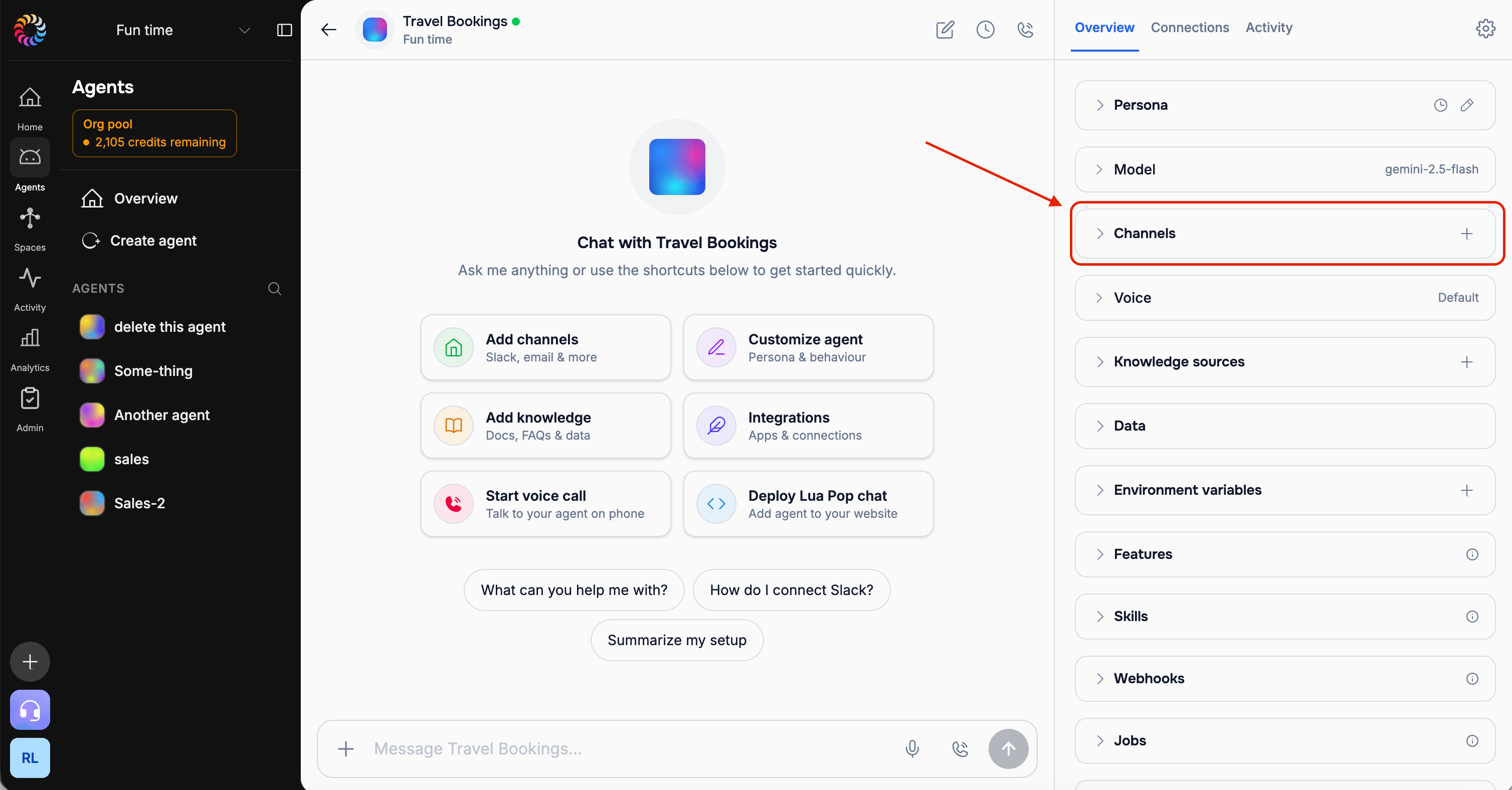 *Screenshot: The agent's add-channel (+) control and the channel options*
Tick the box to accept the **Terms of Service** and **Privacy Policy**, then click **Connect**.
A login popup opens. Log in with the account that manages your Instagram Professional account, grant the messaging permissions requested, and select the Instagram account to connect. When the popup closes, the channel is connected.
This popup is Meta's own UI and changes periodically. See Meta's [Instagram Platform documentation](https://developers.facebook.com/docs/instagram-platform) if you get stuck.
Instagram appears in your connected channels and is ready to receive DMs.
## Testing Your Instagram Channel
From another Instagram account, send a DM to your business account (for example, "Hi!").
Your agent replies automatically in the Instagram DM thread.
Monitor the conversation in the admin dashboard.
*Screenshot: The agent's add-channel (+) control and the channel options*
Tick the box to accept the **Terms of Service** and **Privacy Policy**, then click **Connect**.
A login popup opens. Log in with the account that manages your Instagram Professional account, grant the messaging permissions requested, and select the Instagram account to connect. When the popup closes, the channel is connected.
This popup is Meta's own UI and changes periodically. See Meta's [Instagram Platform documentation](https://developers.facebook.com/docs/instagram-platform) if you get stuck.
Instagram appears in your connected channels and is ready to receive DMs.
## Testing Your Instagram Channel
From another Instagram account, send a DM to your business account (for example, "Hi!").
Your agent replies automatically in the Instagram DM thread.
Monitor the conversation in the admin dashboard.
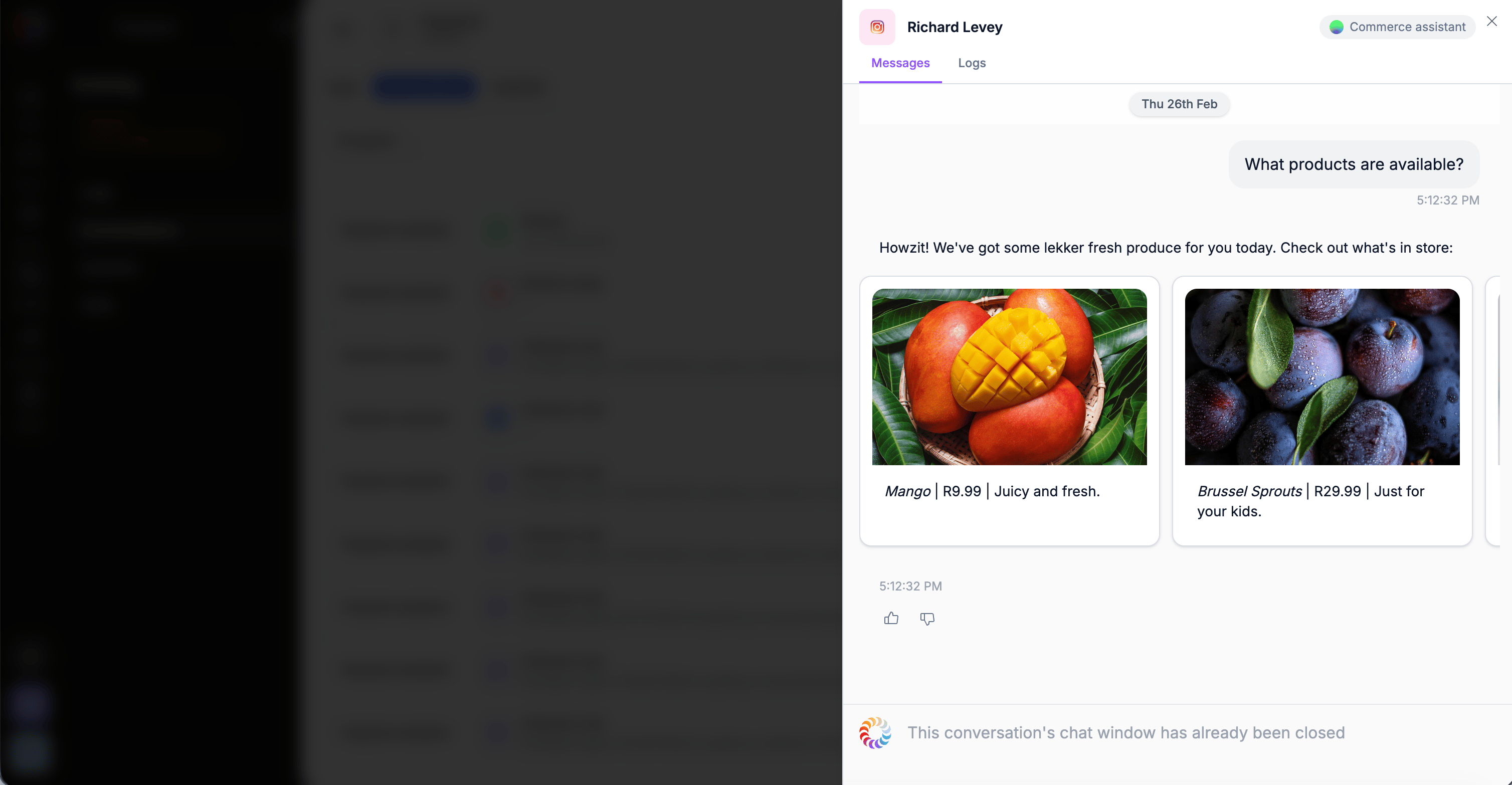 *Screenshot: The conversation in the admin dashboard*
## Features
Respond to DMs automatically
Reply to story mentions
Send images, videos
Suggested response buttons
## Best Practices
Instagram is visual - use:
* Product images
* Demo videos
* Infographics
* Visual guides
Instagram users expect:
* Friendly, casual communication
* Emojis and personality
* Quick, concise responses
* Less formal than email
* Respond within minutes if possible
* Instagram shows response time publicly
* Fast responses improve visibility
```bash theme={null}
lua admin
# Check Instagram engagement metrics
# Track response rates
# Monitor user satisfaction
```
## Troubleshooting
**Check:**
* Instagram account is Business type
* Linked to Facebook Page
* Permissions granted
* Pop-up blocker disabled
**Check:**
* Channel status in admin (CONNECTED)
* Instagram messaging is enabled
* Account not restricted
* Test with simple message
**Ensure:**
* Account is converted to Business
* Linked to Facebook Page
* Page has admin access
* Try disconnecting and reconnecting
## Next Steps
Connect team workspace
Manage all channels visually
*Screenshot: The conversation in the admin dashboard*
## Features
Respond to DMs automatically
Reply to story mentions
Send images, videos
Suggested response buttons
## Best Practices
Instagram is visual - use:
* Product images
* Demo videos
* Infographics
* Visual guides
Instagram users expect:
* Friendly, casual communication
* Emojis and personality
* Quick, concise responses
* Less formal than email
* Respond within minutes if possible
* Instagram shows response time publicly
* Fast responses improve visibility
```bash theme={null}
lua admin
# Check Instagram engagement metrics
# Track response rates
# Monitor user satisfaction
```
## Troubleshooting
**Check:**
* Instagram account is Business type
* Linked to Facebook Page
* Permissions granted
* Pop-up blocker disabled
**Check:**
* Channel status in admin (CONNECTED)
* Instagram messaging is enabled
* Account not restricted
* Test with simple message
**Ensure:**
* Account is converted to Business
* Linked to Facebook Page
* Page has admin access
* Try disconnecting and reconnecting
## Next Steps
Connect team workspace
Manage all channels visually