> ## Documentation Index
> Fetch the complete documentation index at: https://docs.heylua.ai/llms.txt
> Use this file to discover all available pages before exploring further.
# Facebook Messenger
> Connect your agent to Facebook Page messages
## Overview
Facebook Messenger integration allows your agent to respond to messages sent to your Facebook Business Page.
Massive Facebook user base
Connect to business page
Images, videos, buttons
See user's public profile
## Prerequisites
Meta updates Facebook and its developer tools frequently. The steps below describe what you need; for exact, up-to-date screens, see Meta's [Messenger Platform documentation](https://developers.facebook.com/docs/messenger-platform/).
You need admin access to a Facebook Page. The dashboard method connects it for you via Facebook login — no developer app required.
Only needed for the CLI method. Create one at [developers.facebook.com](https://developers.facebook.com).
## Connection Method 1: Admin Dashboard (Recommended)
The dashboard connects Facebook via **Facebook Login (OAuth)** — you authorize Lua in a Facebook popup and pick your Page there, so there's nothing to copy or paste. Use the [CLI method](#connection-method-2-cli-advanced) if you'd rather supply a Page access token manually.
```bash theme={null}
lua admin
```
Or visit [https://admin.heylua.ai](https://admin.heylua.ai).
Click **Agents** in the main side navigation, then select your agent's card.
Click the **+** (plus) icon to add a channel, then choose **Facebook**.
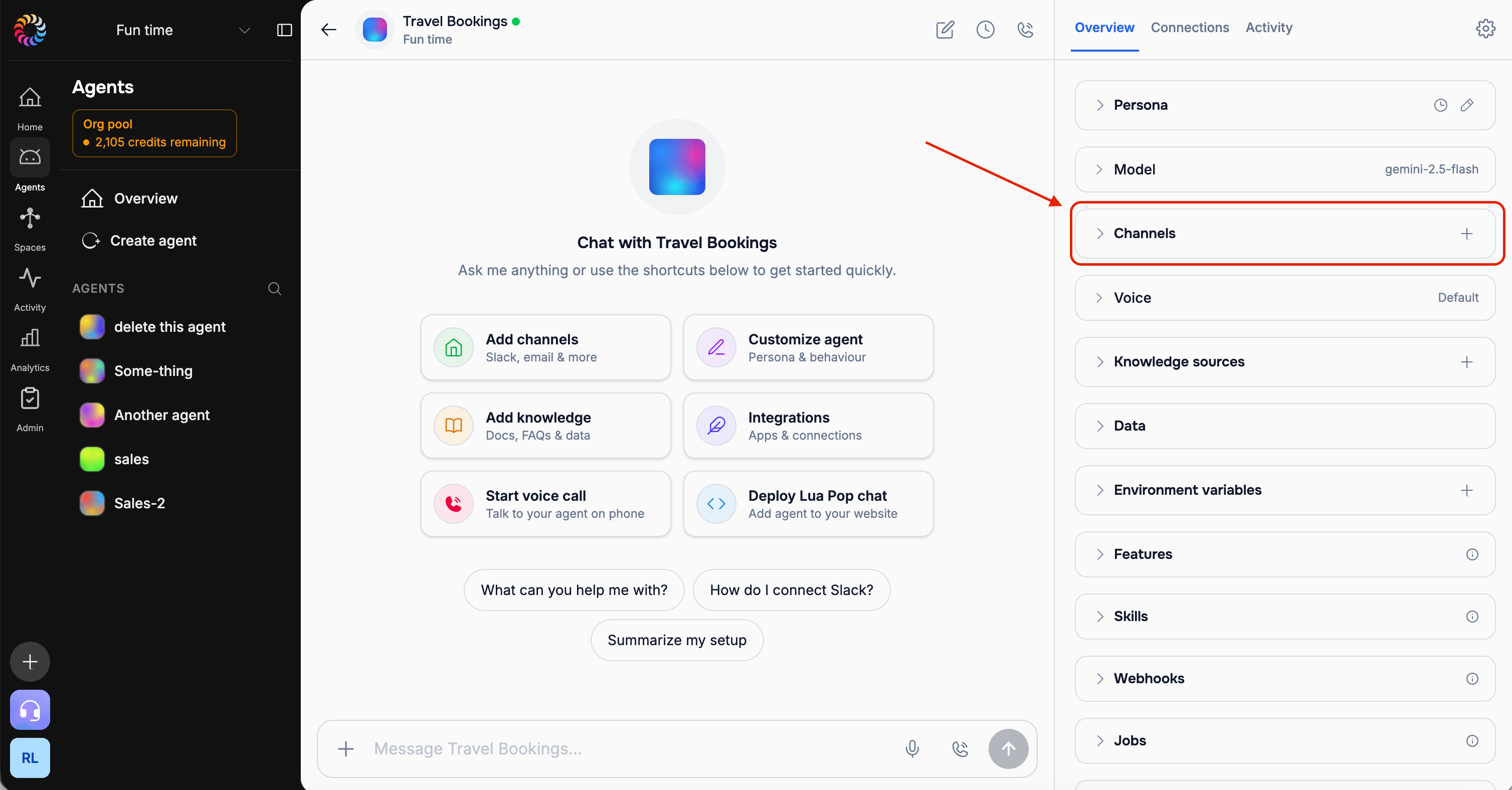 *Screenshot: The agent's add-channel (+) control and the channel options*
Tick the box to accept the **Terms of Service** and **Privacy Policy**, then click **Connect**.
A Facebook login popup opens. Log in, select the **Page** you want to connect, and grant the messaging permissions Facebook requests. When the popup closes, the channel is connected.
This popup is Facebook's own UI and changes periodically. See Meta's [Messenger Platform documentation](https://developers.facebook.com/docs/messenger-platform/) if you get stuck.
Facebook appears in your connected channels and is ready to receive messages.
## Connection Method 2: CLI (Advanced)
### CLI Setup with Page Token
From your Facebook App Dashboard:
1. Go to your app
2. Messenger → Settings
3. Generate a Page Access Token
4. Copy the token
See Meta's [Messenger Platform documentation](https://developers.facebook.com/docs/messenger-platform/) for the current steps.
From your Facebook Page:
1. Go to page settings
2. Copy Page ID
Or from URL: `facebook.com/[page-id]`
```bash theme={null}
$ lua channels
✅ Using agent: myAgent
? What would you like to do? 🔗 Link new channel
? Select channel type: 💬 Facebook Messenger
? Enter Facebook page access token: ****
? Enter Facebook page ID: 705555819301071
📡 Creating Facebook channel...
✅ Facebook channel created successfully!
💬 Page Name: My Business Page
📄 Category: Local Business
🔗 Webhook: https://wa.heylua.ai/fb/webhook/xyz789
```
1. Go to App Dashboard
2. Messenger → Settings → Webhooks
3. Click "Add Callback URL"
4. Paste the webhook URL from the CLI output
5. Enter your verify token
6. Subscribe to `messages`, `messaging_postbacks`, and `messaging_optins`
See Meta's [Messenger Platform Webhooks guide](https://developers.facebook.com/docs/messenger-platform/webhooks) for the current UI.
## Testing
Open Messenger and send a message to your Page (for example, "Hi!").
Your agent replies automatically in the Messenger thread.
Monitor the conversation in the admin dashboard.
*Screenshot: The agent's add-channel (+) control and the channel options*
Tick the box to accept the **Terms of Service** and **Privacy Policy**, then click **Connect**.
A Facebook login popup opens. Log in, select the **Page** you want to connect, and grant the messaging permissions Facebook requests. When the popup closes, the channel is connected.
This popup is Facebook's own UI and changes periodically. See Meta's [Messenger Platform documentation](https://developers.facebook.com/docs/messenger-platform/) if you get stuck.
Facebook appears in your connected channels and is ready to receive messages.
## Connection Method 2: CLI (Advanced)
### CLI Setup with Page Token
From your Facebook App Dashboard:
1. Go to your app
2. Messenger → Settings
3. Generate a Page Access Token
4. Copy the token
See Meta's [Messenger Platform documentation](https://developers.facebook.com/docs/messenger-platform/) for the current steps.
From your Facebook Page:
1. Go to page settings
2. Copy Page ID
Or from URL: `facebook.com/[page-id]`
```bash theme={null}
$ lua channels
✅ Using agent: myAgent
? What would you like to do? 🔗 Link new channel
? Select channel type: 💬 Facebook Messenger
? Enter Facebook page access token: ****
? Enter Facebook page ID: 705555819301071
📡 Creating Facebook channel...
✅ Facebook channel created successfully!
💬 Page Name: My Business Page
📄 Category: Local Business
🔗 Webhook: https://wa.heylua.ai/fb/webhook/xyz789
```
1. Go to App Dashboard
2. Messenger → Settings → Webhooks
3. Click "Add Callback URL"
4. Paste the webhook URL from the CLI output
5. Enter your verify token
6. Subscribe to `messages`, `messaging_postbacks`, and `messaging_optins`
See Meta's [Messenger Platform Webhooks guide](https://developers.facebook.com/docs/messenger-platform/webhooks) for the current UI.
## Testing
Open Messenger and send a message to your Page (for example, "Hi!").
Your agent replies automatically in the Messenger thread.
Monitor the conversation in the admin dashboard.
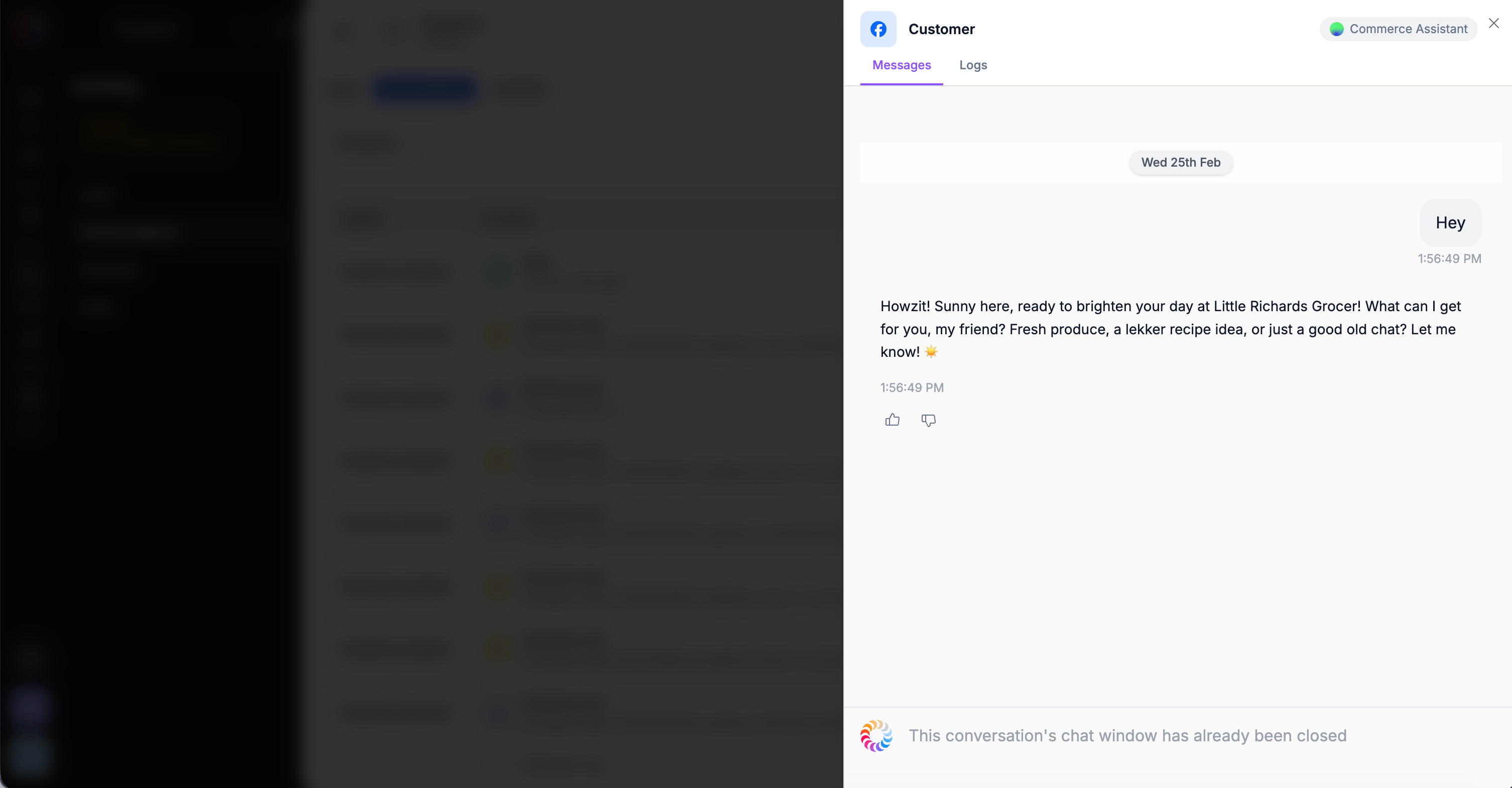 *Screenshot: The conversation in the admin dashboard*
## Features
Send and receive text
Images, videos, files
Suggested response buttons
Reusable message templates
## Best Practices
* Respond quickly (within minutes)
* Facebook shows "Typically responds in..."
* Fast responses improve visibility
* Set greeting message
* Configure away message
* Use quick replies
* Add call-to-action buttons
* Check page rating regularly
* Respond to all messages
* Address negative feedback
## Next Steps
Connect Instagram DMs
Add email support
*Screenshot: The conversation in the admin dashboard*
## Features
Send and receive text
Images, videos, files
Suggested response buttons
Reusable message templates
## Best Practices
* Respond quickly (within minutes)
* Facebook shows "Typically responds in..."
* Fast responses improve visibility
* Set greeting message
* Configure away message
* Use quick replies
* Add call-to-action buttons
* Check page rating regularly
* Respond to all messages
* Address negative feedback
## Next Steps
Connect Instagram DMs
Add email support