> ## Documentation Index
> Fetch the complete documentation index at: https://docs.heylua.ai/llms.txt
> Use this file to discover all available pages before exploring further.
# Email
> Connect your agent to email for automated responses
## Overview
Email integration allows your agent to automatically respond to emails. There are two modes:
* **Generated inbox** - Lua creates a dedicated email address for your agent (e.g. `agent-abc@mail.heylua.ai`)
* **Existing email** - Use your own email address (e.g. `support@mybusiness.com`) with forwarding
Business-appropriate channel
Everyone has email
Preferred for business
Conversation threading
## How It Works
A dedicated email address is generated for your agent
Customer emails the generated address directly
Agent reads and understands email
Agent sends reply via email
Reply appears in their inbox
Customer emails: [support@yourcompany.com](mailto:support@yourcompany.com)
Your email provider forwards to Lua
Agent reads and understands email
Agent sends reply via email
Reply appears in their inbox
## Connection Method 1: CLI
```bash theme={null}
$ lua channels
✅ Using agent: myAgent
? What would you like to do? 🔗 Link new channel
? Select channel type: 📧 Email
? Select email channel mode: 📬 Generate new inbox
? Enter display name (shown in email header): Support Team
📡 Creating Email channel...
✅ Email channel created successfully!
📧 Display Name: Support Team
📬 Email Address: agent-abc123@mail.heylua.ai
────────────────────────────────────────────────────
Your agent's email inbox has been created.
────────────────────────────────────────────────────
Share this address with your customers or use it
in your workflows:
agent-abc123@mail.heylua.ai
Emails sent to this address will be handled by
your agent.
────────────────────────────────────────────────────
```
No additional setup required -- your agent is ready to receive emails immediately.
```bash theme={null}
$ lua channels
✅ Using agent: myAgent
? What would you like to do? 🔗 Link new channel
? Select channel type: 📧 Email
? Select email channel mode: 📧 Use existing email
? Enter display name (shown in email header): Support Team
? Enter sender email address: support@mybusiness.com
📡 Creating Email channel...
✅ Email channel created successfully!
📧 Display Name: Support Team
📧 Sender Email: support@mybusiness.com
📬 Forward To: b5469c03-082e-481d-929b-663daf66bbef@mail.heylua.ai
────────────────────────────────────────────────────
IMPORTANT: Email Forwarding Setup Required
────────────────────────────────────────────────────
1. Log into your email provider's settings
2. Set up email forwarding or filtering
3. Forward all emails from support@mybusiness.com to:
b5469c03-082e-481d-929b-663daf66bbef@mail.heylua.ai
4. Test by sending an email to support@mybusiness.com
Your agent will respond automatically!
────────────────────────────────────────────────────
```
See [Email Provider Setup](#email-provider-setup) below for forwarding instructions.
## Connection Method 2: Admin Dashboard
```bash theme={null}
lua admin
```
Or visit [https://admin.heylua.ai](https://admin.heylua.ai).
Click **Agents** in the main side navigation, select your agent's card, click the **+** (plus) icon to add a channel, then choose **Email**.
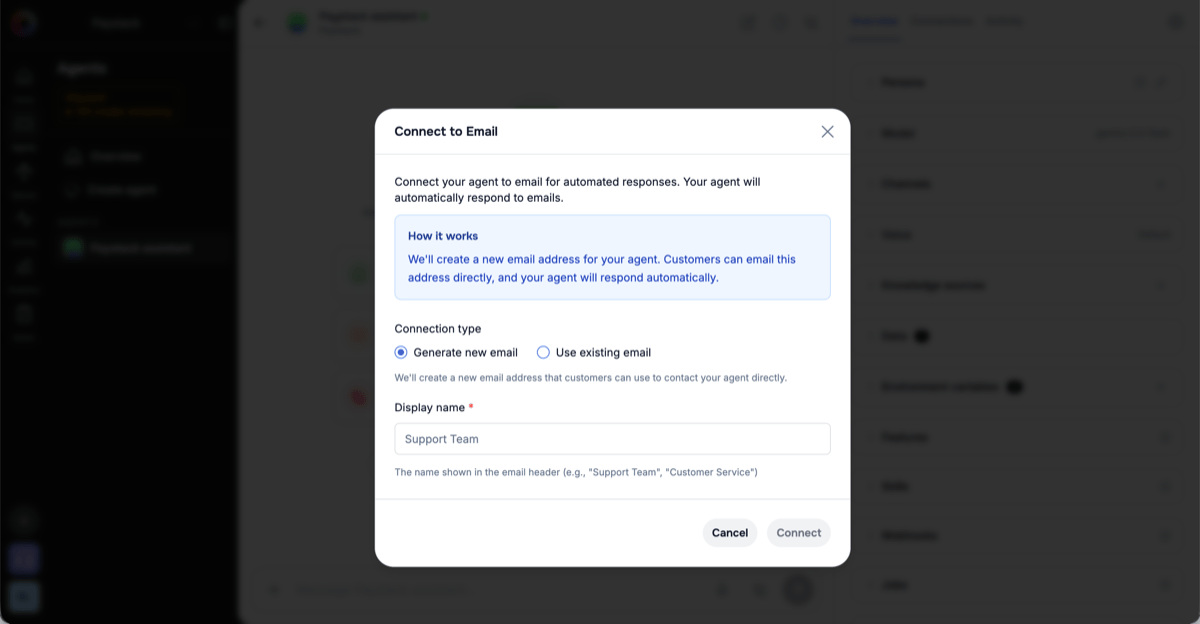
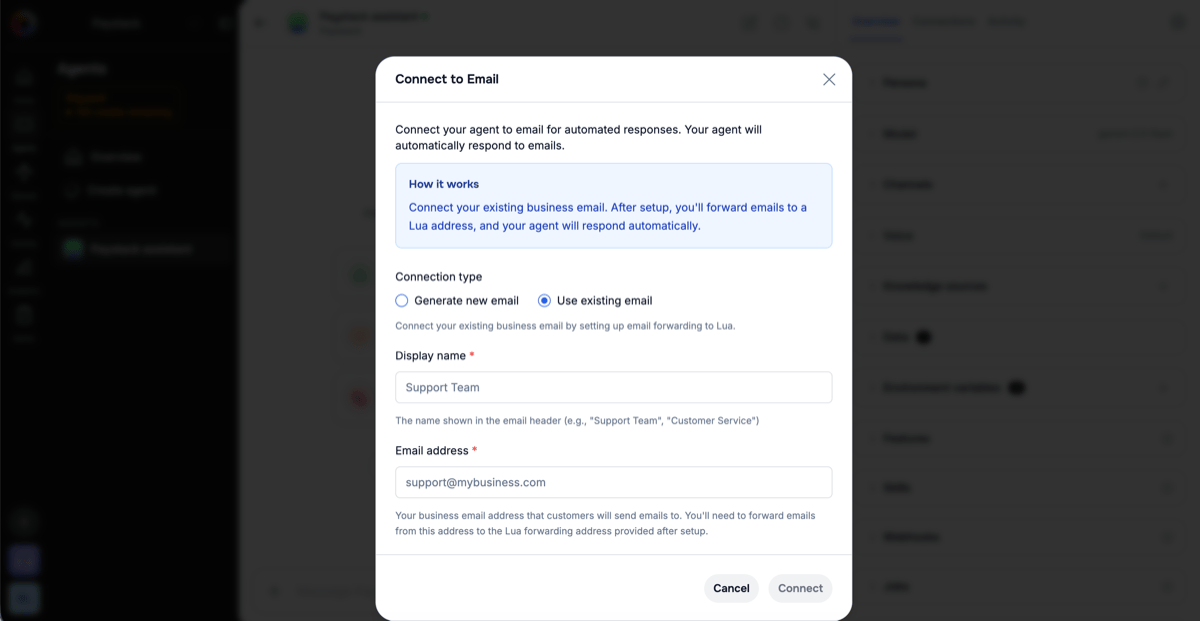
In the **Connect to Email** dialog, enter a **Display name** (shown in the email header, e.g. "Support Team") and pick how to connect, then click **Connect**.
Lua creates a new email address your customers can email directly.
 Enter your business **Email address** — you'll forward mail from it to Lua.
 * **Generated** — Lua shows **"Your email address is ready!"** with the new address. Copy it and share it with your customers.
* **Existing** — Lua shows a **forwarding address**. Copy it and set up forwarding from your email provider (see [Email Provider Setup](#email-provider-setup) below). Your agent only receives email once forwarding is active.
## Email Provider Setup
**Gmail Forwarding:**
1. Open Gmail Settings
2. "Forwarding and POP/IMAP" tab
3. "Add a forwarding address"
4. Paste Lua forwarding address
5. Check verification email
6. Click verification link
7. Return to Gmail settings
8. Enable "Forward a copy"
**Outlook Forwarding:**
1. Open Outlook Settings
2. Mail → Forwarding
3. Enable forwarding
4. Enter Lua forwarding address
5. Save changes
**Workspace Routing:**
1. Admin Console
2. Apps → Gmail → Routing
3. Create routing rule
4. Condition: recipient = your email
5. Action: forward to Lua address
**Email Forwarders:**
1. cPanel → Email Forwarders
2. Add Forwarder
3. From: your email
4. To: Lua forwarding address
5. Add Forwarder
## Testing
Email your connected address — the generated address, or your business address once forwarding is set up:
```
To: support@mybusiness.com
Subject: Test
Body: Is this working?
```
In the admin dashboard, open **Activity → Logs**. You'll see the inbound email and your agent's response there as it's processed.
Your agent replies automatically — the response lands in the sender's inbox.
## Accessing Email Metadata in Tools
For inbound emails, `Lua.request.webhook.payload` is populated with a JMAP-aligned object containing parsed message metadata. Use this to build threaded replies, deduplicate by Message-ID, read custom headers, or implement conversation threading.
```typescript theme={null}
import { Lua, LuaTool } from 'lua-cli';
import { z } from 'zod';
export default class ThreadedReplyTool implements LuaTool {
name = 'send_threaded_reply';
description = 'Send a reply to an email, preserving thread';
inputSchema = z.object({
message: z.string(),
});
async execute(input: z.infer) {
const webhook = Lua.request.webhook;
if (Lua.request.channel === 'email' && webhook) {
const { messageId, inReplyTo, subject } = webhook.payload;
// Build reply subject
const replySubject = subject?.startsWith('Re:') ? subject : `Re: ${subject}`;
// Use messageId to thread the reply
return {
message: input.message,
threadId: inReplyTo ?? messageId,
subject: replySubject,
};
}
return { error: 'Not an email channel' };
}
}
```
For full details on the shape, headers, and AgentMail divergence, see [Webhook Payload → Email](/api/lua#email-metadata).
## Attachments and Embedded Images
Inbound emails can carry files two ways, and both reach your agent as file parts alongside the message text:
* **Regular attachments** (the paperclip) — always forwarded, no size restrictions.
* **Embedded images** (pasted or dragged into the compose window, e.g. in Gmail) — forwarded when they are genuinely part of the message: the image must be referenced from the email's HTML body, be an image type, and be at least 1 KB (filters out 1×1 spacer pixels). Up to **10 embedded images per email** are forwarded.
Email clients insert a plain-text placeholder like `[image: photo.png]` where an embedded image sits in the body. That placeholder still appears in the message text your agent sees — but the actual image now arrives as a separate image part. Don't try to parse the placeholder; use the image part.
A few behaviors worth knowing:
* **Remote-hosted images are not fetched.** Images referenced by URL — for example Gmail signature images, which are hosted rather than embedded — are not downloaded. Only data actually transmitted in the email is processed.
* **Embedded signature logos may come through.** Some email clients (commonly corporate Outlook setups) embed signature logos directly in the message. An embedded logo over 1 KB is indistinguishable from a content image and will reach your agent as an image part. If your users' emails are signature-heavy, consider instructing your agent to disregard branding imagery.
* **Mislabeled attachments are recovered.** Some clients mark real attachments as embedded content; these are detected and forwarded as normal attachments rather than dropped.
## Sending Proactive Emails
Your agent can send email on its own — receipts, confirmations, reports — using the [Channels API](/api/channels). Email has no time window, so you can send any time, and you can reach a cold address (one with no prior conversation).
Pass `html` to send your exact markup as-is, or `richBody` to have markdown / `:::` components rendered into the branded email template (the same rendering your agent's replies use). Use one or the other.
```typescript theme={null}
import { Channels } from 'lua-cli';
await Channels.email.send({
to: { email: 'customer@example.com' },
subject: 'Your receipt',
html: '
* **Generated** — Lua shows **"Your email address is ready!"** with the new address. Copy it and share it with your customers.
* **Existing** — Lua shows a **forwarding address**. Copy it and set up forwarding from your email provider (see [Email Provider Setup](#email-provider-setup) below). Your agent only receives email once forwarding is active.
## Email Provider Setup
**Gmail Forwarding:**
1. Open Gmail Settings
2. "Forwarding and POP/IMAP" tab
3. "Add a forwarding address"
4. Paste Lua forwarding address
5. Check verification email
6. Click verification link
7. Return to Gmail settings
8. Enable "Forward a copy"
**Outlook Forwarding:**
1. Open Outlook Settings
2. Mail → Forwarding
3. Enable forwarding
4. Enter Lua forwarding address
5. Save changes
**Workspace Routing:**
1. Admin Console
2. Apps → Gmail → Routing
3. Create routing rule
4. Condition: recipient = your email
5. Action: forward to Lua address
**Email Forwarders:**
1. cPanel → Email Forwarders
2. Add Forwarder
3. From: your email
4. To: Lua forwarding address
5. Add Forwarder
## Testing
Email your connected address — the generated address, or your business address once forwarding is set up:
```
To: support@mybusiness.com
Subject: Test
Body: Is this working?
```
In the admin dashboard, open **Activity → Logs**. You'll see the inbound email and your agent's response there as it's processed.
Your agent replies automatically — the response lands in the sender's inbox.
## Accessing Email Metadata in Tools
For inbound emails, `Lua.request.webhook.payload` is populated with a JMAP-aligned object containing parsed message metadata. Use this to build threaded replies, deduplicate by Message-ID, read custom headers, or implement conversation threading.
```typescript theme={null}
import { Lua, LuaTool } from 'lua-cli';
import { z } from 'zod';
export default class ThreadedReplyTool implements LuaTool {
name = 'send_threaded_reply';
description = 'Send a reply to an email, preserving thread';
inputSchema = z.object({
message: z.string(),
});
async execute(input: z.infer) {
const webhook = Lua.request.webhook;
if (Lua.request.channel === 'email' && webhook) {
const { messageId, inReplyTo, subject } = webhook.payload;
// Build reply subject
const replySubject = subject?.startsWith('Re:') ? subject : `Re: ${subject}`;
// Use messageId to thread the reply
return {
message: input.message,
threadId: inReplyTo ?? messageId,
subject: replySubject,
};
}
return { error: 'Not an email channel' };
}
}
```
For full details on the shape, headers, and AgentMail divergence, see [Webhook Payload → Email](/api/lua#email-metadata).
## Attachments and Embedded Images
Inbound emails can carry files two ways, and both reach your agent as file parts alongside the message text:
* **Regular attachments** (the paperclip) — always forwarded, no size restrictions.
* **Embedded images** (pasted or dragged into the compose window, e.g. in Gmail) — forwarded when they are genuinely part of the message: the image must be referenced from the email's HTML body, be an image type, and be at least 1 KB (filters out 1×1 spacer pixels). Up to **10 embedded images per email** are forwarded.
Email clients insert a plain-text placeholder like `[image: photo.png]` where an embedded image sits in the body. That placeholder still appears in the message text your agent sees — but the actual image now arrives as a separate image part. Don't try to parse the placeholder; use the image part.
A few behaviors worth knowing:
* **Remote-hosted images are not fetched.** Images referenced by URL — for example Gmail signature images, which are hosted rather than embedded — are not downloaded. Only data actually transmitted in the email is processed.
* **Embedded signature logos may come through.** Some email clients (commonly corporate Outlook setups) embed signature logos directly in the message. An embedded logo over 1 KB is indistinguishable from a content image and will reach your agent as an image part. If your users' emails are signature-heavy, consider instructing your agent to disregard branding imagery.
* **Mislabeled attachments are recovered.** Some clients mark real attachments as embedded content; these are detected and forwarded as normal attachments rather than dropped.
## Sending Proactive Emails
Your agent can send email on its own — receipts, confirmations, reports — using the [Channels API](/api/channels). Email has no time window, so you can send any time, and you can reach a cold address (one with no prior conversation).
Pass `html` to send your exact markup as-is, or `richBody` to have markdown / `:::` components rendered into the branded email template (the same rendering your agent's replies use). Use one or the other.
```typescript theme={null}
import { Channels } from 'lua-cli';
await Channels.email.send({
to: { email: 'customer@example.com' },
subject: 'Your receipt',
html: 'Thanks for your order!
Total: $99.00
',
cc: ['accounts@example.com'],
attachments: [
{ filename: 'receipt.pdf', contentType: 'application/pdf', url: 'https://files.example.com/receipt.pdf' }
]
});
```
See [Channels API → email.send](/api/channels#channels-email-send) for the full shape and [Proactive Messaging](/channels/proactive-messaging) for the model.
## Best Practices
Email is a more formal channel than chat. If your agent's core persona is casual or emoji-heavy, that style will carry into its emails unless you account for it. Prompt-engineer any skills or tools that generate email content to enforce a more formal tone — for example, instruct them to avoid emojis, use proper greetings and sign-offs, and write in complete paragraphs. This keeps email responses professional even when the underlying persona is playful elsewhere.
* Aim for \< 1 hour response
* Set auto-reply for delays
* Mention expected response time
* Use proper paragraphs
* Include signature
* Format lists clearly
* Proofread responses
## Next Steps
Add chat to website
View all options