> ## Documentation Index
> Fetch the complete documentation index at: https://docs.heylua.ai/llms.txt
> Use this file to discover all available pages before exploring further.
# Admin Dashboard
> Add and manage agent channels from the admin dashboard
## Overview
The admin dashboard is the visual way to connect channels to an agent — no CLI required. Channels are configured **per agent**, so you add them from inside the agent you want to connect.
```bash theme={null}
lua admin
# Or visit https://admin.heylua.ai
```
The dashboard supports **more channels than the CLI** — including OAuth-based channels like Instagram. If a channel isn't available in `lua channels`, connect it here.
## Add a channel
Click **Agents** in the main side navigation, then select the agent you want to connect from the list (or from the Overview cards).
The agent's overview opens. On the right-hand panel, find the **Channels** section.
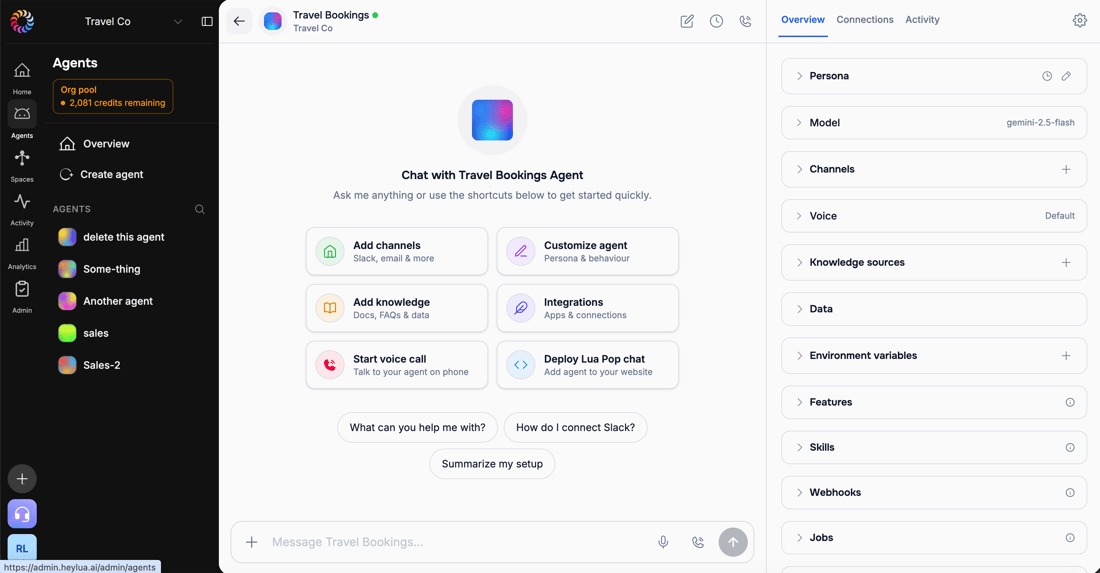 Click the **+** icon on the **Channels** row to open the channel picker.
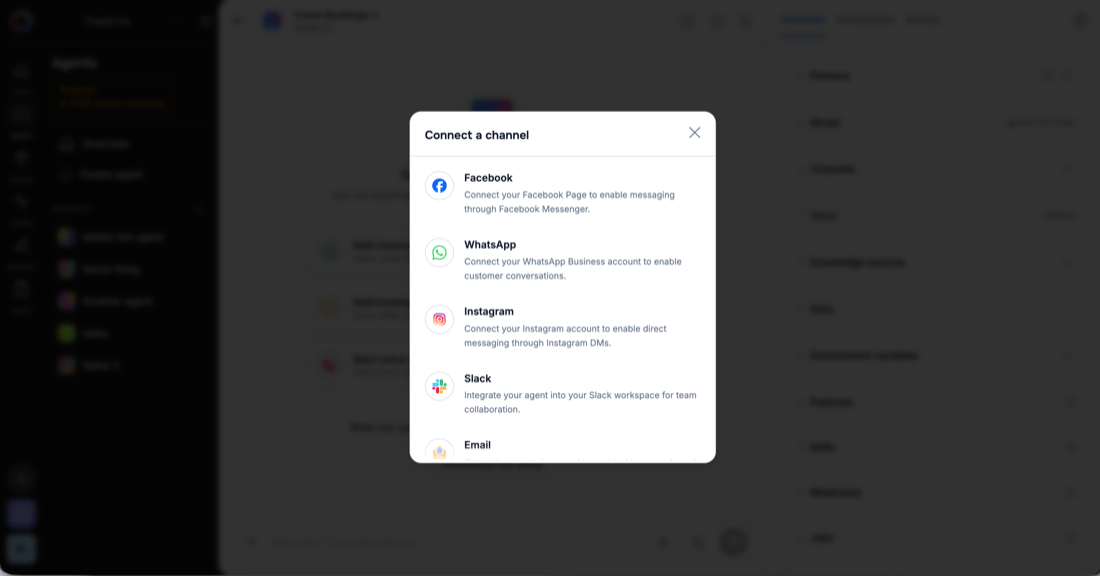 Available channels include Facebook, WhatsApp, Instagram, Slack, and Email.
Select a channel and follow its connection workflow. For example, Slack first asks whether to connect a **Private** or **Public** app.
Available channels include Facebook, WhatsApp, Instagram, Slack, and Email.
Select a channel and follow its connection workflow. For example, Slack first asks whether to connect a **Private** or **Public** app.
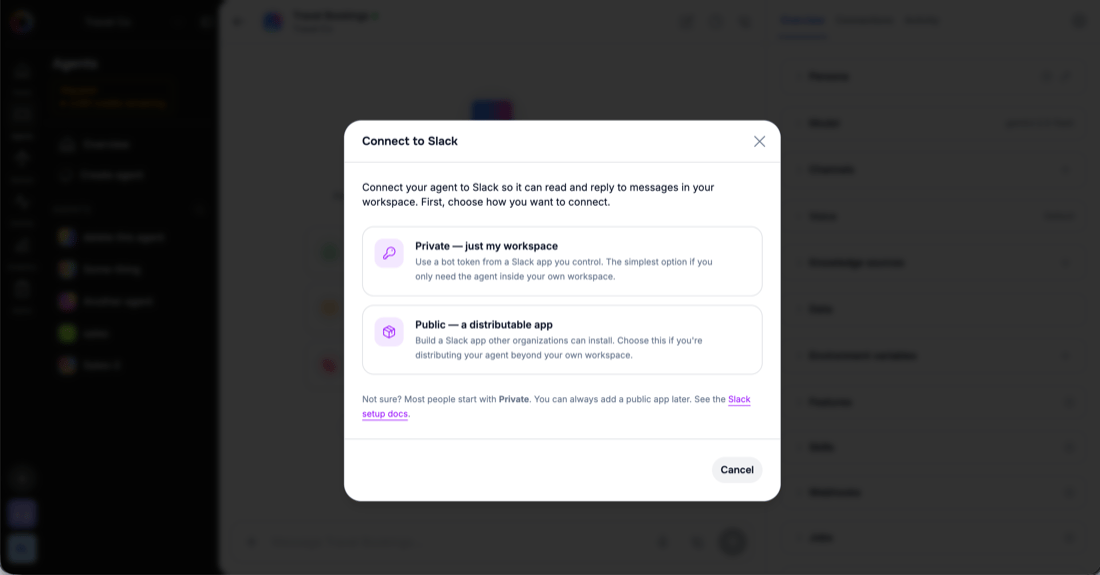 Each channel has its own steps — see the full guides below.
## Channel setup guides
Each channel's full connection flow is documented on its own page:
Embedded Signup via Meta
Connect a Facebook Page
Direct Messages (dashboard only)
Private bot or public app
Generated or existing inbox
Embed the Lua Pop widget
## Manage connected channels
Once connected, a channel appears in the agent's **Channels** section and under the **Connections** tab at the top of the agent. From there you can review its status and reconfigure or disconnect it. To monitor channel traffic, use the agent's **Activity** tab (or the org-wide **Activity** section) for logs and conversations.
## CLI alternative
Prefer the terminal? The `lua channels` command manages channels interactively:
```bash theme={null}
# Connect a channel interactively (WhatsApp, Facebook, Slack, Email)
lua channels
# List connected channels
lua channels list
```
The CLI covers the credential-based channels. **Channels that rely on an OAuth flow (such as Instagram) are only available in the dashboard.** See the [Channels Command reference](/cli/channels-command) for full CLI usage.
## Next Steps
Terminal-based channel management
View all channel options
Each channel has its own steps — see the full guides below.
## Channel setup guides
Each channel's full connection flow is documented on its own page:
Embedded Signup via Meta
Connect a Facebook Page
Direct Messages (dashboard only)
Private bot or public app
Generated or existing inbox
Embed the Lua Pop widget
## Manage connected channels
Once connected, a channel appears in the agent's **Channels** section and under the **Connections** tab at the top of the agent. From there you can review its status and reconfigure or disconnect it. To monitor channel traffic, use the agent's **Activity** tab (or the org-wide **Activity** section) for logs and conversations.
## CLI alternative
Prefer the terminal? The `lua channels` command manages channels interactively:
```bash theme={null}
# Connect a channel interactively (WhatsApp, Facebook, Slack, Email)
lua channels
# List connected channels
lua channels list
```
The CLI covers the credential-based channels. **Channels that rely on an OAuth flow (such as Instagram) are only available in the dashboard.** See the [Channels Command reference](/cli/channels-command) for full CLI usage.
## Next Steps
Terminal-based channel management
View all channel options